License Troubleshooting
This page contains solutions to common License Activation errors, and other License Management issues.
See our License Management Guide for full instructions on activating your license and How the LightBurn License Works for details on licensing terms.
Invalid License Key
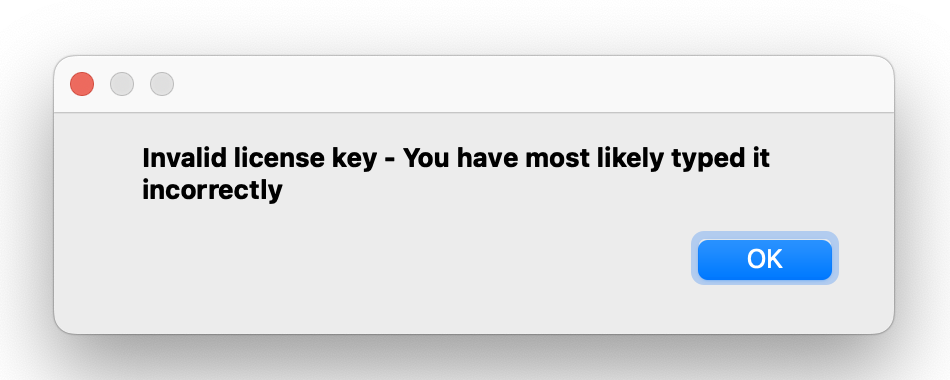
Your license key has been entered into LightBurn incorrectly. To avoid typos when entering your key into LightBurn, we strongly recommend copying and pasting the key directly from your original order email.
Highlight the key and press Ctrl/Cmd + C to copy it, then click in the License Key field in the License Management window in LightBurn, and press Ctrl/Cmd + V to paste it.
If you must type your key manually, take care to follow the exact formatting of the original key, including dashes. The letter O is never used in a LightBurn license — enter the number 0 instead.
System Time Incorrect
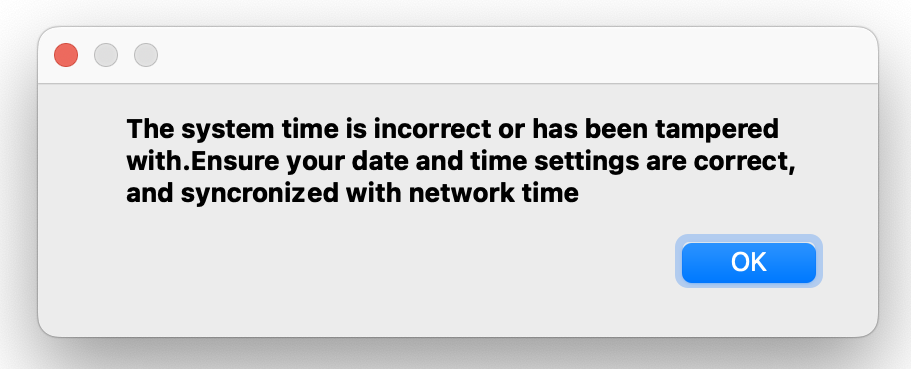
Your computer's system time is inaccurate, probably because your computer isn't set to sync automatically.
If you're using Windows, right-click on the clock on your toolbar, click Adjust date / time, then make sure Set time automatically is enabled. If it is, click the Sync now button as well.
If you're using a Mac, go to System Settings → Date and Time and enable Set time and date automatically.
Failed to Connect to the Server
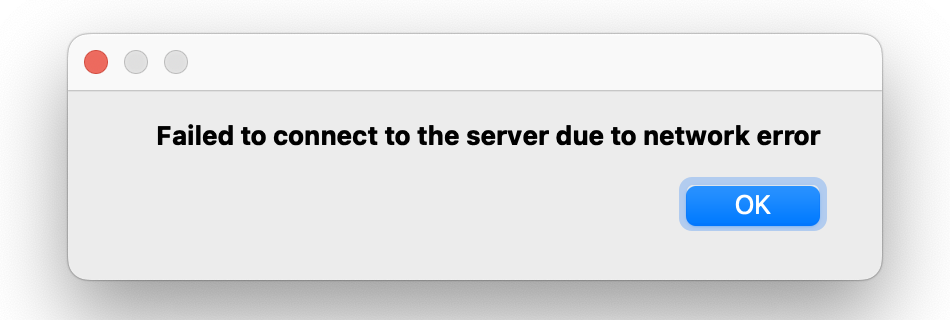
LightBurn was unable to connect to our license server to verify your key. Make sure your computer is connected to the internet.
If you are certain your computer is connected to the internet but you are receiving this error message, your network may be restricting LightBurn's ability to connect to our license server.
If you are using a Firewall or have any other restrictions in place, try temporarily disabling them. LightBurn only needs to connect once in order to activate a license.
To permit access without disabling restrictions, whitelist api.cryptlex.com for port 443.
It is also possible to configure LightBurn to access the network through a proxy. You can append the proxy connection address using -p ProxyString.
The proxy format is:
[protocol://][username:password@]machine[:port]
Examples of valid proxy strings:
http://127.0.0.1:8000/
http://user:[email protected]:8000/
socks5://127.0.0.1:8000/
If you are still unable to connect, use our Offline Activation process instead. For full instructions, see License Management: Offline Activation.
Note
Offline activation does not work with Trial Keys. LightBurn must connect to the internet once in order to activate the Trial Key, after which you are free to take your computer offline again.
Expired Trial or Need to Enter License Key, Despite a Valid License
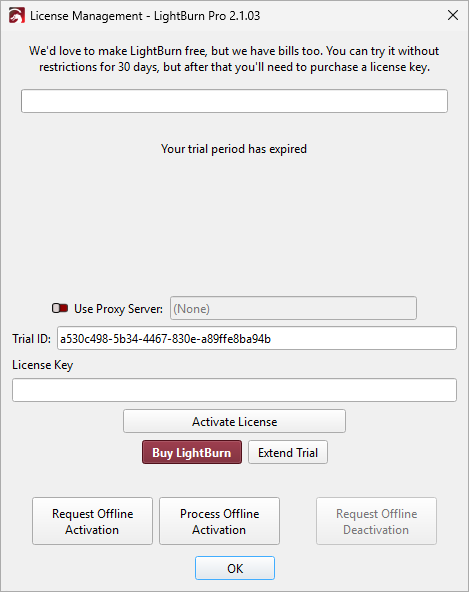
If you know you have a valid LightBurn license, but LightBurn is warning you about an expired trial and asking you to purchase a license key to activate LightBurn, don't panic. This can happen for a few reasons, and is easy to fix.
How to Fix
- Go to the License Management Portal and copy your LightBurn license key. You can also get your license key from your purchase confirmation email, if you still have it.
- Paste the license key into the License Key box and click Activate License.
If you are still having problems, please contact support at [email protected] for help.
Why it Happens
LightBurn doesn't require you to maintain a constant internet connection or log into a user account to use the software, but there are some situations that can cause your LightBurn installation to think you don't have a valid license.
- If you've purchased a LightBurn license and then go to use a copy of LightBurn you've already installed and used on a trial, LightBurn doesn't know you've purchased a license until you activate that installation with your license key. Even if you've activated on another computer, you'll need to activate it on each computer you use.
- In some cases, updates to your operating system or hardware changes/upgrades (especially replacing a hard drive) can change your computer's system enough that LightBurn mistakenly recognizes your computer as a new computer. Reactivating with your existing license key solves the problem. You can use our License Management Portal to deactivate the previous installation and free that seat/installation back up for future use.
Activation Limit
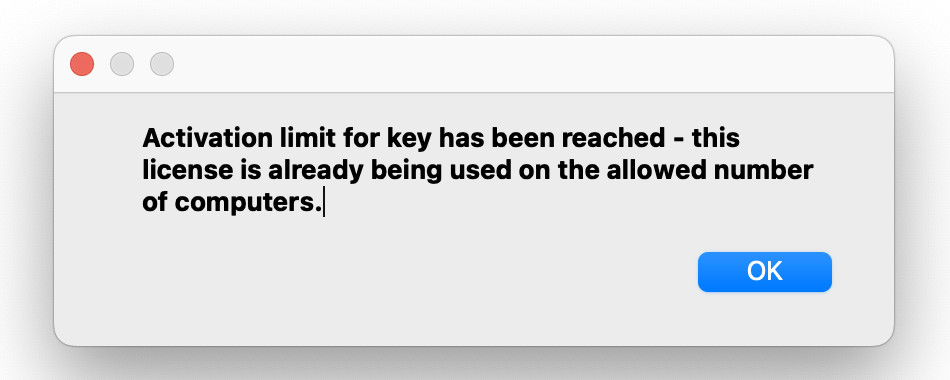
You have used up the maximum amount of simultaneously allowed activations for your key. Deactivate LightBurn from an unused computer by opening LightBurn on that computer and clicking Deactivate License in the License Management window, or log in to our License Management Portal to manage your activations there. For full instructions on using the License Management Portal, see License Management.
A LightBurn license comes with 3 allowed activations (seats) by default. If you'd like to activate LightBurn on additional computers simultaneously, you can purchase additional seats for your key here.
Deactivation Limit
LightBurn limits the amount of times a license key can be deactivated, to discourage sharing or other misuses of the key. If you reach this limit, contact us at [email protected] to request an increase to your limit.
Unable to Access the License Portal
See License Management for full instructions on accessing the License Portal.
Select United States as your region in the upper-right corner of the License Portal login page, regardless of your location, or our License Management server may fail to send the password reset email.

If you purchased your key through our web store, make sure you are attempting to access the portal using the email address you used to purchase your key. If you purchased your key through a 3rd party vendor, you'll need to contact us [email protected] so we can assign the key to your email address and grant you access to the portal.
If you do not see an email from Cryptlex when requesting a password reset, check your Promotions or Spam folders — the password reset email sometimes ends up there. If you still cannot find it, your email provider might be blocking the email from ever reaching you. Contact us to have us reassign your key to an address under a different provider. Gmail accounts work well.
License Expired
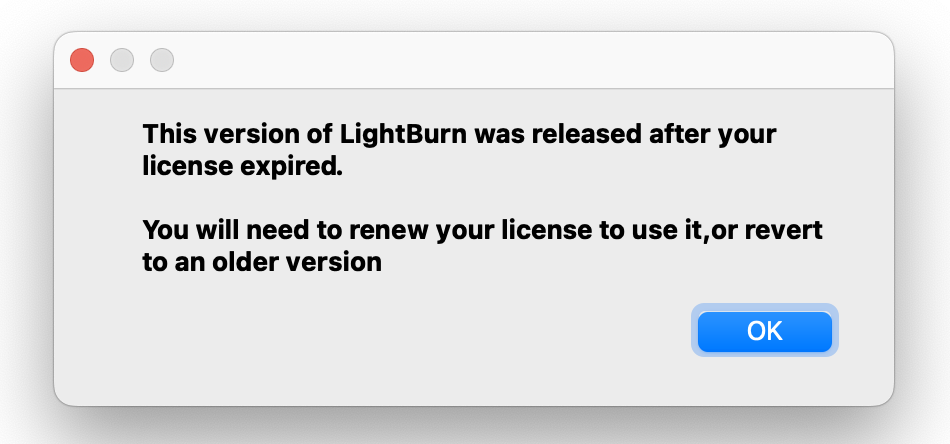
A LightBurn license is perpetual and never actually expires, but its update period expires one year after you first activate it. You will need to renew your key in order to continue receiving updates for another year. If you renew your key before your license expires, you'll receive an additional two months added to the one-year renewal.
To download and install a version of LightBurn compatible with your key, visit our release repository. You can find a table showing LightBurn versions and their operating system compatibility here.
You can renew your existing key here.
License Shows as Expired But Shouldn't
If you get the error about your license being expired but your license's update period is current (or valid for the version you're installing), it's possible that LightBurn isn't seeing your updated license.
To Fix:
- Go to the License Management Portal and copy your LightBurn license key. You can also get your license key from your purchase confirmation email, if you still have it.
- Paste the license key into the License Key box and click Activate License.
If you are still having problems, please contact support at [email protected] for help.
Application is Being Run Inside a Virtual Machine
LightBurn keys are, by default, restricted from running in virtual machines. If you receive this error message, contact us at [email protected] to request an exemption from this restriction.
Lost License Key
If you do not know your license key, try accessing our License Portal using the email address you used to purchase the key. Your key is visible in the License Portal.
If you did not purchase your key through our website, you will be unable to access the License Portal. Search your email inbox for the original purchase email from the vendor you purchased your key through.
If you are still unable to find your key, contact us at [email protected].
Have to Enter Key on Each Computer Login
Follow our instructions on setting up a System Locked license key to activate the same key for all users on a given computer.