Installing LightBurn
The first step to using LightBurn is downloading it and getting it installed on your computer.
See below for information on system requirements, where to download LightBurn, and how to install LightBurn on your preferred operating system. If you've already downloaded and installed LightBurn, skip ahead to Adding a Laser.
System Requirements
If you want to know whether your computer will run LightBurn effectively, or are considering a computer to buy, the chart below shows recommendations as well as minimum hardware requirements for running LightBurn.
| Recommended Setup (Heavy Designing & Multitasking) |
Practical Minimum (Smooth Workflow) |
Absolute Minimum (Will Run) |
|
|---|---|---|---|
| Operating System | Windows 10 or 11, macOS 12 or higher. 64-bit version of Windows is required. For Windows N edition, you'll need to install the Media Feature Pack |
||
| Processor (CPU) | Intel Core i5 / AMD Ryzen 5 or newer, Apple M-Series | Intel Core i3 / AMD Ryzen 3 | 64-bit Dual-Core (Intel Celeron or similar) |
| System Memory (RAM) | 16 GB Smooth multi-tasking with CAD, image editors, or other software |
8 GB Works for typical usage |
4 GB Minimum required for operating system, struggles with large files |
| Storage Type | ≥256 GB NVMe Solid State Drive (SSD) Fastest option for opening/importing/saving files |
Solid State Drive (SSD) | Traditional mechanical hard drive LightBurn will run, but opening/importing/saving may be slow |
| Screen Resolution | 1920 x 1080 (1080P/FHD) or higher Larger workspace, with room for expanded toolbars and larger text/icons if desired |
1920 x 1080 (1080P/FHD) | 1280 x 1024 Works, but limited workspace and condensed/smaller UI can be frustrating |
| Free Storage Space | At least 450 mb free to install the software, plus additional space for files | ||
These system requirements are for LightBurn 2.1. If your computer doesn't meet these requirements, we have information on compatibility for older versions.
You will always be able to use the most recent version of LightBurn that is compatible with your operating system and was released within your license's valid update period. You can download earlier versions of LightBurn from our release repository, or see Operating System Compatibility for compatible versions and download links.
Support for other operating systems
- LightBurn version 1.7 is the last version compatible with Linux, versions of Windows prior to 10, and versions of macOS prior to 11. Download LightBurn 1.7.08 and see our 1.7 documentation for information and installation instructions.
- Users with macOS 11 should download LightBurn 2.0.05
- macOS users running versions older than 10.13 should download LightBurn 1.6.03 , which supports macOS 10.11 or newer. See our legacy documentation for more information and installation instructions.
- Users limited to 32-bit versions of Windows should download LightBurn 1.5.06 , which is the final 32-bit release of LightBurn. See our legacy documentation for more information and installation instructions.
ARM Device Support
Apple Silicon 
Computers running macOS on an Apple Silicon processor – 2020's M1 chip and anything newer – are compatible with LightBurn.
Starting with macOS 26.4, you may receive a message warning you about LightBurn's compatibility with newer versions of macOS. Don't panic! You can keep using your current version of LightBurn as usual.
We are working on updated builds of LightBurn to ensure compatibility with macOS 28, expected in Fall of 2027. You will need to update to a compatible version – 2.2 or newer – before upgrading to macOS 28.
Windows on ARM 
Windows devices running on ARM processors are compatible with LightBurn, with one limitation – LightBurn is unable to automatically install the drivers needed for connecting to lasers over USB.
To connect to a laser with a USB cable on a Windows ARM device, you'll need to manually install the drivers. For doing design work and exporting to another computer, or if you connect to your laser over a network (using Ethernet or WiFi), the drivers are not required.
LightBurn Operating System Compatibility
Click the link for your operating system in the colored bar to go directly to the download page for the most recent compatible LightBurn version.1
Download LightBurn
To ensure you get the most recent version of LightBurn, download LightBurn directly from the Download / Trial page at LightBurnSoftware.com. On this page, you'll find links to download the current version of LightBurn, as well as links to previous versions of the software and public beta versions. You can also find links to the appropriate version for older operating systems in our compatibility table.
When you've completed the download, you should see the file in your "Downloads" folder or a manually selected folder.
Installation Directions
Choose your operating system below for additional installation help.
Windows Installation
Windows Installation
Installation works the same way as most Windows software. Start the installer by double-clicking the file you downloaded from the LightBurn website. Windows may ask if you trust us first.
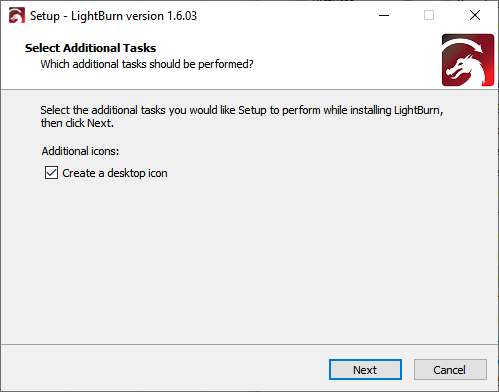
Click Next, then click Install to begin the installation process. When it completes, you'll see the following screen with options for installing drivers, viewing the change log, and launching LightBurn.
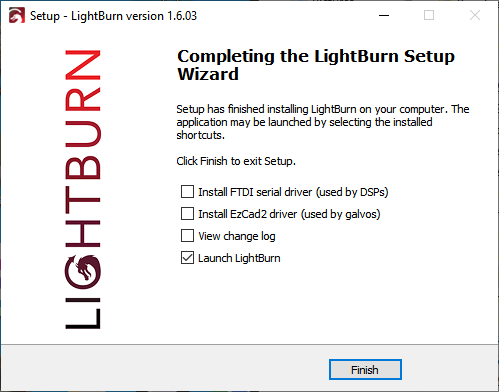
Installing Drivers
If you have never installed LightBurn on this computer before, you might need to install drivers. This is not necessary when updating an existing installation.
- Check Install FTDI Driver to install the driver used by DSP controllers, like Ruida and TopWisdom.
- The EZCAD2 / EZCAD3 driver is used by supported Galvo devices using EZCAD2 and EZCAD3 boards. Read more on our Galvo Driver Installation page.
Installing the driver for BSL Galvo Lasers
If you have a BSL Galvo laser, you may need to separately install a driver supplied by your machine's manufacturer, or install the stock software that came with your machine.
Start LightBurn however you usually do to begin using the software.
macOS Installation
macOS Installation
Installing on M1 or newer Macs
To install LightBurn on an ARM-based Mac (using an M1 chip or later), you must have Rosetta installed.
In most cases, Rosetta is automatically installed on ARM-based Macs, and manual installation is unnecessary. If Rosetta is not installed, you'll be prompted to install it when you attempt to open LightBurn.
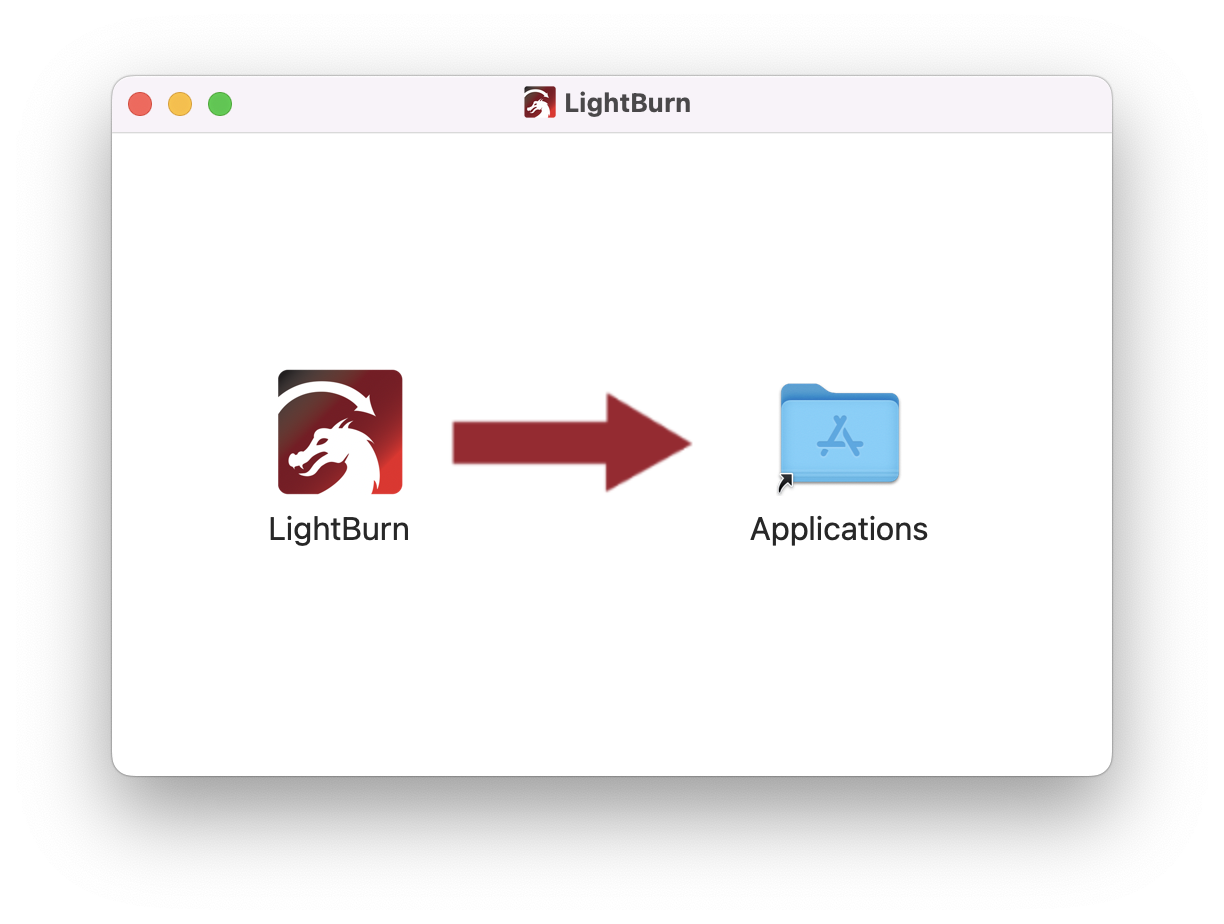
Installation works the same way as most macOS software. After downloading the DMG file, open the file and drag LightBurn into your Applications folder.
Notarization bypass for LightBurn 1.1 and earlier
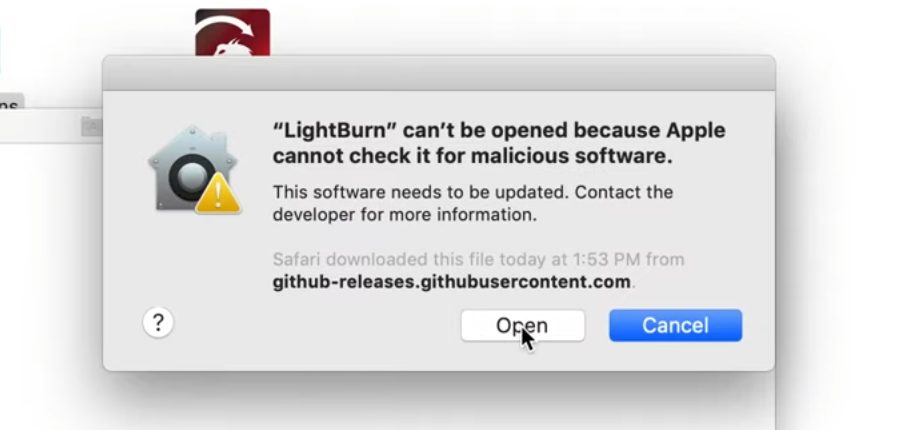
Versions before 1.2 were not notarized to be recognized by your computer as coming from a trusted developer. If you installed an older version, you'll need to follow the steps below the first time you run LightBurn:
- Open a Finder window.
- Browse to the Applications folder.
- Right-click or two-finger tap the LightBurn icon.
- Choose Open from the menu.
- When macOS asks if it should open the program, say yes to add an exception allowing your computer to run LightBurn normally. Once this is done, you will not need to repeat the process unless you reinstall LightBurn.
-
2.0.05 Legacy Releases: Official LightBurn support for macOS 10.13 - 10.15 and 64-bit versions of Windows 7 and 8 ended with LightBurn 1.7.08, but we do have a legacy release of 2.0.05 available if you want to upgrade to 2.0 but are limited to one of these older operating systems. Our support team is available to help, but if your computer is unable to run these versions reliably, you may need to either use LightBurn 1.7.08 or upgrade your computer/operating system.
↩