Camera Selection
New Camera Options
LightBurn 2.1 allows for a wider range of cameras to be used, including some web-based IP cameras and a wider range of manufacturers' built-in cameras.
IP/Network cameras need to be able to support sending MJPEG or individual frames. RTSP cameras will not work. See Camera Troubleshooting for more information.
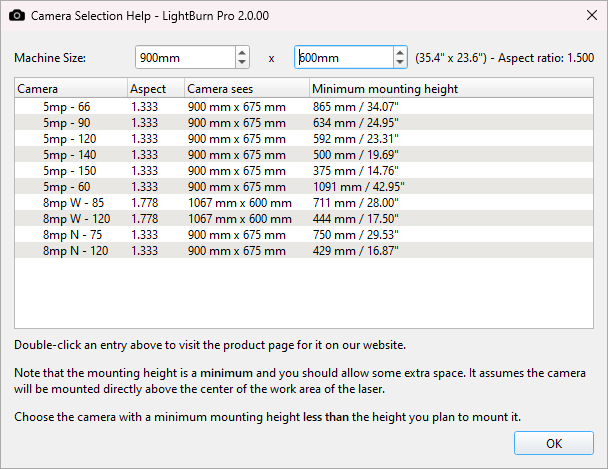
The Camera Selection Help window helps you select an appropriate camera for your laser. The information provided is specifically for the USB cameras sold on LightBurn's Website, which are known to work well with LightBurn and have calibration presets built into the software for easier Lens Calibration.
Go to Help → Camera Selection Help to open the window.
Can I Use a Camera I Already Have?
Possibly. Interactions between cameras and computers are complex, and although a wide range of cameras are compatible with LightBurn, we can't guarantee your specific camera will work. If you want to try using your own camera, your best option is a fixed-zoom USB camera that can be detected as a webcam by your computer. If you're using a network camera, look for a non-RTSP IP camera that can send MJPEG or individual frames.
Selecting a Camera
To select a camera, you'll need to know two things:
- The size of your laser's work area, in millimeters.
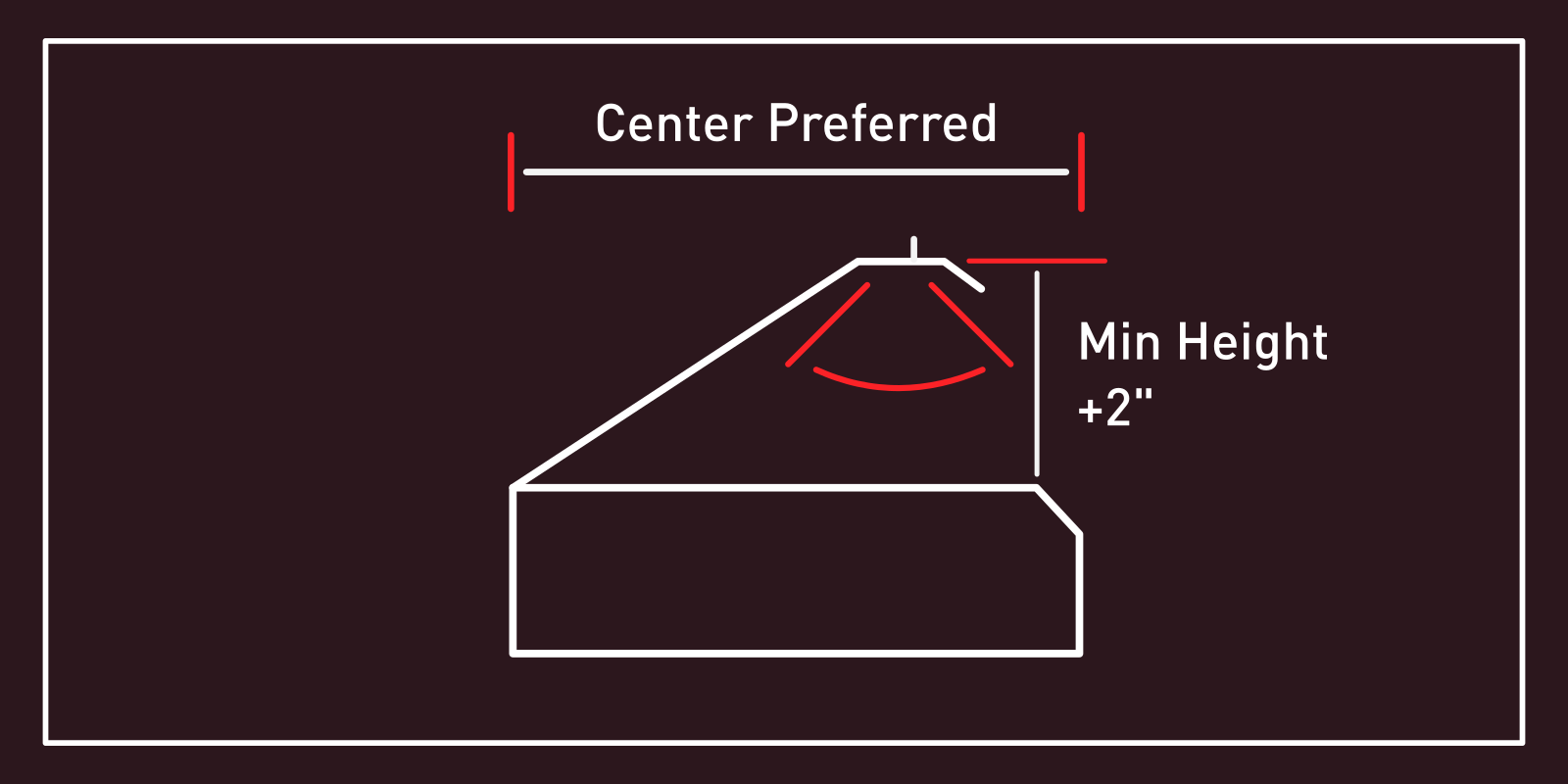
- The distance between the height from which you want to mount the camera and the surface of your laser's work area.
To select a camera:
- Enter the machine size into the Camera Selection Help window.
- Look through the list to find a camera with a minimum mounting height about 2 inches less than the height you intend to mount at. This leaves room for adjustment.
- Double-click an entry in the list to visit the product page to purchase it.
Sourcing a Third Party Camera
We are phasing out sales of official LightBurn cameras. If the camera suggested by our built-in helper is no longer available, try searching for a third party camera with the same lens angle, or as close as possible. See the calculator below for help verifying that a given camera will work for your laser.
Camera Specs
LightBurn is compatible with a broad range of third party cameras. Here are some guidelines on technical requirements:
- Fixed focus
- 12 FPS or higher is sufficient
- 8MP to 12MP resolution is ideal
- >16MP hits USB 2.0 bandwith limits
- >20MP hits defraction limits
- Global shutter camera recommended
Lens Selection Calculator
Use the Browse Lens Options tab below to enter your laser's work area dimensions and intended camera mounting height, then see recommended camera options listed by lens angle and aspect ratio.
If you cannot source a camera with the exact specifications listed in row labeled "Best fit", try sourcing a similar camera, then using the Verify Camera tab to make sure it will work with your laser. Enter a camera's known resolution and lens angle, along with your laser's work area dimensions and intended mounting height, then check if the camera will be capable of capturing your laser's entire bed.
Identifying Lens Angle and Resolution in Product Listings
- Lens angles are typically listed in degrees representing diagonal field of view. You may see the terms "Optical Lens" or "FOV".
- Resolution is typically expressed in
*####x####format, for example1920x1080. You may also see an aspect ratio written in#:#format, for example16:9.
Laser work area
Mounting height
The ideal lens has a minimum mounting height about 50 mm (2 in) below your intended height.
Camera sensor
Camera FOV spec
FOV measurement axis
Most specs list diagonal FOV. Only switch if your spec sheet explicitly says HFOV or VFOV.
Mounting height
Troubleshooting
Some computers may cause difficulties with the use of cameras. In some cases – especially with newer computers such as M1 or newer Macs – this comes from incompatibilities between USB 3.0 ports and older USB 2.0 cameras. Try using a USB 2.0 hub or adapter between the camera and the computer.
See Camera Troubleshooting for more information.