Device Specific Troubleshooting
Some machines use non-standard commands or configurations, and need special settings to work properly with LightBurn.
wecreate
WeCreat Vision
The WeCreat Vision needs to be set up as a Custom GCode device, either using Create Manually or by importing a pre-configured bundle.
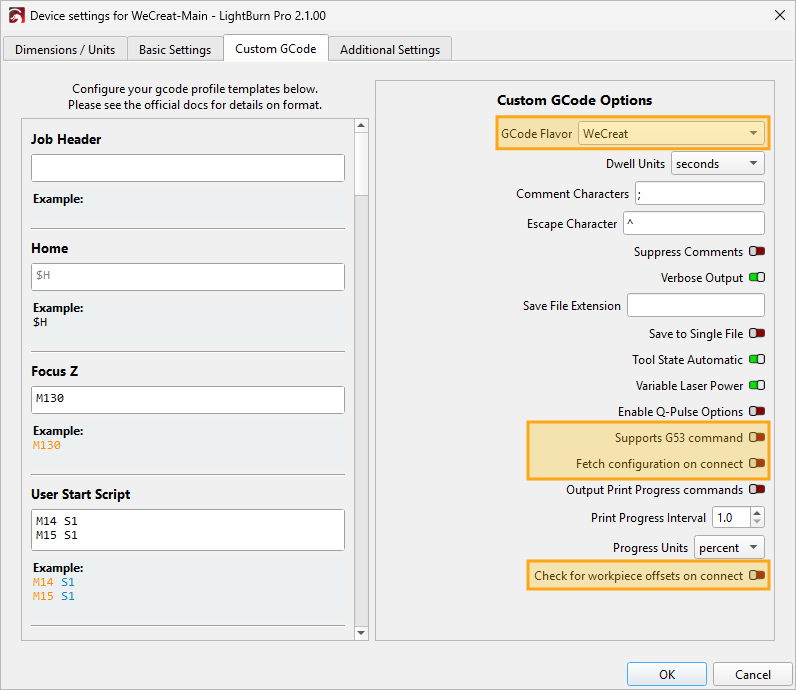
If you choose to add the machine manually, or already added one and aren't sure the machine is set up correctly, please make sure you use the following settings in the Custom GCode tab of Device Settings.
- GCode Flavor must be set to WeCreat.
- Supports G53 command must be disabled.
- Fetch configuration on connect must be disabled.
- Check for workpiece offsets on connect must be disabled.
Darkly Labs Emblaser Devices
Overview
To use a Darkly Labs Emblaser with LightBurn, you will need to use LightBurn license that's associated with Darkly Labs (licenses purchased from Darkly Labs with an Emblaser are already set up this way) and set up your device using the correct Emblaser device type for your machine. Keep reading for additional details.
Additional Information
Emblaser devices have some special features in LightBurn, such as:
- WiFi wizard
- Custom focus calibration wizard
- Custom camera calibration and alinment wizards
When you buy an Emblaser, the LightBurn license key that comes with it has a special tag that allows it to work with Darkly Labs machines. When you start LightBurn using a license with this special tag, you'll see the Darkly Labs logo on the splash screen at startup. If this logo is missing and you think this is an error, please contact support for further help.
When you add your device to LightBurn, you'll need to choose the correct device type - each Emblaser device type is listed separately.
xTool
Machines other than the xTool D1, D1 Pro, and S1 should be set up using the .lbdev file provided by xTool.
xTool D1, xTool D1 Pro, xTool S1
LightBurn has native support for the xTool D1, xTool D1 Pro, and xTool S1. When adding your device to LightBurn, use Create Manually and choose our custom xTool device type.
For the xTool S1 in particular, using the xTool device type enables native functionality like the Focus button for autofocus, and fixes GCode output such as job slowdowns on circular fills and triangles in place of squares. The xTool device type supports the rotary axis, but does not work with the axis extension to the best of our knowledge.
This only works over a USB connection, not a network (WiFi) connection.
xTool F1
The xTool F1 is compatible with LightBurn, and should be set up using the .lbdev file provided by xTool.
Firmware Issues
As of June 29, 2026, recent firmware updates removed LightBurn support from the following machines. If you are using LightBurn with one of these machines, please hold off on updating the firmware, or go back to the previous firmware if you've already updated. We are actively working with xTool to fully accommodate these machines.
- xTool P2S
- xTool P3
- xTool F1
- xTool F1 Ultra
- xTool F1 Lite
- xTool F2
- xTool F2 Ultra
- xTool F2 Ultra UV