Restoring Lost or Changed Settings
If you've opened up LightBurn and settings and devices are missing or not as you expect, don't panic! We have information to help you get things back to how you expect them.
Upgrading LightBurn
Upgrading your LightBurn installation on the same computer shouldn't affect your LightBurn configuration, but it's still always a good idea to back up your LightBurn configuration with a User Bundle and wait until you finish any critical, time-sensitive projects before upgrading.
Your project files aren't managed by LightBurn and aren't touched by the upgrade process, but consider this your reminder to back them up as well.
Installing Release Candidates
If you want to try a Release Candidate alongside the current live version of LightBurn, don't worry! The Release Candidate will install in a separate directory, so you can run it alongside the current version.
Restoring Lost Settings
Do you have a Release Candidate installed?
Release Candidates, which act as previews for adventurous users to try new releases ahead of time, install alongside the main release and have seperate preferences. If you have multiple installations, check to make sure the settings you're looking for aren't in the other version.
If you've got a recent User Bundle saved, you can use that to restore devices, settings, libraries, and more.
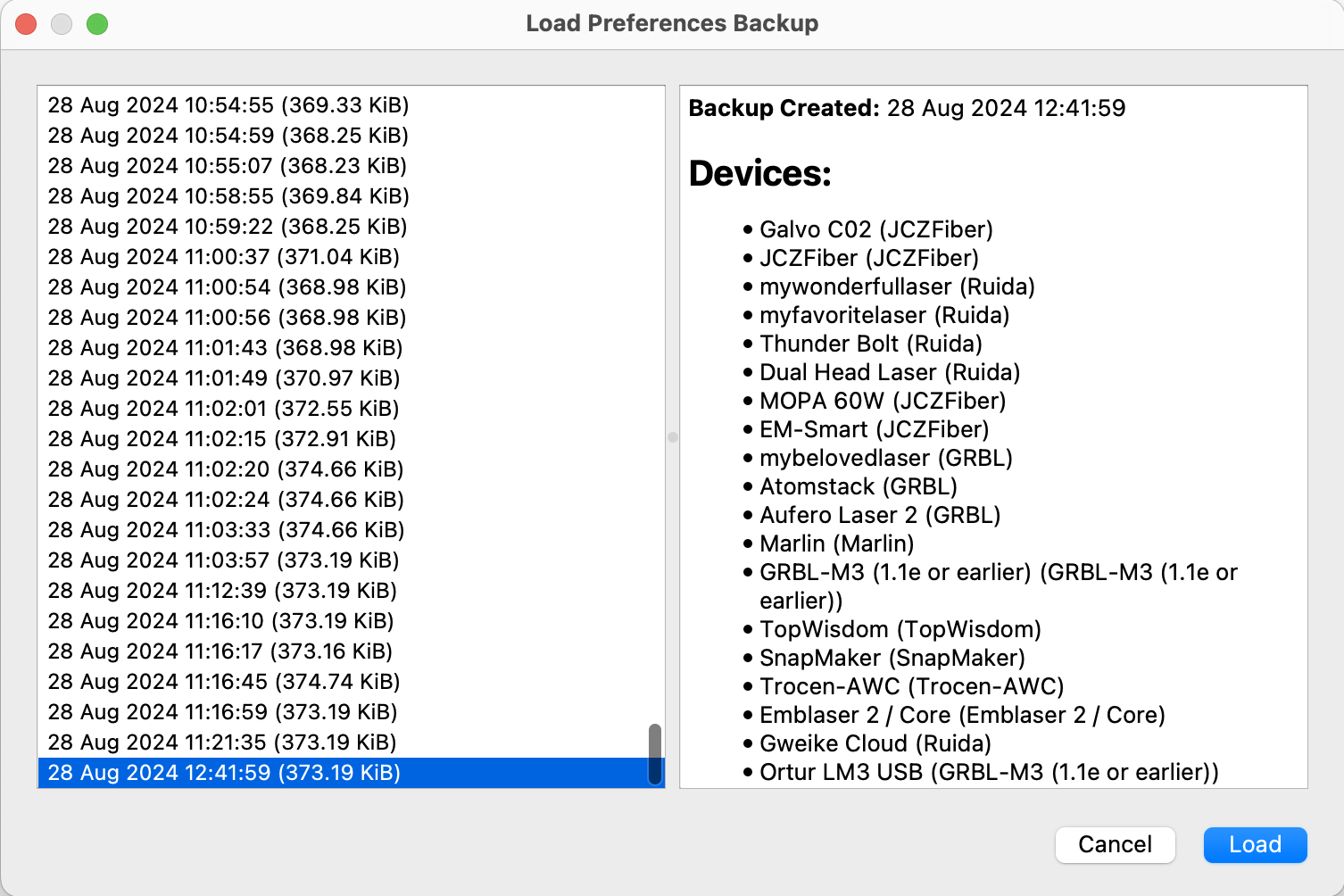
If you don't already have a User Bundle saved, all is still not lost. LightBurn also creates automatic backups, which you can access by going to Files → Preferences → Load Prefs Backup.
The Load Prefs Backup command allows you to import preferences from a timestamped list of automatic backups. Click a backup in the list to see the list of Devices available in that backup, on the right side of the window. Use the list of devices and the timestamp showing when the backup was made to find and select the backup you want to use.
Click Load to restore the settings from the selected backup, or Cancel to close the window and maintain your current settings.
Cut Settings are Different
Sometimes, we hear from users that their cut settings changed. What's more likely is that your cut settings have stayed the same, but the units they're displayed in have changed.
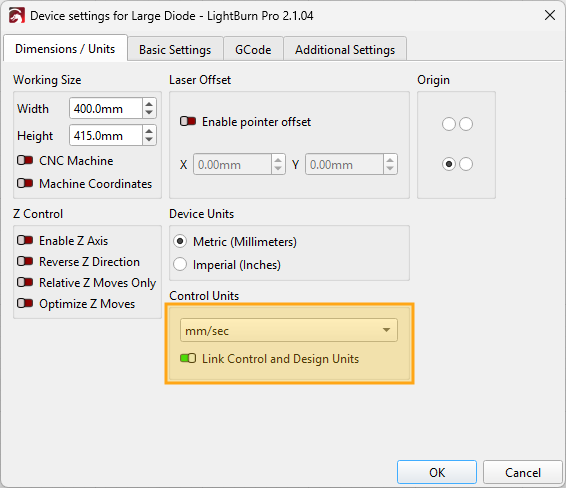
If this happens to you, check your Control Units and make sure they're set to what you've been using.
Why It Happens
The Speed you cut at can display differently if your Control Units accidentally get changed. This happened to some users who used different units for designing and controlling when they installed LightBurn 2.1. If your Control Units change, your cut settings will be displayed in the new units.
As an example, let's say you usually cut plywood at 50 mm/sec. If your Control Units change, this could now display as 1.97 in/sec, or even .032 in/min, but the actual speed hasn't changed. This is easy to miss if you don't change your units often, beause it's easy to get used to thinking of speed as just a number.
You can read more about this on our blog.