Template Files
LightBurn 2.1 introduces Template Files, which we demonstrated in our Laser Engraved Pencil Project.
If you do a lot of customization or modification of a base file, you probably have a workflow something like this:
- Open a file with the base design you're going to modify.
- Make your changes to the base design.
- Save as a new file, so you don't overwrite your existing file.
- Do your cutting and engraving.
- Close the file.
It's a good workflow, but at some point you've almost certainly accidentally saved over your base design, possibly with changes you don't want applied to all your future design. Template Files offer a simple way from preventing that from happening — whenever you open a Template File, it creates a new, unsaved LightBurn File with the contents of your template file - including all the layer settings in the original template, even if the original Template File doesn't have any objects on that layer.
The GIF below shows an example of how you might use a Template File.
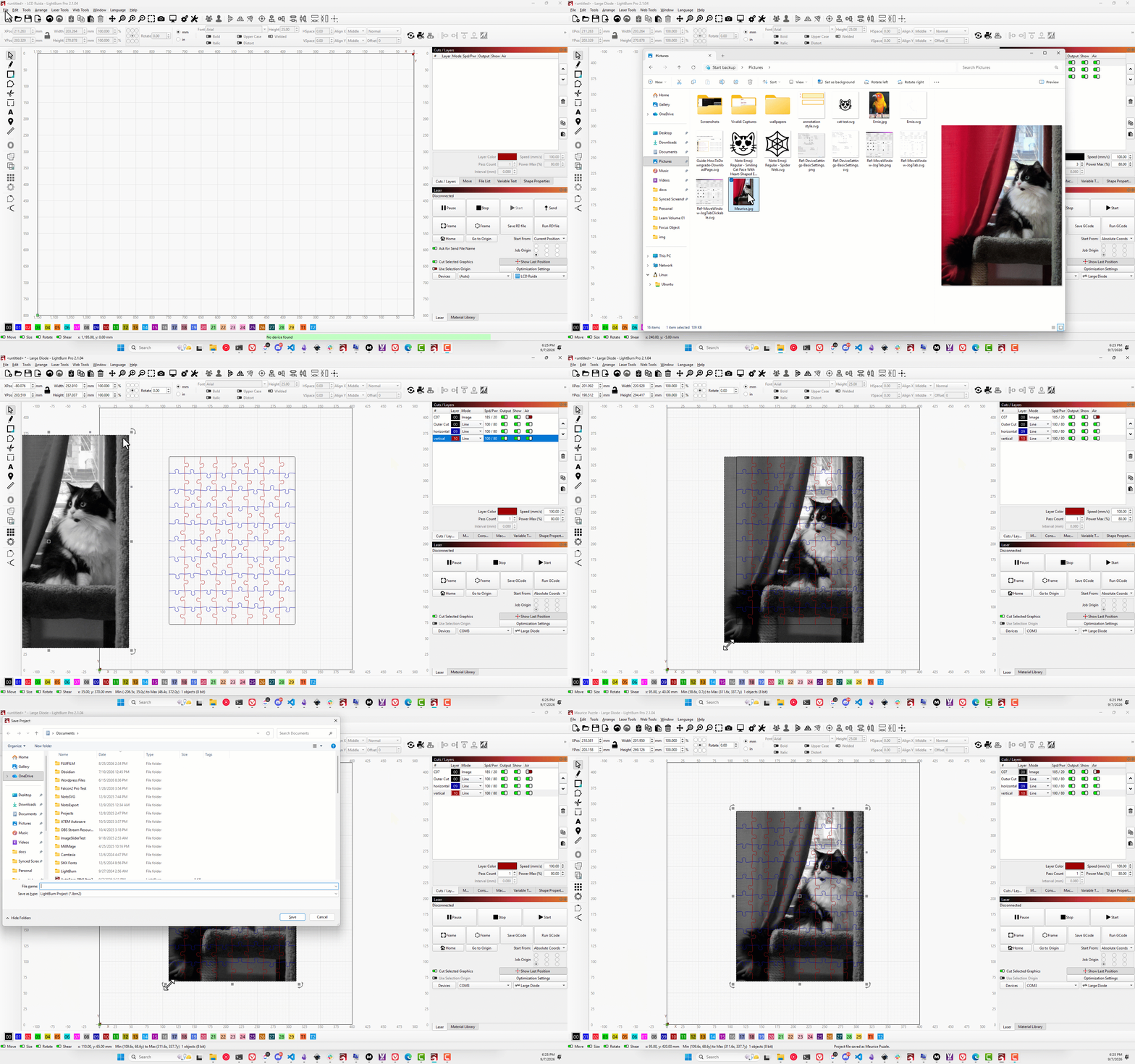
- Open the template file. Our example has a puzzle made with the puzzle generator linked on our Resource List, with the layers already configured how I want them. If you look at the top of the window, you'll see that this creates a new,
file, so it's impossible to accidentally save over the template. - Make your changes to the base design. Layer 00 already has the image settings I want to use for this project, so it saves me the hassle of reconfiguring the Image Settings.
- Save the file. You can't accidentally overwrite the template!
Templates for Education
Whether you're in a classroom or a less formal educational setting, getting a group of new users laser cutting for the first time is easier if you can simplify things a bit and make their files more consistent. Having each new user open a Template File you've already created means you can provide pre-existing portions of the projects, pre-configured layer settings, or both.