REST API
LightBurn's REST API provides a way to communicate between LightBurn and other applications. The API is intended to allow users and developers to create integrations and improve interoperability with other software for advanced workflows, automate processes, monitor status, and exchange data between LightBurn and third-party applications. The API is intended for use on a single computer or within your local network. Public documentation for the LightBurn REST API is available at https://github.com/LightBurnSoftware/LightBurn-REST with more detailed documentation coming soon.
As a reminder, LightBurn does not endorse, recommend, support, or encourage unattended use of lasers or other machinery. LightBurn's API is not a replacement for direct operator supervision.
Using the REST API in LightBurn
LightBurn 2.2 enables the REST API automatically. By default, LightBurn will listen for API commands on port 19520. If you're not sure what that means, don't worry - most users will never need to change it.
Enabling API Access From Other Computers
You can use the API to access LightBurn from other computers on the same network by enabling the Allow API Access From Network toggle in Settings / Preferences → Extensions Tab.
Managing API Authorizations
Granting Authorizations
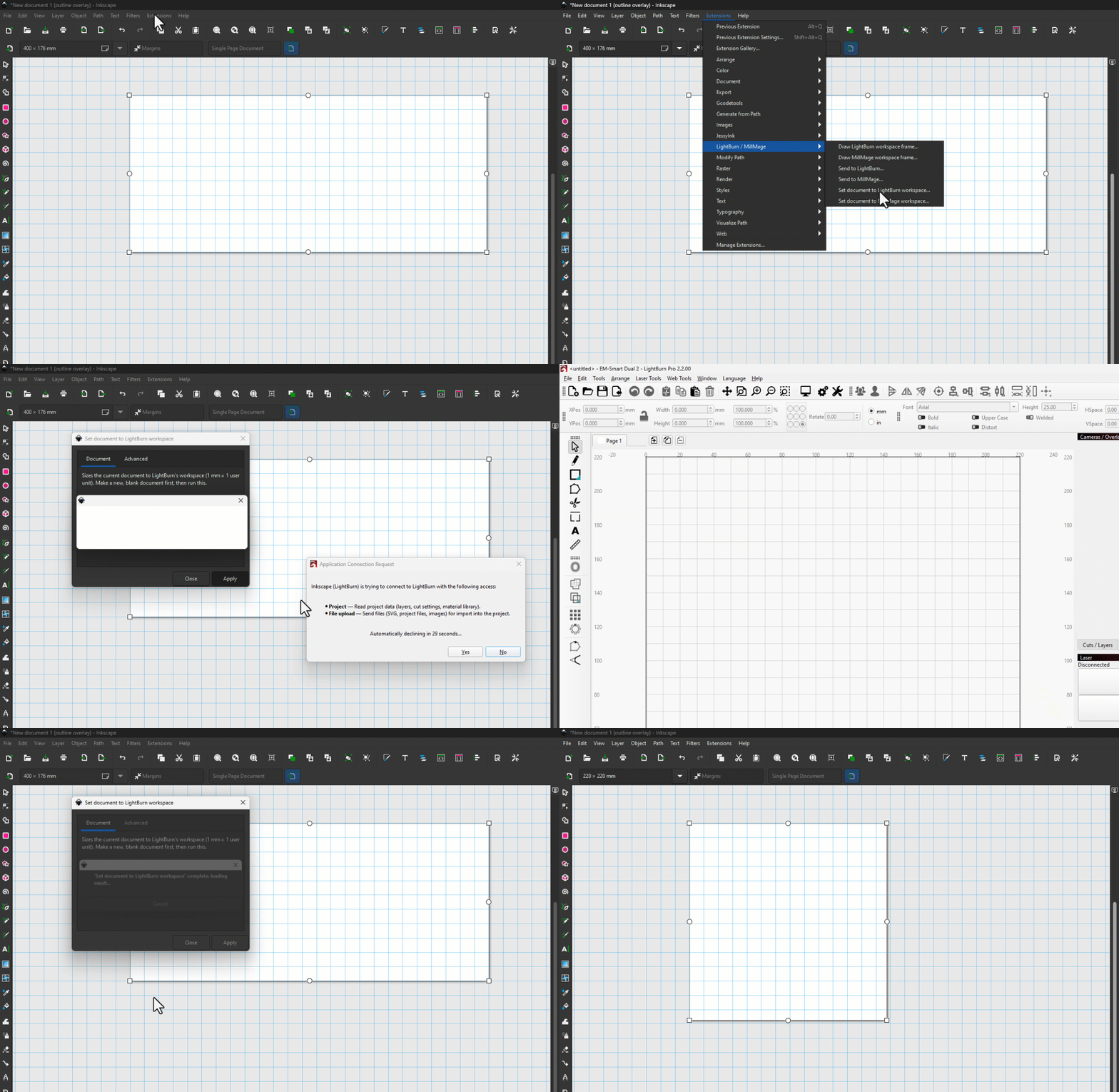
The first time you allow a new extension to connect to LightBurn using the API, you will need to approve that access in a pop-up window. You will have 30 seconds to authorize the access or it will be automatically rejected. If you're connecting over your network from a separate computer, the authorization has to be granted from the computer LightBurn is running on.
Removing Authorizations
You can use the Manage API Authorizations button in Settings / Preferences → Extensions to open the Manage API Authorizations window to view and, if needed, remove API authorizations.
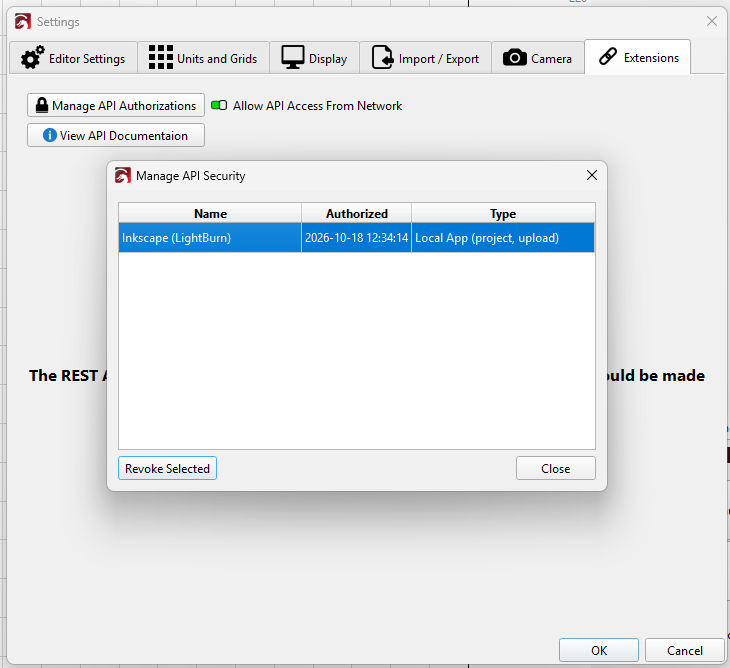
Each API authorization currently registered in LightBurn on your computer will be listed, showing:
- Name
- Date and time of authorization
- Type of API access
If an authorization is no longer needed or is causing problems, select it in the Manage API Authorizations window and click Revoke Selected to remove it.
Working With Multiple LightBurn Instances
If you have multiple intances (windows) of LightBurn open and are connecting to the default switching API port (19520), whichever one was accessed most recently is the window that will be listening. For more advanced control using device-specific listening ports, see Advanced API Access with Multiple Instance of LightBurn.
Advanced API Access With Multiple Instances of LightBurn
While the default for the REST API is for the most recently opened window to be the one listening, you can set and enable device-specific listening ports. This isn't necessary for most users, but it allows further control over which window is listening for API requests if needed. A device-specific listening port will listen from the first LightBurn instance that opens that specific device profile.
You might, for instance, want to set a device-specific listening port so that you can open LightBurn and connect to an external tool using the REST API, then continue to connect from that same window while working on a design in a different window.
To set a device-specific listening port, open the Extensions tab of the Device Settings window.
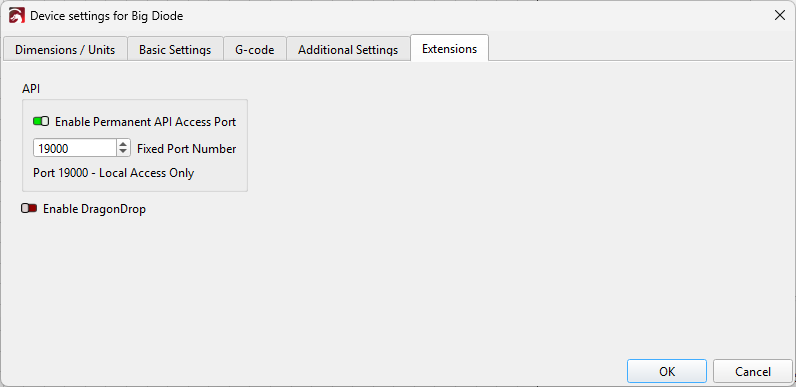
To enable device-specific listening ports in LightBurn:
- Open the Device Settings window.
- Enable the toggle switch for Enable Permanent API Access Port.
- Change the per device port number if needed.
- If you want to allow API access to LightBurn from other computers on the same network, go to Settings/Preferences and switch to the Extensions tab. Enable the Allow API Access From Network toggle.
Disabling
Trying the REST API
We have two sample integrations for LightBurn's REST API. You may find these helpful as tools in your workflow, but they can also be useful for verifying that the API is working correctly or as examples when creating your own integrations.
Inkscape Extension
Inkscape extensions to draw the machine workspace in Inkscape and send your design from Inkscape back into LightBurn.
FreeCAD Extension
A FreeCAD workbench that generates 2D gear profiles and sends them directly to LightBurn or MillMage for laser cutting or CNC milling.
Detailed Developer Documentation
If you want to create integrations using the REST API, detailed developer documentation is available at https://github.com/LightBurnSoftware/LightBurn-REST.