Inkscape Sample Extension
Warning
This is an early demo, installed manually and not through an addon manager. More features are planned.
Our Inkscape sample extension talks to LightBurn / MillMage over the REST API to draw the machine workspace as a guide and send your drawing into it — de-duplicating coincident edges so shared cut lines aren't cut twice.
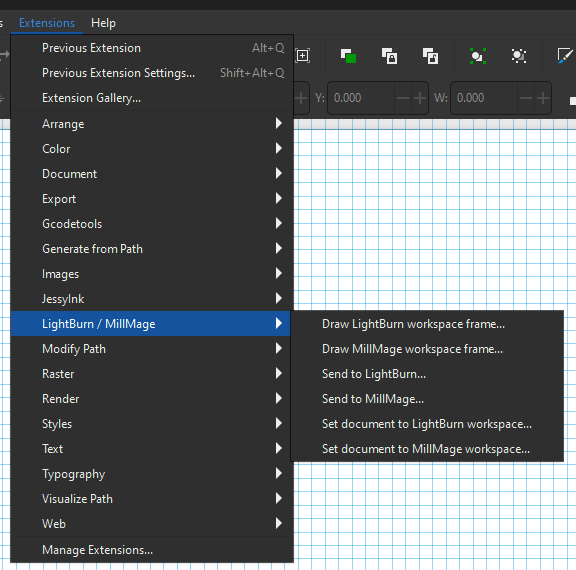
After installation, six new commands appear under Extensions → LightBurn / MillMage:
- Set document to LightBurn/MillMage workspace — sizes the current document to the machine's workspace. (see Document size).
- Draw LightBurn/MillMage workspace frame — fetches the machine's workspace size and draws it as a dotted, brand-coloured background rectangle.
- Send to LightBurn/MillMage — uploads the drawing.
Installation
The extension is five files that must stay together. Copy them into a new lightburn-send folder inside your Inkscape user extensions directory, then restart Inkscape.
1. Find your user extensions directory
You can also find your user extensions directory in Inkscape under Edit → Preferences → System → User extensions.
| OS | Path |
|---|---|
| Windows | %APPDATA%\inkscape\extensions |
| Linux | ~/.config/inkscape/extensions |
| macOS | ~/Library/Application Support/org.inkscape.Inkscape/config/inkscape/extensions |
2. Create the new lightburn-send folder/directory and copy the files there
You can do this manually if you want, or using the commands shown below.
Windows (PowerShell):
$dst = "$env:APPDATA\inkscape\extensions\lightburn-send"
New-Item -ItemType Directory -Force $dst | Out-Null
Copy-Item examples\inkscape\*.inx, examples\inkscape\*.py $dst
Linux / macOS:
dst=~/.config/inkscape/extensions/lightburn-send
mkdir -p "$dst"
cp examples/inkscape/*.inx examples/inkscape/*.py "$dst"
These commands copy the six .inx files plus the Python modules lightburn_send.py,
lightburn_frame.py, lightburn_newdoc.py, lightburn_client.py,
lightburn_common.py, and dedupe.py into the lightburn-send folder.
Tip
If you're editing the code, symlink the folder instead so changes are picked up: ln -s "$PWD/examples/inkscape" "$dst".
If the sentence above doesn't mean anything to you, ignore it - you probably don't need to do this.
3. Restart Inkscape
The commands appear under Extensions → LightBurn / MillMage.
Using the Extension
- Make sure LightBurn / MillMage is open (the API listens whenever the app is running).
- In Inkscape: Extensions → LightBurn / MillMage → Send to LightBurn (or Send to MillMage).
- The first send triggers a consent dialog in the app — approve it. The shared secret is stored under
…/lightburn-rest/inkscape-secrets.jsonand reused on later sends (LightBurn and MillMage each get their own).
The correct port is used automatically — 19520 for LightBurn, 19521 for MillMage. If you've customised the REST API port, override it on the Advanced tab.
Other options:
- De-duplicate shared segments - Removes duplicated segments if checked, skips de-duplication if unchecked.
- Selection only - sends only the selected objects if checked, or the entire document if unchecked.
Info
The consent dialog requests two scopes: project (read the workspace size) and upload (send files). If you paired an earlier build that only asked for upload, thenext run re-pairs automatically.
Send
- Collects the selected shapes (or the whole document).
- De-duplicates exact-coincident line segments — when two shapes share an edge, only the first keeps it; the laser cuts that edge once.
- Positions the geometry into the workspace, in priority order:
- A workspace frame if present
- Otherwise a document sized to the workspace
- Otherwise it drops the content at the view center at native size.
- Uploads the result as SVG via
POST /api/file/upload. The open document is never modified.
The de-dupe is intentionally simple (see dedupe.py): it matches
straight line segments by endpoint, direction-independent. Curves always pass through unchanged — coincident curves and partial/collinear overlaps are a
known limitation, to be revisited with a geometric union if needed.
Document Size
Run Set document to LightBurn workspace on a fresh, blank document to size its page to the machine's workspace at 1 mm = 1 user unit. Drawing at real size then sends at real size. (Inkscape extensions act on the open document and can't open a new window — make the new document first, then run this.)
The command also tags the document (a namespaced attribute on the root, plus the workspace size in mm), so Send positions your work relative to the page edges — no frame needed. Add a frame too if you want a movable workspace that isn't the whole page.
Workspace frame
Run Draw LightBurn workspace frame to fetch the machine's workspace size and drop a dotted, brand-coloured rectangle (LightBurn red, MillMage purple) at the back of the canvas It's a guide — never sent.
- Position your work: move and resize the frame; your designs' position and size relative to the frame are mapped into the real workspace on send. Bottom-left of the frame is the workpiece origin.
- Scale is uniform (the frame represents the machine at a locked aspect). If you stretch the frame off-aspect, Send uses its width for a single scale and says so — geometry is never distorted.
- The frame is tagged with a hidden identifier (a namespaced attribute, not its colour) and its workspace size in mm, so it's re-found instantly after saving and the Send path needs no extra API call. Re-running the command refreshes an existing frame rather than adding another.
Resetting authorization
If a command fails with an authorization error that doesn't clear on its own, tick Reset authorization (pair again on this run) on the Advanced tab of any of the three commands. It forgets the secret saved for that host and port, so the run that follows pairs from scratch — approve the fresh consent dialog in the app. Only the host you're running against is cleared; other hosts, and the other product, keep their own authorization.
The plugin already drops a secret by itself when the app answers 401/403, so the checkbox is for the cases that survive that — a half-written secrets file, a pairing the app no longer recognises, or a machine that was reimaged. The store is a plain JSON file at …/lightburn-rest/inkscape-secrets.json; deleting it clears every host at once.
Sending over the network
By default everything talks to localhost. To drive a LightBurn / MillMage instance on another computer, enable network access in that app's settings, then set the Host field (IP or hostname) on the Advanced tab of any command. The first send pops up the consent dialog on the host machine — approve it there.
Each host gets its own stored secret. Every command (set document, draw frame, send) honours the Host override.
Device safety check
When you size a document or draw a frame, the device profile name is recorded alongside the workspace size. On Send, the plugin checks the listening instance's device and workspace against what the document was built for. If they differ — e.g. focus switched to a different machine profile — Send aborts and tells you both the expected and the live device/size, so you don't scale a design to the wrong machine. Switch back to the right instance, or tick Send anyway on the Advanced tab to override. (Inkscape can't show a mid-run prompt, hence the checkbox.)
Requirements & testing
- Inkscape 1.0+ (uses the bundled
inkexPython module). No extra packages. Verified against Inkscape 1.4 / inkex 1.4. - The de-dup core has a standalone self-check:
python dedupe.py. - Sample drawings live in
test-svgs/: two squares sharing an edge, and two triangles sharing a diagonal. Open one in Inkscape and send it — the shared edge should be dropped from the second shape, and each shape's colour preserved.
License
GPL-3.0 — see LICENSE. The extension builds on Inkscape's inkex module, which is GPL (v2-or-later), so this example is GPL too. The non-inkex modules (dedupe.py, lightburn_common.py, lightburn_client.py) are pure standard-library and independent of inkex.