ACCELaser
ACCELaser HD1 Series machines are flying-galvo style lasers that come with special cut/engrave parameters and additional features like LiDAR depth scanning.
This page provides information on setting up and operating an ACCELaser machine with LightBurn.
Adding an ACCELaser Device to LightBurn
- Use the ACCELaser Handy companion app to connect your machine to your local WiFi network.
- Connect your ACCELaser machine to your computer by USB.
-
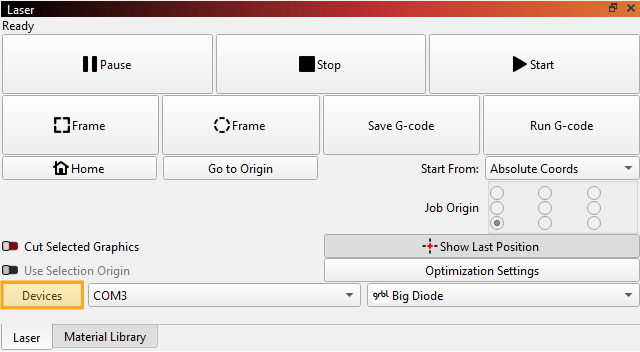
In LightBurn, click the Devices button (highlighted in the screenshot below) in the Laser window to open the Devices window.
-
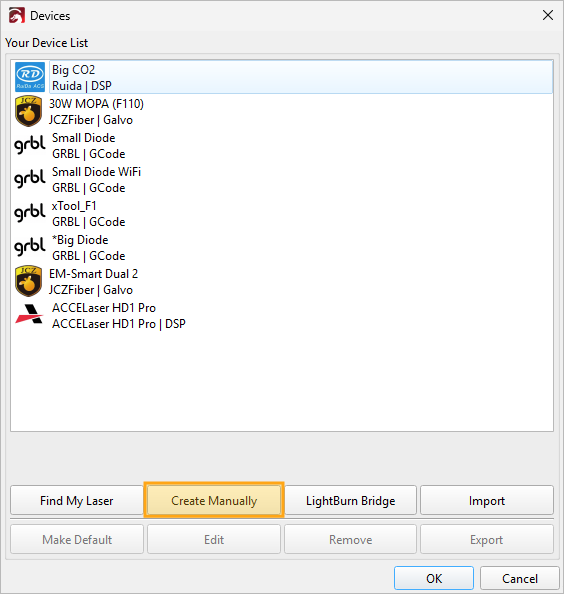
In the Devices window, click the Create Manually button under the device list to open the New Device Wizard.
-
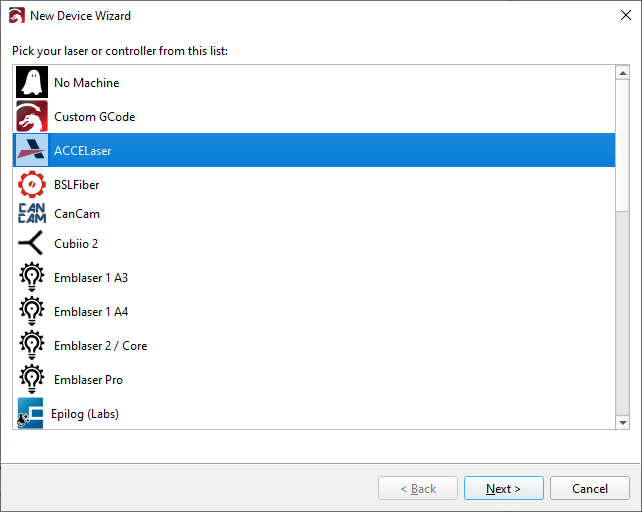
In the New Device Wizard, scroll down and select ACCELaser from the list of device types. Click Next to continue.
-
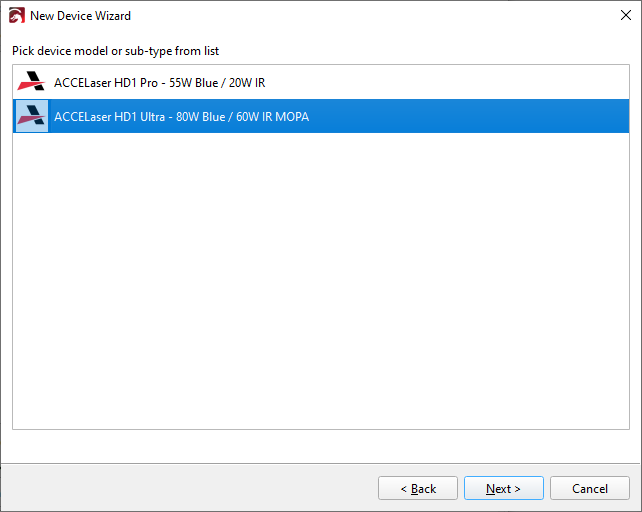
Select your HD1 model from the list and click Next to continue.
-
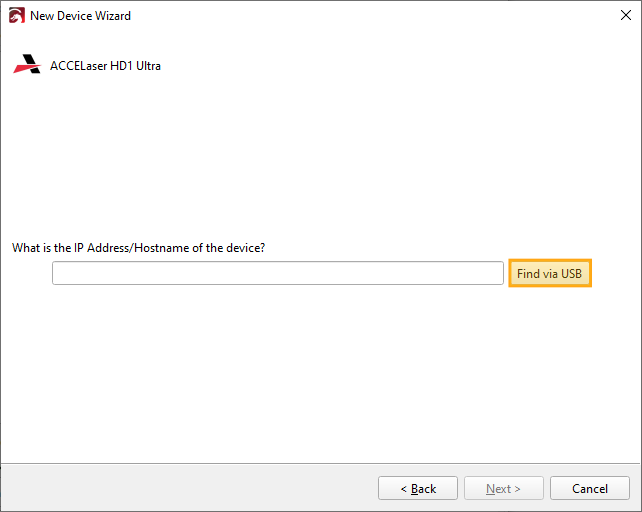
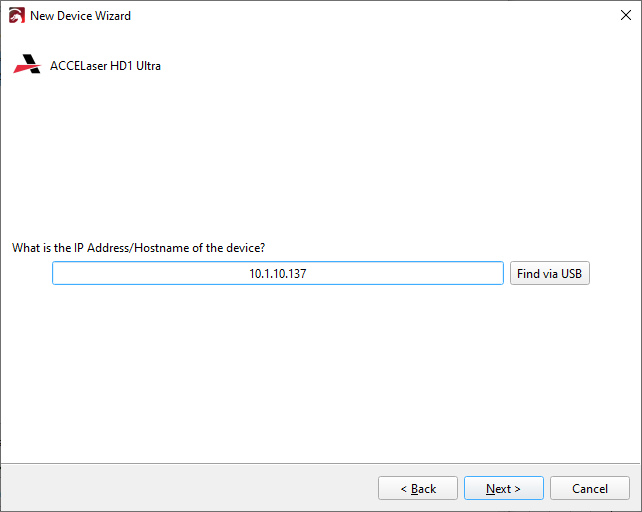
Click Find via USB to automatically detect your machine's IP address and enter it in the field.
Alternatively, you can find identify your device's IP address using the ACCELaser Handy app, and enter it manually.
Click Next when done.
-
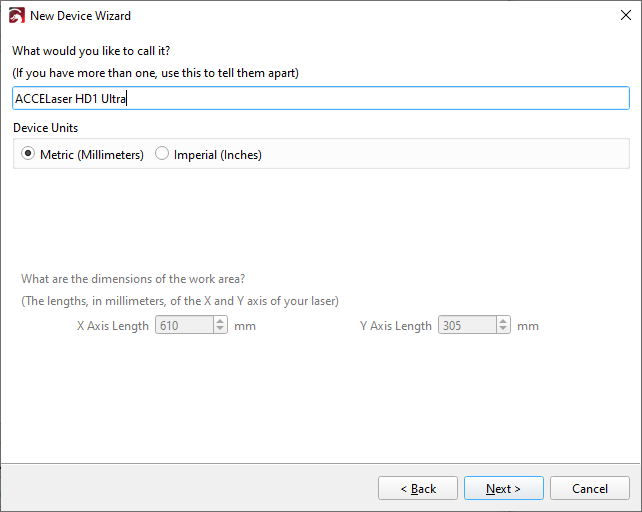
Your device's working dimensions are entered automtically. You can choose to rename your device from the default model name, and set your Device Units to either Metric or Imperial. You can adjust units at any time later in the Device Settings window.
-
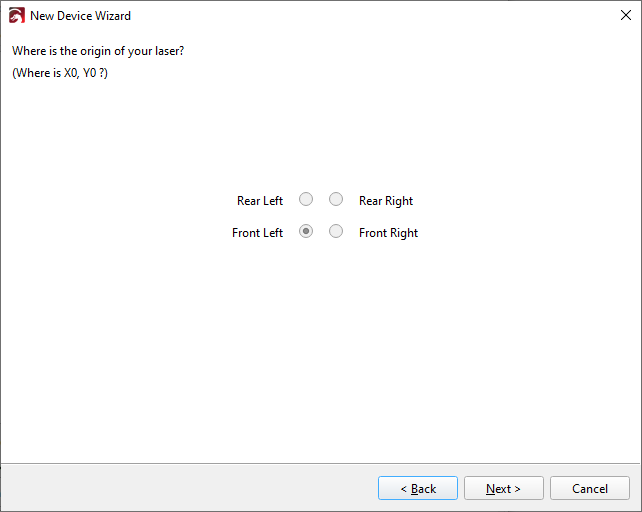
The device origin is automatically set to the front left. Click Next to continue.
-
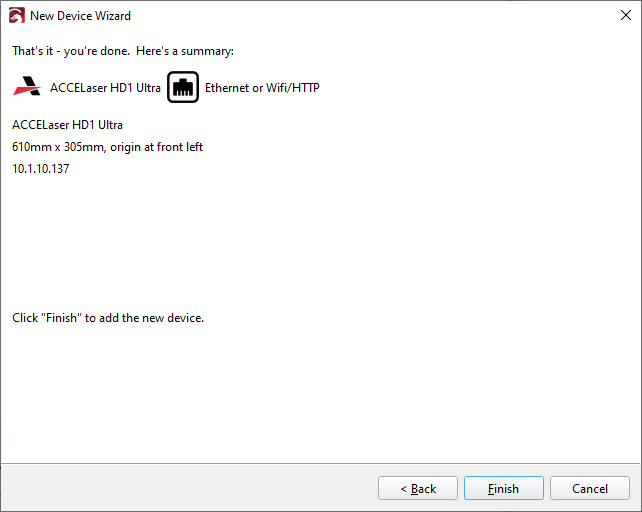
Make sure the summary on the final screen seems correct — since most parameters were entered automtically, you'll only need to verify the IP address if you entered it manually. Click Back to go back and make changes, or Finish to save your changes.
Cameras
ACCELaser HD1 series machines include two cameras:
- Overhead Camera. Mounted to the top of the laser's lid, capable of capturing the entire work area. This option is useful for quick captures where high percision is not necessary, such as placing graphics you plan to cut from a sheet of material.
- Head Mounted Camera. Mounted on the laser head, capable of capturing smaller areas in finer detail. To capture larger areas, the Head Mounted camera can jog to take multiple captures, which are stitched together in your Overlay. This option is useful when you require greater precision, such as engraving accurately onto an object. See Head Mounted Camera for more information.
Adding the Cameras
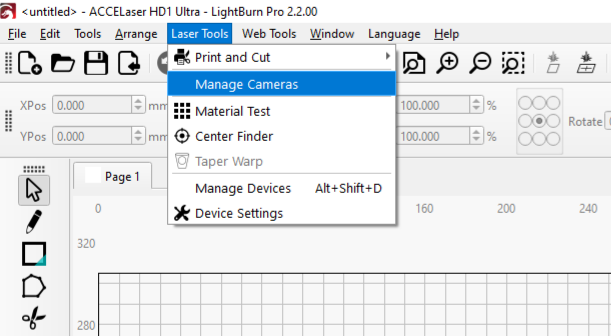
- Go to Laser Tools → Manage Cameras.
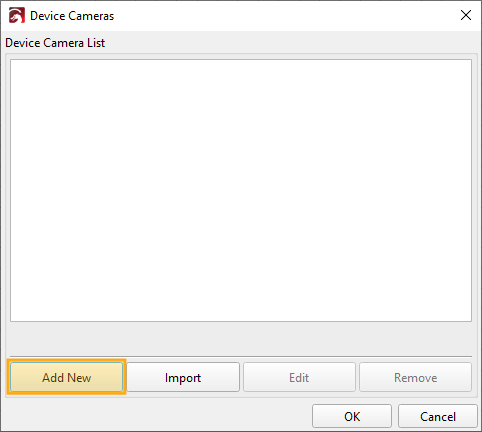
- Click Add New.
- Choose Load from Preset.
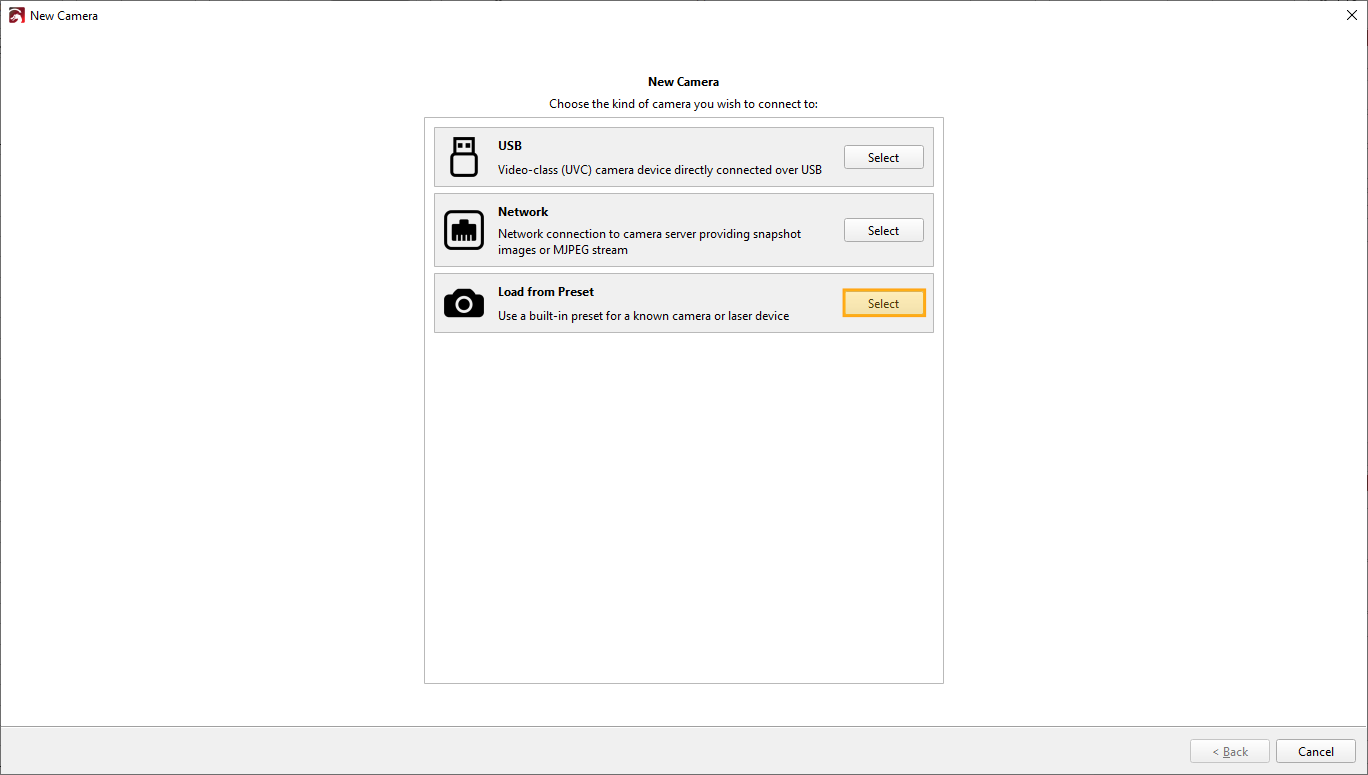
- Select ACCELaser Head Mounted or ACCELaser Overhead.
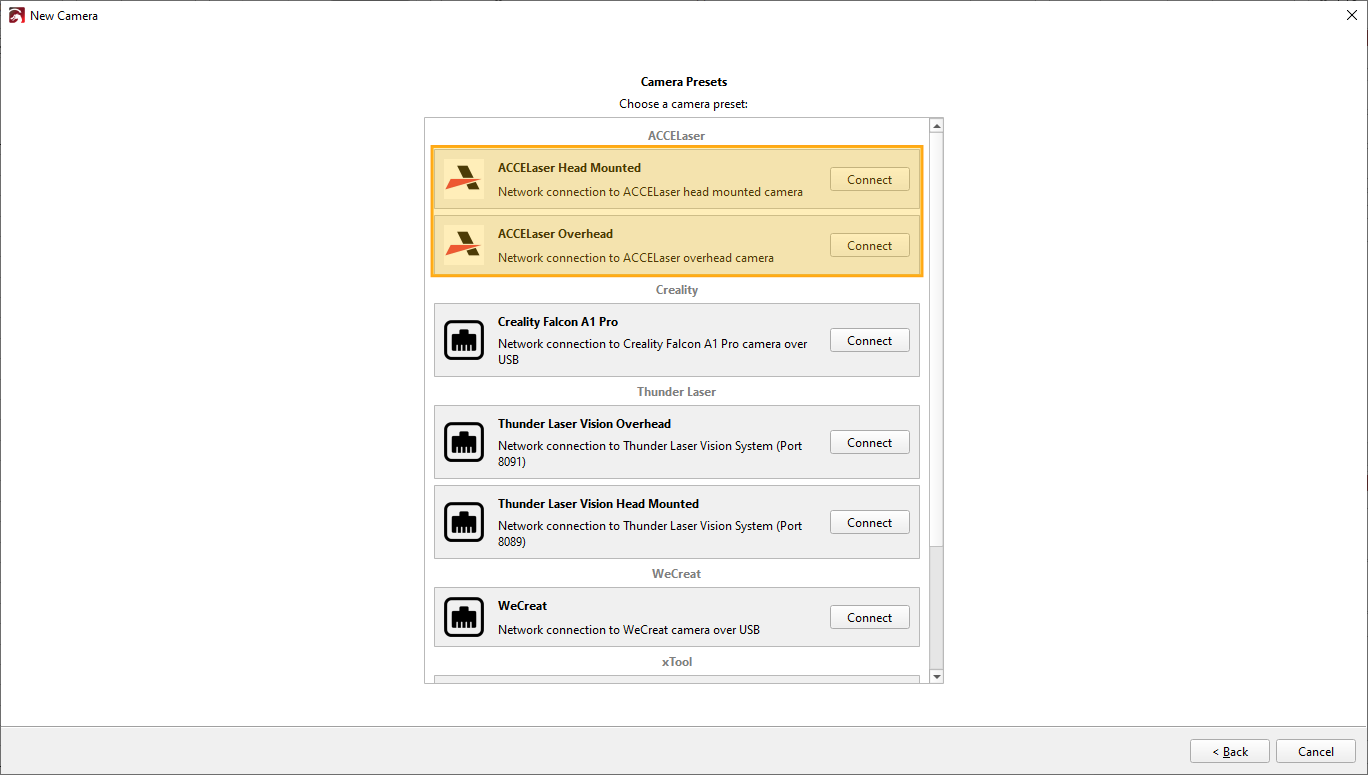
- Repeat steps 1-3 process, then select the preset for the second camera.
Using the Cameras
Overhead Camera
- Place your material on the bed.
- Home or move the laser head to the top-left corner of the work area, so it doesn't block the Overhead Camera's view.
- In the Cameras / Overlays Window, click Update Overlay for the Overhead Camera. An Overlay of your entire work area appears in your Workspace.
- Position your graphics over your material.
Head Mounted Camera
- Place your material on the bed.
- Optionally, capture an Overhead Camera overlay to see the general location of the material you want to capture more precisely.
- Select the area you want to capture. You can select the graphics you plan to engrave, or create a Rectangle set to a Tool Layer, place it over your material, and select it.
- In the Cameras / Overlays Window, click the Capture Selected button for the Head Mounted Camera. The laser head jogs over the selected area, taking multiple captures that are stitched together into a detailed Overlay in your Workspace.
- To capture the entire work area instead, click the Capture Workspace button.
- Use the detailed Overlay to precisely position your graphics.
See our full Head Mounted Camera and Cameras / Overlays Window documentation for more information.
LiDAR
ACCELaser HD1 machines use a LiDAR ranging module on the laser head to measure the distance to your material. You can use it to automatically focus your laser to your material's surface, or to scan the surface of a curved object, or objects with multiple surfaces at varying heights, and create a height map the laser follows as it engraves.
Focus Z
Use Focus Z to automatically focus to the surface of material.
- Move the laser head over your material. If you have already captured a camera overlay, you can use Position Laser to quickly jog over the material's location.
- Click Focus Z in the Move Window or Cameras / Overlays Window.
Warning
Make sure the laser head is positioned over your material before using Focus Z.
Depth Scanning
Use Depth Scanning to create a height map of the surface of your object or material. After capturing this data, the laser can dynamically adjust its focal distance and stay in focus across curved or uneven surfaces.
- Place your material on the bed and capture a Camera Overlay.
- Select the area you want to scan. You can select the graphics you plan to engrave, or create a Rectangle set to a Tool Layer, place it over your material, and select it.
- In the Main Toolbar or the Cameras / Overlays Window, click the Scan Selected button.
- Optionally, before scanning, you can click Settings and adjust the Scan Interval. Smaller Intervals lead to higher resolution height maps, at the cost of longer scanning times.
- To scan the entire bed instead, click Scan Full Workspace.
- When the scan is finished, an overlay of the height map appears in your Workspace.
- Enable Include LiDAR Data in the Cut Settings Editor for all layers you want to engrave on the scanned surface.
See our full Depth Scanning / LiDAR documentation for more information.
Cut/Engraving Settings
Most Cut/Engraving settings work exactly the same as they do for any other type of laser. See our general Cut Settings Editor documentation for information on these settings.
Source Selection
Beneath the Speed field, you can select which laser source to use to process graphics on the current layer.
- Blue diode laser
- IR (or IR MOPA) fiber laser
The infrared source depends on your model — the HD1 Pro uses a 20W fiber laser, while the HD1 Ultra uses a 60W MOPA fiber laser.
Include LiDAR Data
Enable Include LiDAR Data to have the laser dynamically adjust focal height to follow the height map created by a Depth Scan. Use this option for curved or uneven objects, or for large-area jobs where your material may not be perfectly flat.
You must run a Depth Scan of the work area before enabling this option.
Motion
Motion parameters control how your laser processes your graphics.
-
Gantry utilizes the system that physically drives the laser head around the work area only — the galvo motion system is not used. This option is best for air-assisted cutting operations using Line Mode.
-
Hybrid Motion synchronizes both the gantry and galvo motion systems to allow you to achieve higher speeds than are possible with a traditional gantry laser, without the size limitations of traditional galvo laser. This option is usually best for engraving and scoring.
-
Galvo utilizes the mirrors only. The field size is limited to 40mm x 40mm. This option is fastest for engraving objects that fit entirely within the field size, allowing you to utilize the maximum speeds the mirrors are capable of.
Each option comes with additional customizations. See the sections below to learn more about a given Motion option.
Gantry
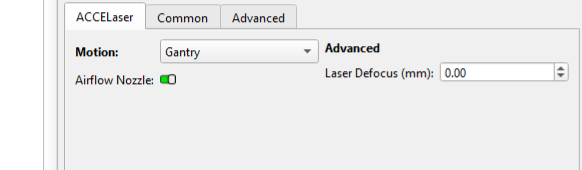
Use the Gantry option when you need to cut through materials at relatively slow speeds using Air Assist.
The gantry system's maximum speed is limited to 400 mm/second.
Click an option in the image below to learn more about specific Gantry options.
Airflow Nozzle
Enables use of the Airflow Nozzle — this is a nozzle specially designed for better cutting airflow. You must also enable Air Assist in standard settings to use this nozzle.
Over Line
Entering an Over Line value extends travel distance past the ends of scan lines. This function works similarly to Overscanning for standard gantry lasers. Learn more about Overscanning here.
This option is only available if your layer is set to Fill Mode — utilizing the gantry motion system only is an uncommon use case. In general, you should select Hybrid Motion or Galvo for Fill operations instead.
Laser Defocus
Adjusts the focal height of this layer by the amount entered in the field. Negative values move the focal point lower, into the material, while positive values move it higher, above the surface.
When cutting thicker materials, use a negative value to adjust focus into the material.
Hybrid Motion
Hybrid Motion utilizes both the gantry and galvo motion systems simultaneously. This is the best general-use option for Fill Mode and Image Mode engravings.
The Line and Stitch options each increase processing times beyond what a standard gantry laser is capable of.
The mode dropdown menu lets you select from additional sub-options for your chosen Motion type.
Mode
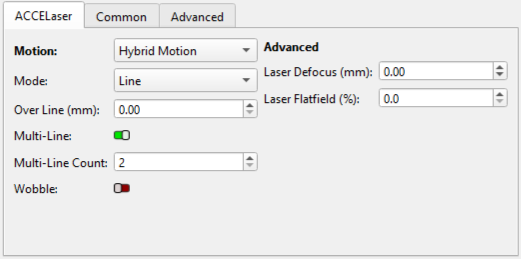
Speed is limited to 400 mm/sec, but you can increase effective speed by enabling Multi-Line.
For the best quality and stability in most Fill and Image jobs, use Line mode with Multi-Line disabled.
Multi-Line
Enable Multi-Line to have the laser process multiple scan lines at one time. This effectively increases the speed of the job by a multiple of the Multi-Line Count.
Multi-Line Count
This field controls the number of lines the laser will process at one time. 2 or 3 are common values that will increase speed significantly, though higher values may reduce quality on some materials. We recommend a maximum value of 3.
Multi Line effective speed limit is equal to 400 mm/sec (maximum gantry speed) times the number lines.
2 lines = 400 mm/sec x 2 = 800 mm/sec
3 lines = 400 mm/sec x 3 = 1200 mm/sec
Tip
Multi-Line is the recommended option for Fill and Image engraving on wood and plywood. A Multi-Line Count of 2 (800 mm/sec) offers a good balance of speed and quality. When using Multi-Line, Fill Shapes Individually is usually faster than Fill All Shapes at Once.
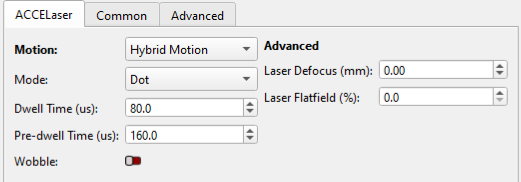
Dot mode fires the laser at individual points instead of along continuous lines. It offers the highest precision of any mode, and is ideal for fine detail image engraving on materials like black acrylic or painted aluminum.
The Speed setting has no effect in Dot mode. Instead, two dwell settings determine speed.
Dwell Time
How long the laser fires at each point, in microseconds. Start with a value of at least 40 µs. Higher Dwell Times lead to the laser outputting more power at each point it fires.
Pre-dwell Time
How long the laser waits at each point before firing, in microseconds. Start with a value of at least 160 µs. Longer Pre-dwell Times give the galvo mirrors more time to settle before firing, and can increase job quality.
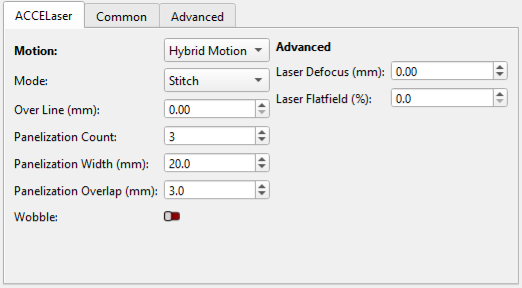
Your engraving is divided into multiple panels, each small enough to fit within the 40 x 40 mm galvo field. The galvo engraves each panel at full speed, then the gantry moves to the next panel.
Stitch is the fastest Fill mode, with speeds up to 4000 mm/sec, but small misalignments between panels can leave visible seams. It works best on materials where seams are hard to see, like cork and stone. On wood, seams are usually visible, so use Multi-Line instead.
Panelization Count
The number of overlapping passes used to blend panel edges. Values of 1–3 help compensate for stitching errors.
Panelization Width
The width of each panel. This must be less than 40 mm to fit within the galvo field.
Panelization Overlap
How much adjacent panels overlap. A value of around 3 mm helps compensate for stitching errors.
Over Line
Entering an Over Line value extends travel distance past the ends of scan lines. This function works similarly to Overscanning for standard gantry lasers. Learn more about Overscanning here.
Wobble
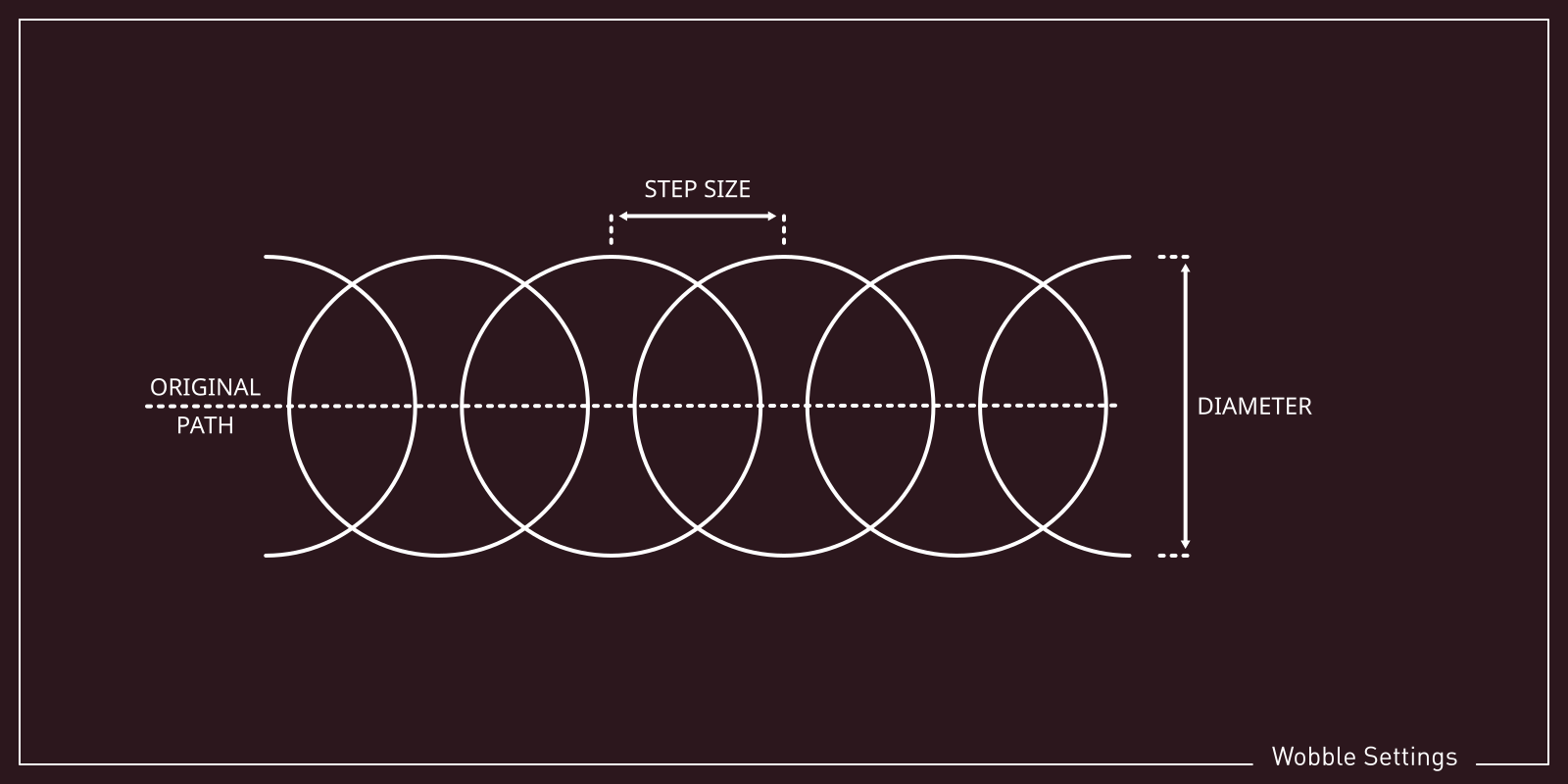
Enable Wobble to tell the laser to trace small circles along the path of each line, rather than following the line directly. This creates a thicker line and forces the beam to spend longer in each section of the line. Wobble is especially useful for black marking and color marking on metal with the infrared laser.
- Step: How far apart the circles are, in millimeters.
- Size: The diameter of the circles, in millimeters.
Wobble Diagram
Laser Defocus
Adjusts the focal height of this layer by the amount entered in the field. Negative values move the focal point lower, into the material, while positive values move it higher, above the surface.
Laser Flatfield
Laser Flatfield keeps the laser's focal point consistent across the entire galvo field when engraving flat material.
Without compensation, the angle at which the galvo mirrors direct the beam can cause loss of focus on flat surfaces at the edges of the galvo's working field. HD1 series lasers use a dynamic focus module to compensate, continuously adjusting focus as the beam moves so the focal point stays on a flat plane.
Enter a percentage to control the amount of correction applied. At 0%, no flatfield correction is applied.
Galvo
Galvo is limited to a 40x40 mm working area, but allows the galvo mirrors to move at their full speed of up to 4000 mm/sec. Use it for any job that fits entirely within this area, like small metal tags or jewelry.
If your graphics are larger than 40 x 40 mm, the laser will engrave them in sections, using the gantry to move between each one. This may leave visible seams on large objects — use Hybrid Motion instead.
Line
Processes graphics with continuous lines, the same as standard Fill and Line operations.
Dot
Fires the laser at individual points instead of along continuous lines, for the finest detail. See Dot under Hybrid Motion for more information.
Wobble
Enable Wobble to tell the laser to trace small circles along the path of each line, rather than following the line directly. This effectively creates a thicker line and causes the beam to spend longer and output more energy in each section of the line.
- Step: How far apart the circle centers are, in millimeters.
- Size: The diameter of the circles, in millimeters.
Wobble Diagram
Laser Defocus
Adjusts the focal height of this layer by the amount entered in the field. Negative values move the focal point lower, into the material, while positive values move it higher, above the surface.
Laser Flatfield
Laser Flatfield keeps the laser's focal point consistent across the entire galvo working field when engraving flat material.
Enter a percentage to control the amount of correction applied. At 0%, no flatfield correction is applied.
Without compensation, the angle at which the galvo mirrors direct the beam can cause loss of focus on flat surfaces at the edges of the galvo's working field. HD1 series lasers use a dynamic focus module to compensate, continuously adjusting focus as the beam moves so the focal point stays on a flat plane.