External Axes Settings (EZCad3 / BSLFiber)
The External Axes Settings tab of Device Settings allows you to enable and configure motors controlling your laser's X, Y, and/or Z axes. This tab is currently only available for EZCad3 and BSLFiber lasers. The Z axis is always available, but only EZCad3 will have the option for X and Y axes as well.
The X Axis, Y Axis, and Z Axis are all configured independently, and each one has a separate homing configuration. We'll use the Z axis below as an example.
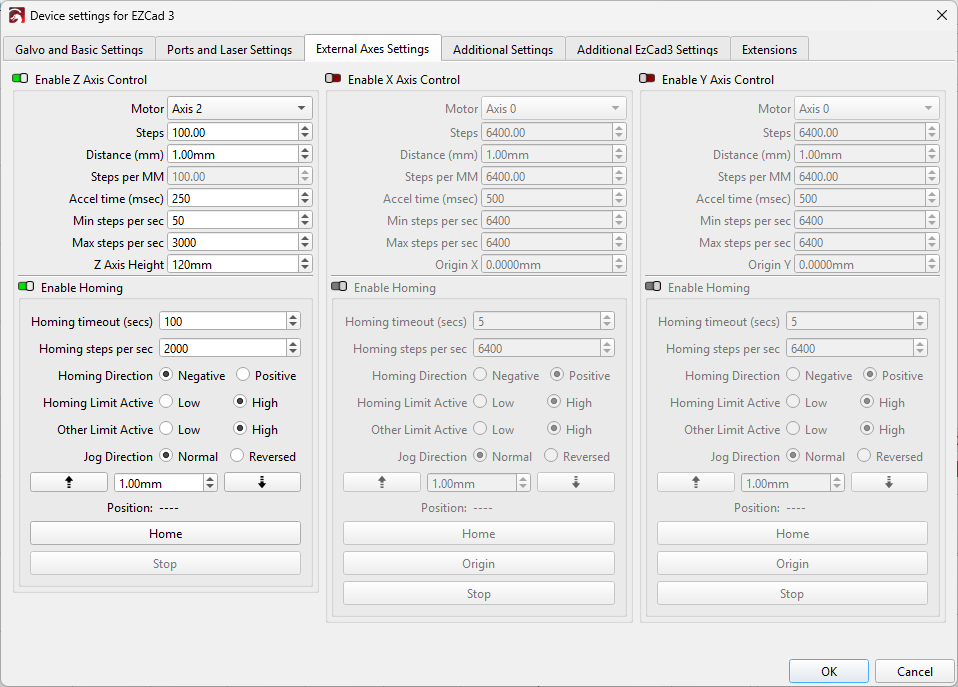
The External Axes Settings tab of Device Settings
-
Dimensions / Units
Per-device unit and dimension settings.
-
Basic Settings
The most commonly used device settings.
-
GCode
Modify GCode output for GCode Devices.
-
Additional Settings
Settings for simulating previews and estimating time.
-
Custom GCode
Advanced GCode customization for the Custom GCode device type.
-
Galvo and Basic Settings
The most commonly used device settings for Galvo lasers.
-
Ports and Laser Settings
Configure a Galvo laser's ports and laser source.
-
External Axes Settings
Configure motorized X, Y, and Z axes for EZCad3 lasers.
-
Additional EZCad3 Settings
Additional configuration for EZCad 3 lasers. Most users should not change these manually.
Z Axis Control / X Axis Control / Y Axis Control
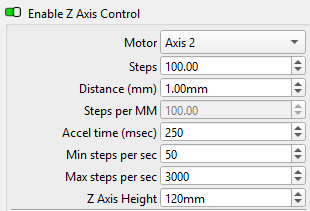
Enable Z Axis Control
Toggle this on to allow LightBurn to control your Z axis (or other selected axis). If the axis isn't motorized or is controlled in some other way, this should be disabled.
Motor
Select which motor controls this axis. If you're not sure which motor to select, pick one and attempt to (carefully) jog it a short distance to see if the correct motor moves.
Steps and Distance (mm)
These two settings work together so you can set how many steps your stepper motor takes to move a set distance. For instace, 100 steps* and 1 mm* will tell LightBurn it has to rotate the motor 100 steps to make the axis travel 1 mm.
Steps Per MM
Shows the computed Steps / Distance in steps/mm. This is not set manually - it comes from the two settings above.
Accel Time (msec)
The time it takes your motor to accelerate, in milliseconds.
Min Steps Per Sec
The minimum number of steps per second LightBurn should command your stepper motor to turn at. This sets a minimum travel speed.
Max Steps Per Sec
The maximum number of steps per second LightBurn should command your stepper motor to turn at. This sets a maximum travel speed.
Z Axis Height
Sets the total travel distance of the Z axis. This setting is only for the Z axis.
Origin X / Origin Y
Sets the coordinate used for the origin in X and Y. Origin X and Origin Y are the distance from home on the relevant axis that puts the work table directly under the laser.
If either of these axes are enabled, before beginning a job:
- The axis will home (if it hasn't already homed).
- The axis will travel to the origin point.
- The job will begin.
External Axis Homing
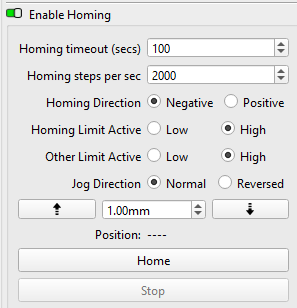
Homing Timeout (secs)
Maximum length of time to attempt homing. Setting a limit on homing reduces the chances of damaging your machine if homing is unsuccessful, by preventing the motor from running endlessly after hitting the end of its travel.
If this is too short, your axis may not reach its home position before time runs out. If this happens, try setting a longer timeout.
Homing Steps Per Sec
How many steps your motor should spin each second while homing. Increase this value to move faster during homing, or decrease it to move slower.
Homing Direction
Sets the direction for the laser to move towards the homing switch. If the axis moves away from the homing switch when you try to home it, reverse this value.
Homing Limit Active
Use the Homing Limit Active setting to tell LightBurn whether to look for a high or low signal when the limit switch is reached. If this is set wrong, LightBurn will see the axis as always being in contact with the homing switch except when it actually is.
If an axis immediately reports that it's homed without actually moving to the switch, switch this value.
Other Limit Active
Similar to Homing Limit Active, but for a limit switch at the other end of the axis.
Jog Direction
If the jog controls move the axis the opposite direction you expect, switch the Jog Direction to reverse the direction the axis moves.
Jog Test
Use the Jog Controls here to test your jogging settings.
Position
Shows the current position of the selected axis.
Home
Use the Home button to test your homing settings.
Origin (X and Y axes only)
Use the Origin button to move the axis to its configured origin.
Stop
Use the Stop button to stop moving the selected axis.