Report a Problem
LightBurn's Report a Problem window gives you an easy way to request software updates, access troubleshooting information, and report software problems directly to LightBurn. Reporting software problems helps us improve the software for you.
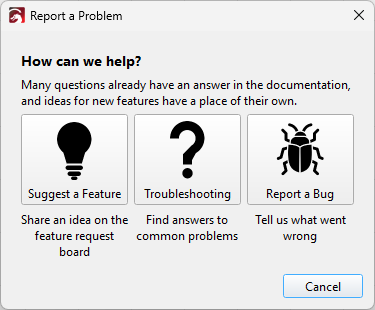
Suggest a Feature
Click on the Suggest a Feature button to open our feature request board in your default web browser. From here, you can share ideas for new features you'd like to see, and you can also view and vote on other users' ideas.
Troubleshooting
Click on the Troubleshooting button to open the Troubleshooting section section of our user guide in your default web browser.
Report a Bug
Click on the Report a Bug button to report a software problem to our team. Each report is read by our team members. By reporting software problems when you encounter them, you help us improve the software and give you a better experience.
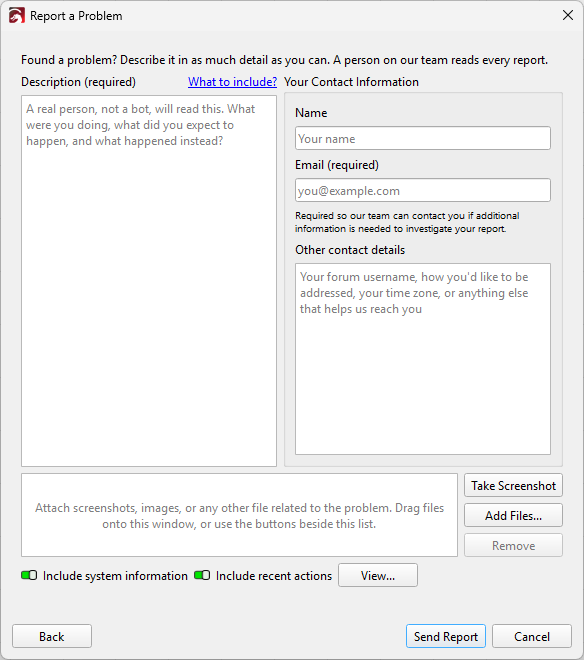
When you send in a bug report, please describe the problem you're seeing in as much detail as possible. Click Send Report to send it directly to our team.
Description
A description of the bug is required. Please describe the following in as much detail as you can:
- What you were doing.
- What you expected to happen.
- What actually happened.
Contact Information
Your email address is required so that our team can contact you if we need additional information to investigate your bug report.
If you want, you can also give us your name and any other contact details you may want to share, such as your forum username, how you prefer to be addressed, or your time zone.
Screenshots and Files
In this section, you can upload files that might help us identify the problem, such as the project file you're working on, any images you're including, or other related files. You can upload screenshots as files, or use the Take Screenshot button to automatically take and include a screenshot.
If you want to remove a file from what will be uploaded, select the file and click Remove.
Include System Information
If Include System Information is enabled, the bug report will automatically include your settings and information about your computer, with the license key stripped out.
Include Recent Actions
If Include Recent Actions is enabled, the bug report wil automatically include your recent actions in LightBurn to help us identify what went wrong.
View
The View button will show you all the information that will be included for System Information and Recent Actions. See View Usage Data for more information about what information is collected.