🔥 What's New
LightBurn 2.2 is out now! We've got a lot to say about all the new features and improved hardware support in 2.2, so be sure to read to the bottom for full details.
Download LightBurn 2.2 Add a year of updates to your license
First, here are the highlights:
- New design, layout, and workflow efficiency tools: True Nest (Pro-only), Center Line Trace, and Multi Page Projects
- Camera Print and Cut (Labs), a new option that uses a head-mounted camera to automatically identify target markers and align laser output
- We now support the ACCELaser HD1 Series, Bambu Lab's new R1 laser, and a wide range of Epilog Laser hardware. We've improved or added support for several xTool machines. Epilog and xTool support are both "Labs" features
- My Laser Tools, an online project generator and design platform, is now available in the Web Tools Menu
- REST API (Labs) added, providing a way to communicate and integrate between LightBurn and other applications
True Nest (Pro-Only)
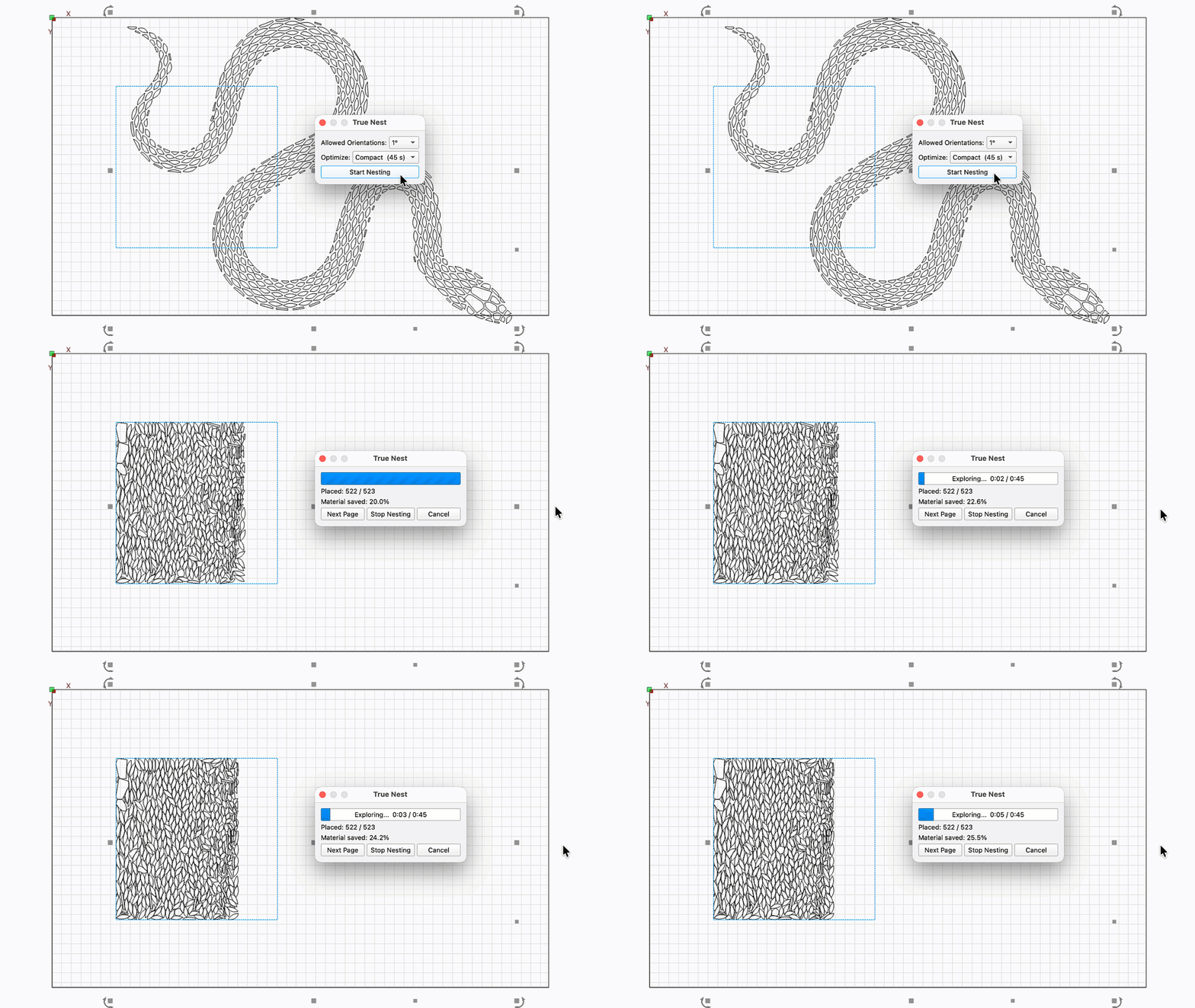
It's here — a full nesting solution, built into LightBurn. In 2.1 we added Quick Nest, a blazing-fast option that nests objects based on their bounding boxes.
Now we've upped our game with True Nest, which nests objects based on their actual contours. You can choose from four Optimization levels that determine how long it spends generating the best layout, but all of them are shockingly fast — especially compared to doing it by hand.
An important note: True Nest is the first LightBurn design/layout feature that is limited to Pro licenses only. We made that choice because premium features like True Nest are really hard to write, and the only way we can develop features like this and still keep the lights on is to charge a bit more. We also recognize that not all users need it, so rather than raise prices across the board, we chose to make it Pro-only as the fairest option.
If you're a Core user, upgrade to Pro if you think True Nest will help you work faster and save money on material. It shouldn't take more than a few sheets-worth of savings to pay for itself.
Not sure yet? Head to Help → License Management and click the Trial Pro button for two weeks of Pro access.
Center Line Trace
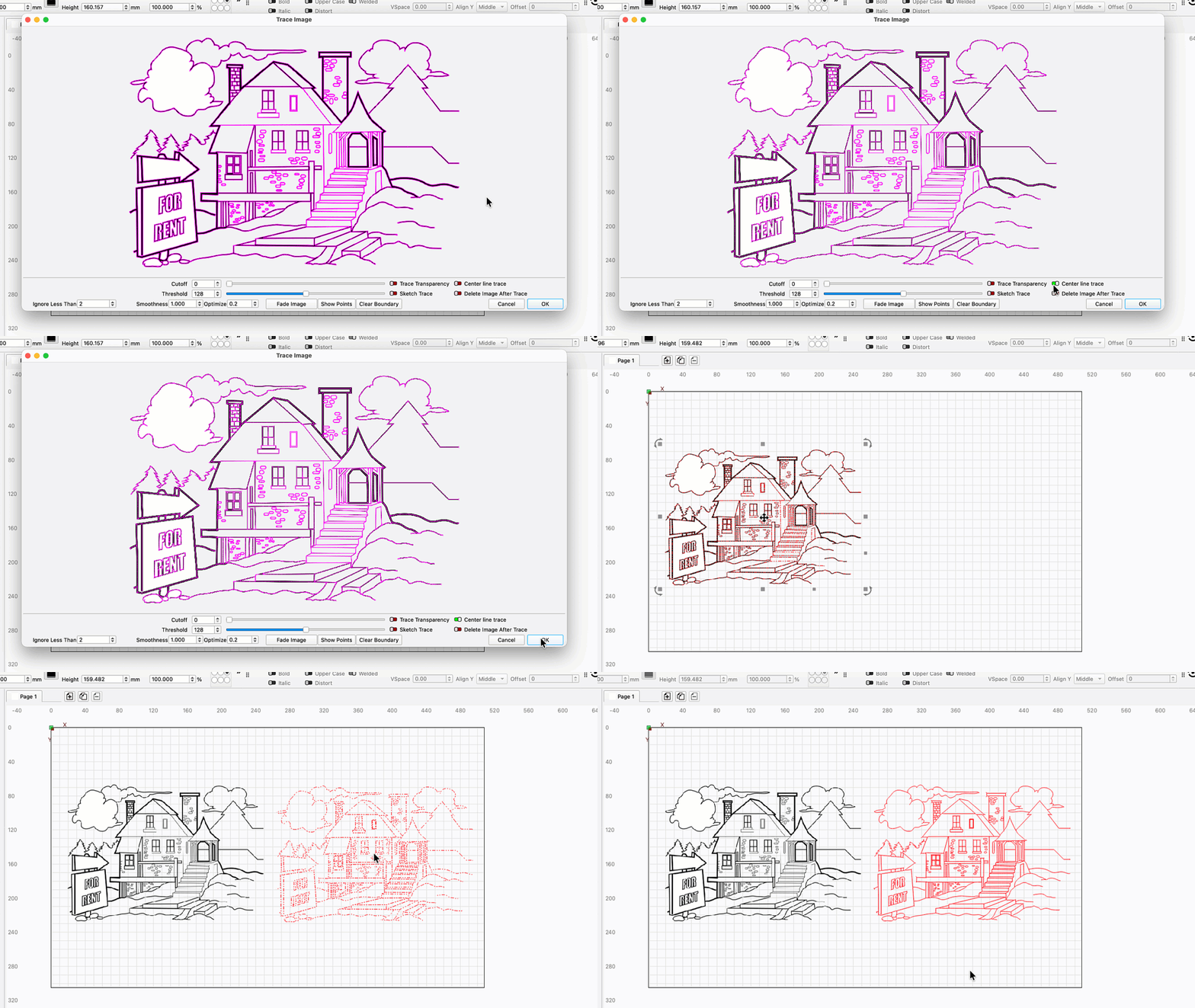
We've added a new option to the Trace Image tool — Center Line Trace. Unlike a standard trace, this option produces lines running along the medial axis of shapes identified in your image. It's a great option for tracing logos, sketches, and text.
While "medial axis" is sort of a fancy way of saying "center line", it also carries an important distinction — this is cold, hard math, and the result might not be quite what you think it should be by eyeball. Especially if you feed in a low resolution image, you'll get a result with lots of offshoots where the pixel-to-path equation says the medial axis is. Stick to high-res images with clear outlines for best results.
Camera Print and Cut (Labs)
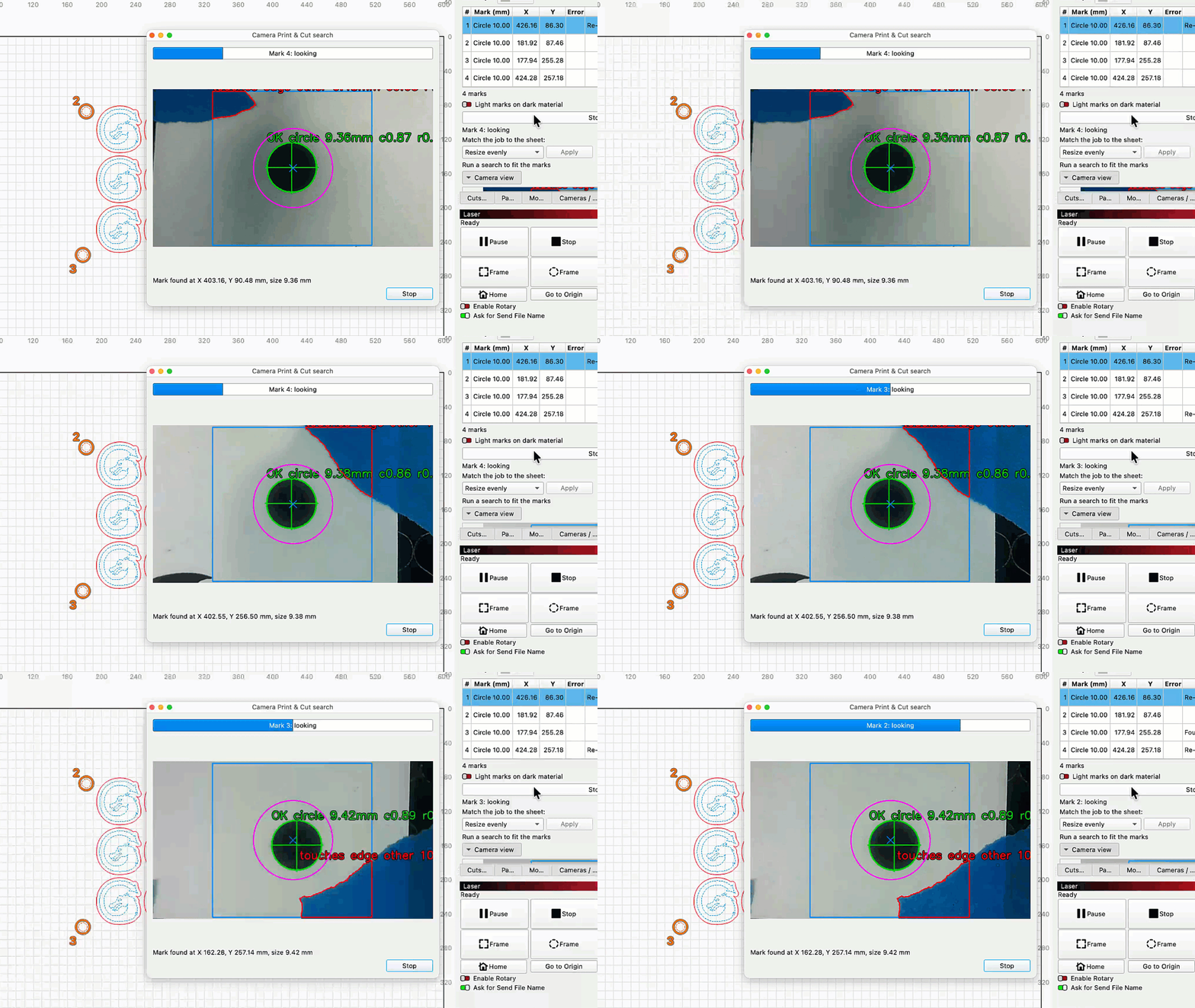
Camera Print and Cut uses a head-mounted camera to identify registration marks on your material, then aligns your output to cut around pre-printed graphics.
Manually jog your laser over the first one and hit go. LightBurn will automatically jog the laser to identify the rest of your targets, then position and orient output to match.
If your laser didn't come with a head-mounted camera, don't be discouraged — with zip ties and an intrepid spirit you can strap an endoscope onto just about any laser on the market and make use of this tool.
Our initial implementation is extremely accurate, but we're marking this as a "Labs" feature nonetheless. It was a late arrival to 2.2 (we couldn't wait, and we didn't want you to wait), so there is some potential for bugs or unexpected results. As with all Labs features, use with care — and cheap materials at first.
Multi Page Projects
We see you out there with your graphics all spread around the margins of your Workspace. Please stop doing that, it makes us nervous. We've seen the devastation when a file like that gets lost or corrupted.
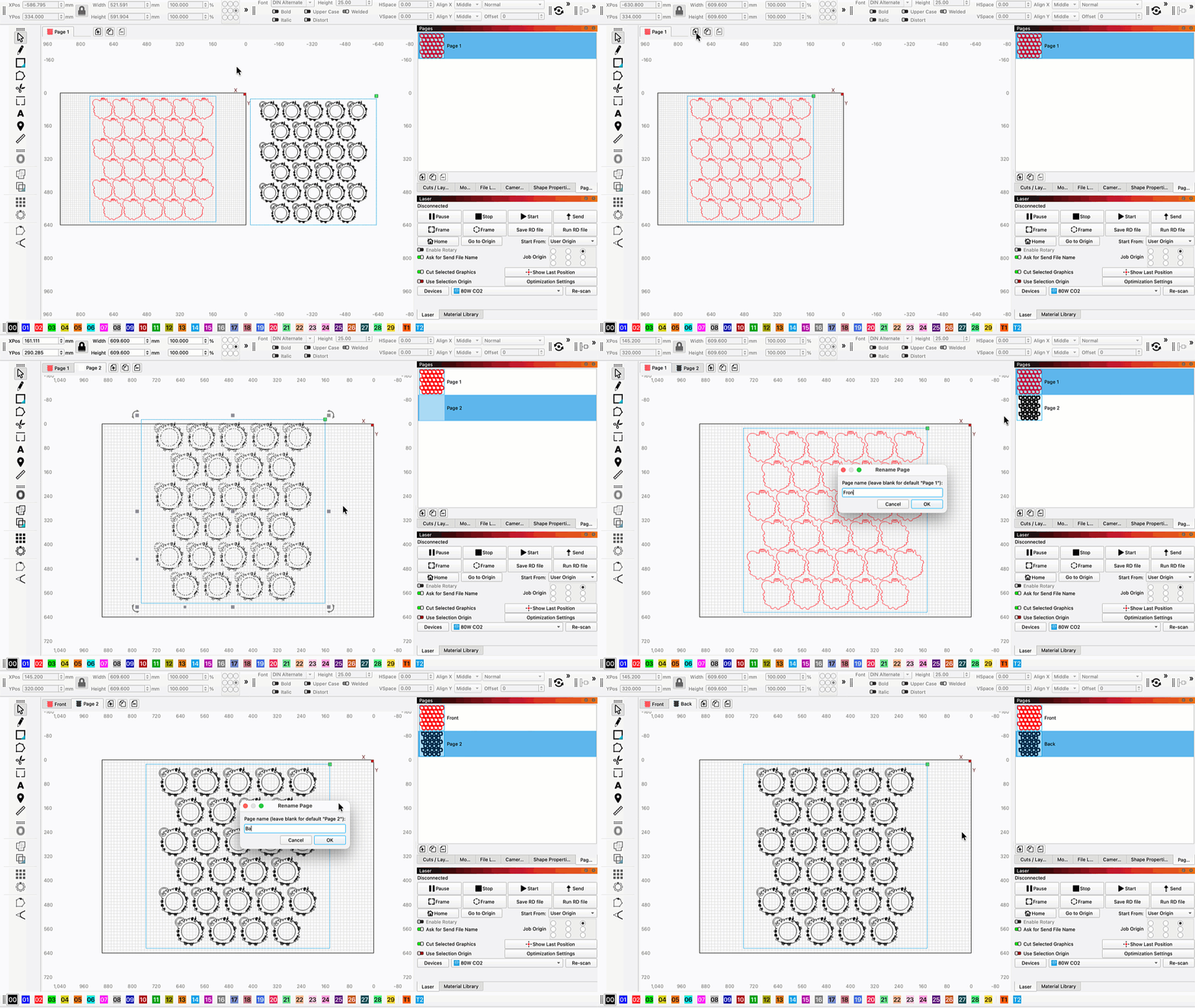
With Multi Page Projects, you can get more organized. It's still not a great idea to load up a project with tons of unrelated graphics in different tabs, but Pages let you sort related graphics into separate spaces.
You can Add, Remove, Copy, and Rename Pages from the interface at the top of Workspace, or in the new Pages Window.
3D Model Import
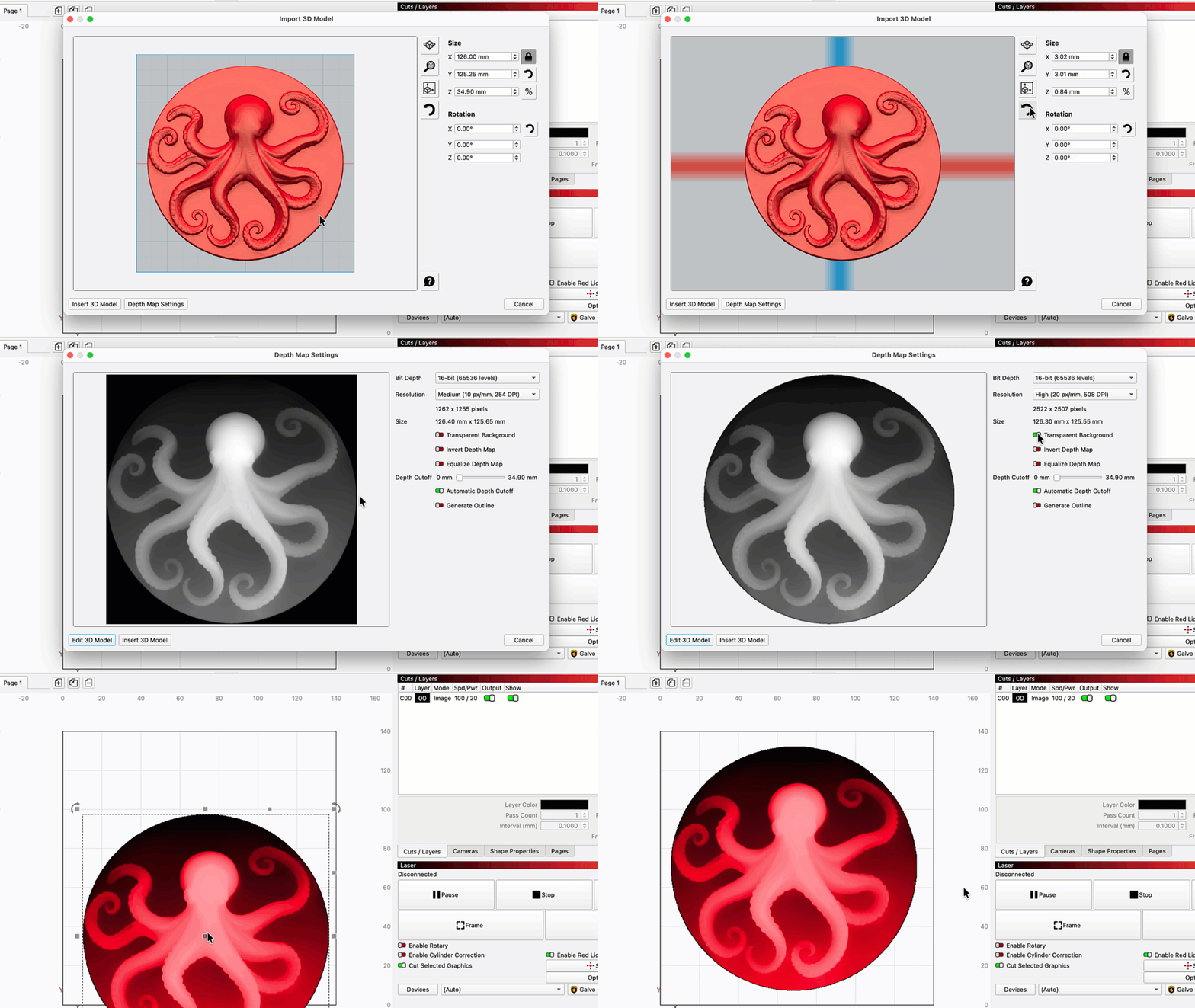
We've added a new way to source depth maps for your 3D engravings — you can now import 3D models in .stl, .3mf, .amf, .obj, .off, and .ply formats.
Adjust the model's Orientation, Scale, Bit Depth, Resolution, and other settings, then add it to your Workspace. It will appear in red while it remains an adjustable 3D model. Right-click and select Convert to Bitmap to make it a true grayscale image (note that you'll lose the ability to adjust the model's properties after converting).
REST API (Labs)
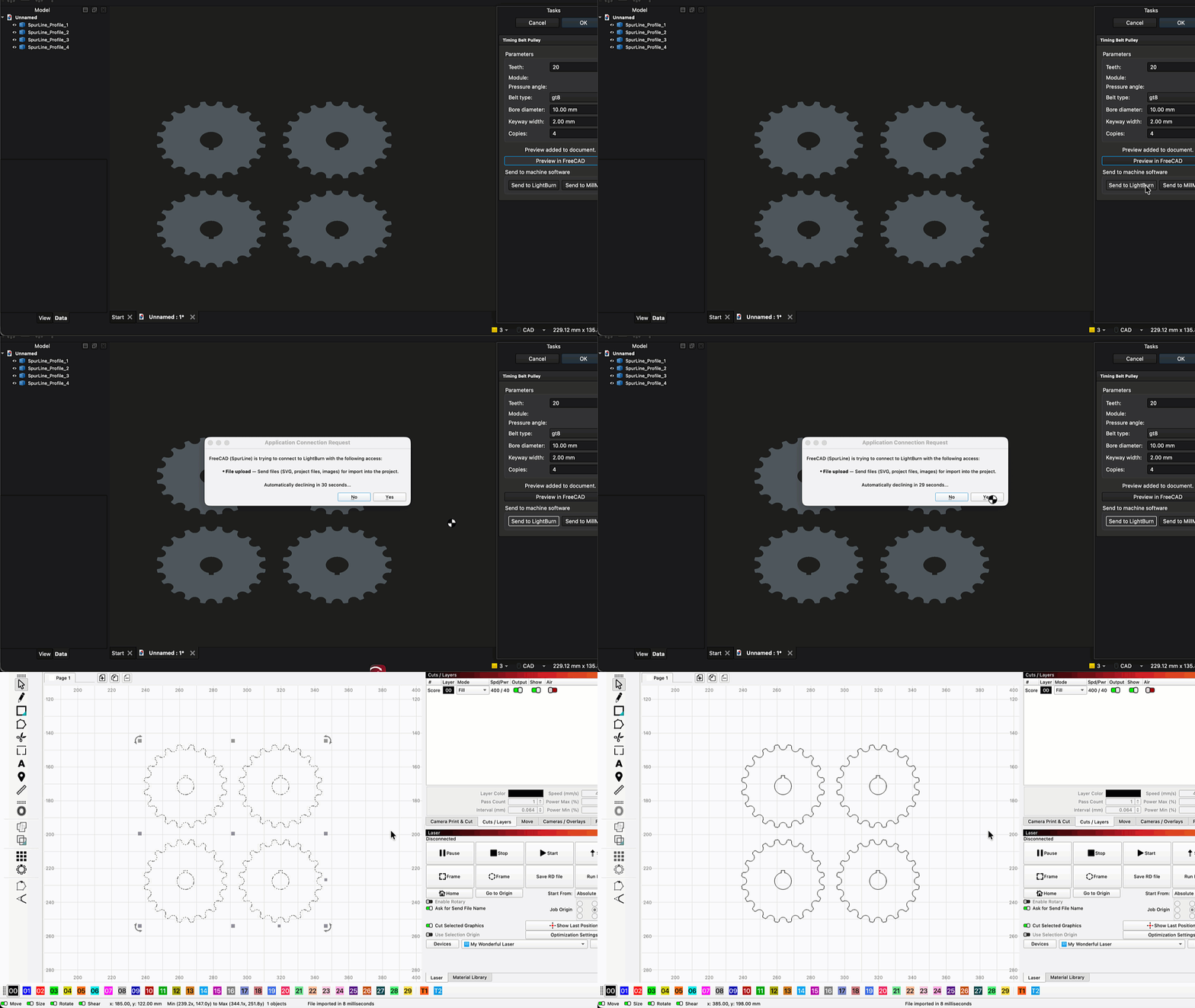
We've added a REST API to LightBurn, providing a way to communicate between LightBurn and other applications. The API is intended to allow users and developers to create integrations and improve interoperability with other software for advanced workflows, automated processes, status monitoring, and data exchange between LightBurn and third-party applications. The API is intended for use on a single computer or within your local network.
Public documentation for the LightBurn REST API is available now on GitHub.
More detailed documentation is coming soon.
As a reminder, LightBurn does not endorse, recommend, support, or encourage unattended use of lasers or other machinery. LightBurn's API is not a replacement for direct operator supervision.
User Tools
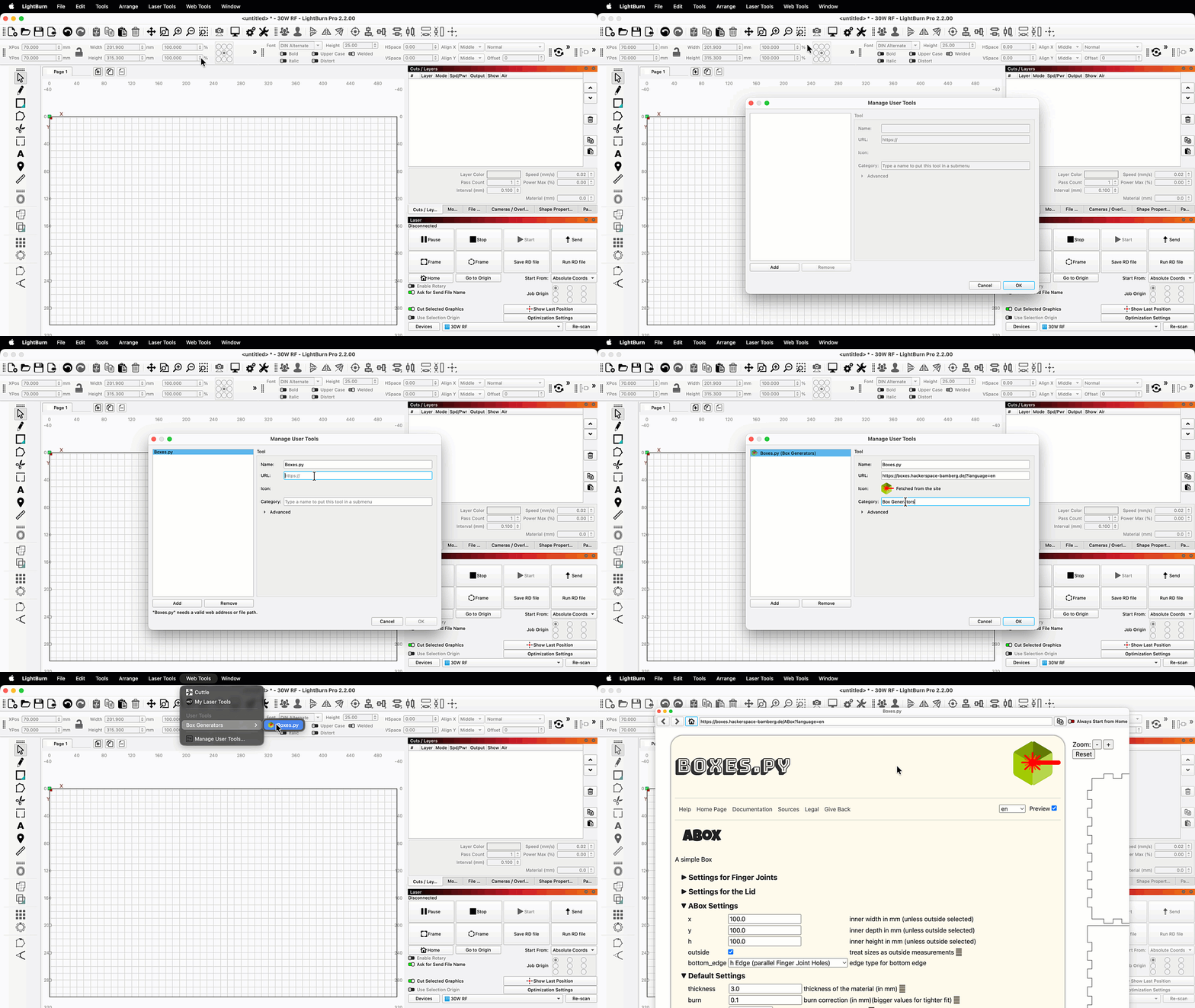
You can now add custom entries to the Web Tools Menu. Click Manage User Tools then Add, and enter a Name and URL. You can also specify a Category to keep things organized.
User Tools work the same as built-in Web Tools — use your chosen generator in the built-in browser, then send your result directly into LightBurn by using the download button.
ACCELaser Support
The first LightBurn-supported flying galvo lasers are here: the ACCELaser HD1 series.
The HD1 series introduces game-changing technology, combining both gantry and galvo motion systems into a single machine and leading to much faster processing times without sacrificing cutting ability or working area.
It features dual diode and fiber laser sources, so you can select the right option to mark or cut a range of materials, from wood, to slate, to metal.
For positioning, it offers a dual camera system — one global overhead camera, and another mounted to the laser head.
Finally, the HD1 series supports LiDAR ranging for curved surface and multi-height engraving.
We've worked closely with the ACCELaser team from the start to make sure we could provide full support for this exciting new technology.
Bambu R1 Support
We've added initial support for the new Bambu R1 CO2 laser. Our work on this is not yet done, and we're coordinating closely with Bambu to expand our support.
Here's where we're at: in 2.2, LightBurn has the ability to create and export G-code compatible with the R1. You'll need to use a special device configuration file provided by Bambu to do so.
In 2.3 (coming in the not-too-distant future), we're planning for more support: direct connection, all the R1's special features, and the complete start-to-finish LightBurn workflow.
Epilog Support (Labs)
We're thrilled to announce that we've added support for Epilog lasers in LightBurn 2.2.
Epilog has long been a leading manufacturer in the laser industry, with a reputation for quality, high-performance machines. We've worked closely with their team to implement LightBurn support for their full range of hardware.
Note that our support for Epilog lasers is a "Labs" feature in 2.2. That means we've tested to the point that we're confident it's ready for public use, but we also know it needs a little more testing before we call it 100% complete.
Please use with caution, and be sure to report any issues you encounter to us at [email protected].
Improved xTool Support (Labs)
Our support for xTool lasers has improved across the board in 2.2, with better support for all machines that previously worked with LightBurn, and added support for a handful of new machines.
There's so much to share that we'll have to express ourselves in bullet points:
- We've reworked and expanded our native xTool protocol to additional devices, resulting in a much more stable experience across all supported machines
- We've added WiFi/network support for F1, F2, and P2 series machines
- Multi-source jobs are now supported for the F1 and F1 Ultra
- We now support auto-focus for P2 and P2S lasers with IR rangefinders
Note that our support for additional xTool machines is also a "Labs" feature — a lot of these changes are hot off our devs' keyboards, and in need of a bit more testing. Please report any issues to [email protected] or on our forum.
My Laser Tools Integration
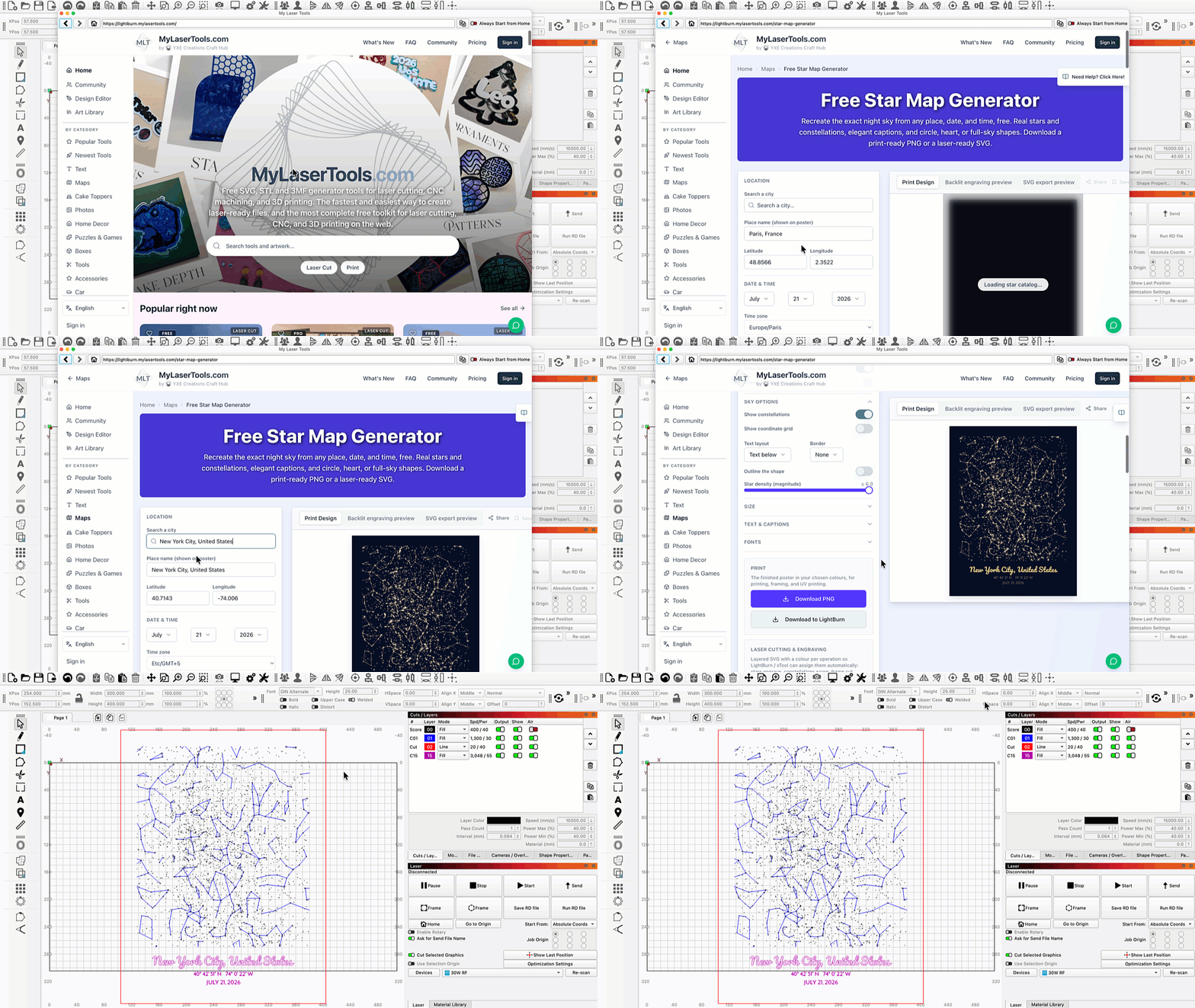
MyLaserTools.com is now available in our Web Tools Menu. My Laser Tools provides a set of design tools for laser cutting, engraving, and beyond. Most are free to use, ranging from connected text and boxes to keychains and signs, alongside art assets and a premium designer for creating custom map art.
As with previous integrations, My Laser Tools offers both free and paid tiers. As a reminder, this isn't a financial arrangement for us, and we don't take a cut of any subscription payments.
Our goal with all integrations is to help makers find useful tools and give visibility to the tool-makers who provide them. As the options grow, you'll find more overlap among our integrations — that's by design. We're committed to giving our users choices, and not locking anyone into a specific machine ecosystem or any single design platform we partner with.
ARM Builds for macOS
We now have macOS builds natively compatible with ARM-based CPUs (sometimes referred to as "Apple silicon" or "M series" chips).
That means you won't have to wait a minute or two for LightBurn to open on your Mac the first time you run 2.2!
Apple has announced that with the release of macOS 28 (anticipated fall 2027), they will no longer support apps that are not specifically built for ARM. Any user that has a Mac with an "M series" chip and updates to macOS 28 will be required to update to LightBurn 2.2.00 (or later). Previous versions of LightBurn will not run on macOS 28. This will also affect any user who purchases a new Mac after the release of macOS 28.
In-App Bug Reports
We thought you all might need a new way to tell us what we're doing wrong, so you can now submit bug reports directly through the software. Go to Help → Report a Bug... then fill out the form to let us know what happened. You can also choose to send a screenshot and additional data.
Please limit usage to bug reports only. If you have a feature request, click Submit Feature Request a little higher up in the same menu.
Other Notable Additions
- Find My Laser can now discover network connections to supported lasers, including Epilog, Creality, and xTool devices
- Duet/RRF HTTP flavor added to the Custom G-code Editor
- Custom hotkey support added to the Macros Window
Changelog
Click to Read our Full Changelog
New Features
- Center Line Trace
- Adding a local & network-available REST API.
- Adding DragonDrop support per device profile.
- Adding target buffer override for gcode devices in case the firmware doesn't or incorrectly reports the buffer size.
- Added 3D model import feature.
- Added depth map creation from imported 3D models.
- Adding extra controls to Custom GCode (similar to GRBL)
- Add filtering for FluidNC flavor to clean [MSG] spam in the Console
- New Creality Falcon HTTP flavor for Custom GCode
- New Duet/RRF HTTP flavor for Custom GCode
- Added AcceLaser hybrid Gantry + Galvo device support.
- Added LiDAR surface scanning with height-compensated engraving.
- Enable rotary setup on Emblaser Pro
- Accelaser Lidar ranging dialog Improvements
- Adding default gcode file extensions for custom gcode flavors
- Added Revert to Manual Alignment button on Overhead Auto Alignment Page
- Adding a new WeCreat_http flavor for Custom GCode to allow sending the job files to the WeCreat lasers.
- Accelaser feat 0820 requests
- Added Device Classification (Model and Source) to Device Settings to allow full offline design for adaptive protocols
- Adding REST API for inter-application communication
- Adding support for TopWisom rotary
Bug Fixes
- Fixed typos in Quick Nest messages
- Some Custom Gcode values were getting unit conversions when they shouldn't
- Removing SSL certificate generation and usage for the API to be HTTPS
- Launching and immediately closing could cause a crash in the webtool loader
- Make virtual keyboard show when using tablet and touching a spin box or custom num editor (Windows only)
- Fixed issue causing viewport of 3D import dialog not rendering.
- Min tabs was not always being respected
- Fix numeric entry equation parsing issue with comma vs period
- Updated dogbone tool to use double-precision math to reduce failure cases
- Handle new text width properly after a copy paste to prevent font position changes.
- Renderbuffer being rebuilt constantly due to incorrect comparison.
- Crash on SAVE
- Fix title case across all entries in the right click menus.
- Fix to trim tool not working for some cases.
- Select all shapes for an operation accidentally included shapes from other pages.
- Select all shapes for an operation accidentally grabbed shapes from other pages.
- Toggle Panel visibility was missing toggling the Pages panel.
- Ensure that 3D depthmaps are imported with an image cut setting
- CutSetting editor memory leak fix
- Fixed issue causing device settings dialog to cutoff custom gcode options.
- Fixed issue where framing could use the wrong origin offset
- Custom GCode was not using custom header when framing
- Fixed RestoreDefaultLayout to work in Qt 6.11
- Add network permissions to plist for Mac OS 27
- Fix 3 instances where device def was deleted but accessed later
- Re-Exported images would sometimes be rotated 180 degrees from expected
- Device settings dialog minimum size and stretch policy now set correctly to prevent widgets from being cut off of squashed.
- Newer Qt was no longer resolving host names in some cases
- Incorrect warning when cross-app file opening
- SVG Importer Improvements to fix "missing content" caused by newer SVG 2.0 features
- SVG Importer Improvements to fix text sizing bugs, enable skew, and implement SVG 2.0 / CSS unit types (%, em, ex, ch, q...)
- Uninitialized vars in QNumEntry cause erratic value changes randomly
- Fixing the pause/resume sending double pause commands during a g-code command stream.
- Shape Properties Panel needed to use QNumEdit to support flexible number input, units conversion, and formulas.
- Refresh position readout after discrete jog / work-offset change
- Fixed incorrect 3D model rotation when switching between rotating with mouse and manually setting rotation fields.
- Fixed tab order of controls in 3D import dialog.
- Connection buffers could block in rare circumstances on flakey grblHAL controllers
- Open LB or MM file from the other app should preserve pages just like the import does
- Open file from other app should preserve pages just like the import does.
- Stop reallocating the edit window render buffer on every repaint
- Handle PDF files with # # obj entries split across lines
- Print and Cut label icons now route through QIcon at runtime to color to theme
- Fixed multiple checkable menu options not showing check mark icons.
- Emit separate laser enable flags for Thunder Titan controller.
- Increased PWM frequency limit to 4000 kHz
- Using MM or IN units (upper case) didn't convert
- Prevent crash on Preview after importing or opening a MillMage File.
- AppVersion never reported an unparseable version
- Shape Alt-Drag was not snapping properly to vertical positions
- Harden the cubiio protocol
- Edit camera page overwrite mount type fix
- Add missing Sparrow and jagua-rs license details
Existing Feature Updates
- Changed QNumEntry to allow comma or dot for the decimal place and ignore previous commas and dots, show thousands separator as thin space.
- Show 'Cmd/Ctrl-Arrow:' instead of 'Ctrl-Arrow:' in settings to indicate Mac command.
- Filter path & weird chars out of the document title in exported AI files
- Update to latest VC Redist and remove unneeded version from installer
- Break apart and Auto-join now preserve tabs
- Added custom shortcut keys for user defined macros.
- Add app version number to prefs
- Enabled split marking for BSL galvos
- Double-click in node edit to convert to path
- Show a warning when importing a Galvo or DSP device with a Core License.
- Improve theme so selected items and progress bars retain part of their original blue color instead of turning white for light theme and black for dark theme.
- NewDeviceWizard shows a message that user does not need to edit comms settings except when resolving problems
- Ensure consistent G-code in messages and gui, capitalize Error: in console.
- If user runs probe wizard after run start, show a warning before starting the job to remove the probe and wires.
- New comm status of Not Responding so error message can distinguish between disconnected and not responding.
- Changes to License dialog to be more clear and have links to web pages for help
- Faster bitmap loads for large projects
- Allow ESC key to close measure tool
- Exclude guide lines when generating thumbnail bounds
- Add support for Ruida UDP file retransmit
- Added vector troubleshooter
- Added better multi mesh support for 3D Import and depth map conversion.
Miscellaneous
- Allow trialing Pro mode with a valid Core license
- Update Buy and Upgrade links to be ready for MM Pro
- Allow pasting of valid URLs into Web Tool browser
- Added legal warning that must be accepted before SVGNest can be used
- Added 'Paste in Place' to right click context menu
Code Refactors
- Cleaning out some warnings
- Initial import of WebApi library and creation of connection type
- Modified device shutdown logic to cleanly release device resources
- Disallow LaserEvents after mainwindow has already closed
- Added GCodeDisplayFlavors and UserGCodeBlockManager::FillFlavorComboBox
- Split or reassign protocol destructors to Release methods
User Interface Updates
- Improved visibility of toolbar drag handles and overflow arrows.
- Added padding between items in the main toolbar.
- Changed style of buttons in 3D import and depth map settings dialog to better show when a button has focus.