Lidar Cameras
Supported Lasers
LightBurn currently supports LiDAR ranging for ACCELaser HD1 series lasers only. If you have a different model of laser, you will not be able to use this feature.
Depth Scanning, also called LiDAR Ranging, uses a sensor to create a height map of the surface of an object or material loaded into your laser.
Using the height map data, the laser is able to dynamically adjust focal distance and engrave on curved surfaces, or objects with multiple surfaces at varying heights.
Using Depth Scanning
Depth Scan controls are available in the Cameras / Overlays Window and Main Toolbar. You can choose to scan the laser's entire bed, or an area defined by objects currently in your selection.
After scanning, you'll see an overlay of the height map data in your Workspace.
After performing a LiDAR scan, make sure to enable Include Lidar Data in the Cut Settings Editor. With this switch enabled, the laser will dynamically adjust focal height to account for the scanned height of the surface.
Warning
Before an ACCELaser H1 series laser performs a LiDAR scan, it first focuses to the center of your Selected Area or Full Workspace. Make sure your object is properly centered in the scan area — if nothing is detected on the bed at that location, the head may crash into objects as it attempts to scan.
Depth Sensor Overlay
Toggle this switch to show or hide the height map overlay in your Workspace.
Scan Selected Area
Commands the machine to run a LiDAR scan over an area defined by the position and boundaries of shapes currently selected in your Workspace.
This option will be grayed out unselectable if you have no objects in your Selection prior to opening the LiDAR window.
Typically, you'll want to capture a Camera Overlay, create a Rectangle set to a Tool Layer, and then place it over the material you plan to cut or engrave.
Scan Full Workspace
Commands the machine to run a LiDAR scan over your laser's entire work area.
Clear
Clears the data captured from the previous LiDAR scan.
LiDAR Settings
Click the Settings button to open a window with scan settings options.
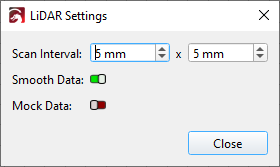
Scan Interval
Scan Interval controls the size in X and Y of each pass of the LiDAR ranging process.
Smaller Intervals will lead to higher resolution height maps, at the cost of longer scanning times.
Smooth
Interpolates scanning data from adjacent areas to smooth height map data between segments.
Adjust Overlay
Overlay Width / Height
Adjust the size of the height map overlay.
X Shift / Y Shift
Shift the overlay image in the X and/or Y directions, if the entire overlay is shifted over from where it should be.
Overlay Opacity Slider
This slider controls the transparency of the height map overlay. Reduce opacity for a clearer view of your Camera Overlay, or graphics in your Workspace.