EZCad3
Labs Feature
Labs features are new tools in development that we couldn’t wait to get into the hands of our users. Please experiment with caution, and report any unexpected results on our forum .
LightBurn 2.2 includes support for EZCad3 lasers.
Adding an EZCad3 Laser to LightBurn
Directions for installing EZCad3 lasers are in our guide to Adding a Galvo Laser to LightBurn.
The installation process is similar to other galvo lasers. The guide linked above includes information on where to find your configuration files and the necessary drivers.
EZCad3 LightBurn Drivers
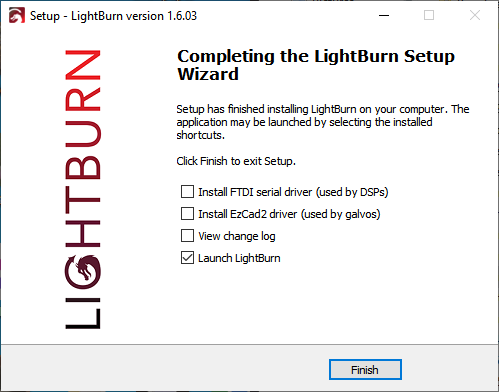
LightBurn 2.2 has a checkbox to install the EZCad3 driver as part of the installation process. If you need to install the EZCad3 driver later, you can re-run the LightBurn installer and check the driver installation box - you won't lose any settings.
LightBurn UI/Behavior Changes for EZCad3 Devices
- New Move Window for EZCad3
- External Axes Settings tab in Device Settings
- Additional EZCad3 Settings tab in Device Settings
New EZCad 3 Move Window
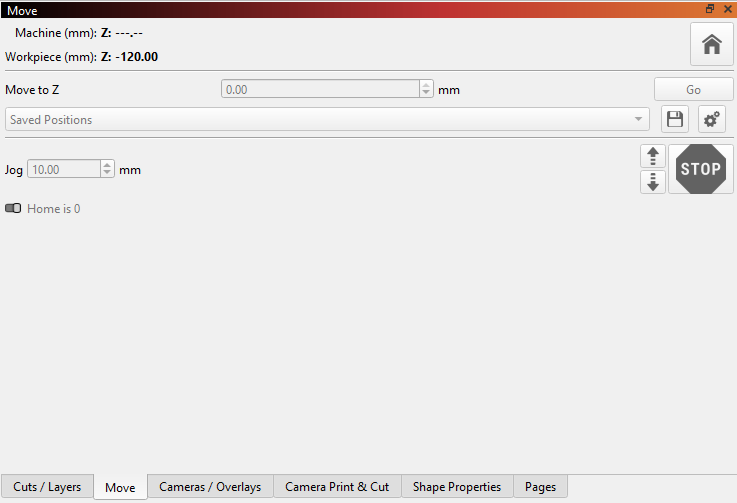
After adding an Adding an EZCad3 device with a motorized Z axis to LightBurn, you'll have an alternate version of the Move Window available for controlling the Z axis.

Position Display
When your laser is connected, the Machine: Z and Workpiece: Z sections of the Move window will show the current position of the Z axis. The Machine section shows the position relative to the machine itself, and the Workpiece section shows the position relative to your material.
Home Z Axis
The Home Z Axis button will home the Z axis using a limit switch to find the origin, similar to homing the X and Y axes on a gantry laser.

Move to Z
Enter a number into the Move to Z section and click Go to command your laser to move the Z axis to the position you've set. You can use this to go to an exact height without needing to jog precisely.
Saved Positions
Use this section of the window to choose, save, and manage Saved Positions.
- Select a saved position from the dropdown and click Go to move the Z axis to the selected position.
- Click the Save icon to save the curent position into the list of Saved Positions.
- Click the gear icon to Manage Saved Positions.

Jog Distance
The Jog Distance is the distance your Z axis will move when you use the Jog Controls. Set it with the numeric entry box on the left. This allows you to move large distances when needed, or reduce the distance when you need to jog very precisely and get a position exactly right.
Jog Controls
Use the Up, Down, and Stop buttons on the right to jog your laser. The up and down arrow buttons will jog your laser up and down by the distance shown in jog distance, and the stop button will stop the jog if you need to interrupt it.
External Axes in Device Settings
The External Axes tab in Device Settings is available for EZCad3 lasers.
Use this tab to enable and configure external axes, allowing control of a Z axis for raising and lowering the laser head as well as control of the X and/or Y axis to enable moving the workpiece you're engraving on.
See the Device Settings - External Axes page for more information.
Additional EZCad3 Settings in Device Settings
The Additional EZCad3 Settings tab in Device Settings contains additional configuration settings specific to EZCad3 lasers. These are generally set when you import a config file, and should generally not be modified by users unless support or your manufacturer tell you to do so.
See the Device Settings - Additional EZCad3 Settings page for more information.