Drivers
If you have trouble connecting to your laser, you may need to install or update the drivers that allow your computer to communicate with the laser's controller software.
We've done our best to list the driver requirements for a variety of devices and operating systems, along with information on how to install the drivers. If you have a device with a driver that isn't listed, we'd appreciate you letting us know by clicking the envelope icon next to the header below to send an email to our support and documentation teams.
Some lasers that come with their own software may require you to install that software to install the drivers.
Driver List
| Laser Type | OS | Notes |
|---|---|---|
| Diode lasers | All | If not specified, probably requires the CH340 driver. The latest version is available from the WCH website for Windows and Mac. The Windows CH341 driver has worked for our team on ARM-based computers as well. |
| Ruida or Top Wisdom | Windows | FTDI driver required. If you're not sure you've installed it, you can rerun the LightBurn installer and check the box to install the FTDI driver. You can also manually install the driver by going to C:\Program Files\LightBurn\ and double-clicking FTDI_Driver.exe to run the installer. If you're using a Windows computer with an ARM processor, scroll down for more information. |
| Trocen | Windows | Might need to install LaserCad to get Trocen's driver |
| Galvo lasers | Windows | See Galvo Installation for directions. |
Windows on ARM FTDI Driver
The FTDI driver needed for Ruida or Top Wisdom controllers is available for Windows on ARM, but requires manual installation.
-
Download the Windows ARM driver here and unzip the folder in Windows.

-
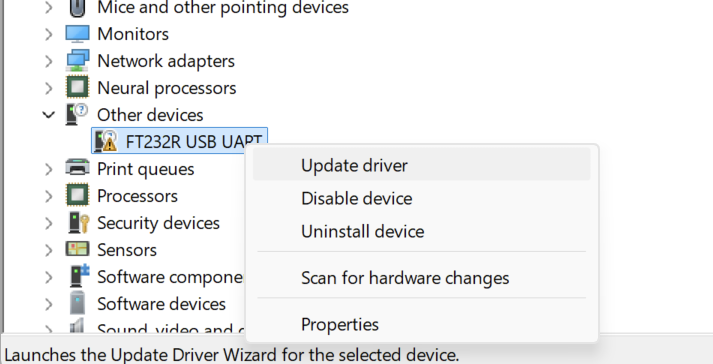
Open Windows Device Manager and locate your laser cutter.
-
Right-click on the device in Device Manager, and choose Update Driver.
-
Locate the folder you already extracted and select it to tell Windows where to find the driver. Click OK.
If you're unable to install the drivers, contact support for more help.