Check for Updates
Check for Updates checks whether there is a more recent version of LightBurn available than the version currently running, and whether it was released within your license's valid update period. If a valid newer version is available, you can begin downloading it from the Check for Updates dialog window.
Check for Updates Responses
Go to Help → Check for Updates to tell LightBurn to check for available updates. There are three possible responses.
Version Up to Date
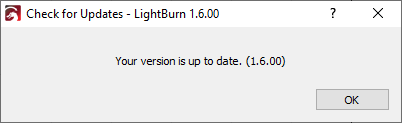
The currently running version is up to date. No further action is required.
Newer Version Available
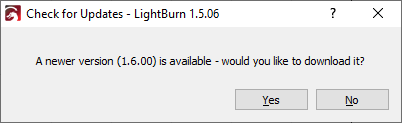
A newer version is available. Click Yes to automatically begin downloading the newer version. Click No to remain on the current version.
License Expired
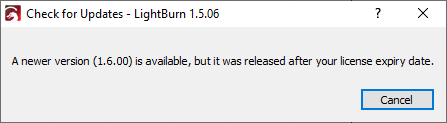
A newer version is available, but your update period has expired. To use the newest version, you must add a year of updates to your license key. You will be able to continue receiving updates for one year after you extend your update period.
Note
If you choose not to extend your update period, you will always be able to continue using the most recent version of LightBurn that was released within your license's valid update period.