Camera Lens Calibration
Significant Changes in LightBurn 2.2
LightBurn 2.2 includes significant UI improvements to the camera interface as well as updates to make it easier to calibrate your camera. If you are on an older version of LightBurn, use the dropdown at the top of the page to select the appropriate version of the camera pages.
Before you can use your camera, you'll need to calibrate it. All camera lenses distort the camera view, and the distorted view won't show your workspace accurately. LightBurn's Camera Calibration Wizard will walk you through the process of capturing a series of photos so LightBurn can calculate and correct for this distortion.
Camera Lens Calibration only needs to be done once per camera - moving the camera doesn't require a new calibration. Camera Alignment, which compensates for the angle and location your camera is mounted at, is a separate process that will need to be redone every time the camera is moved.
Info
The video below is for an older version of LightBurn, but still has a lot of good information about Camera Calibration, so we're still sharing it here. Please understand that it won't be an exact match for what you see on your screen in LightBurn 2.2.
What if I use more than one camera?
If you have two or more overhead cameras in your laser to better cover a large bed, calibrate each camera separately.
Did you already go through the Camera Lens Calibration process and export a LightBurn Camera File? If so, you can import the file and reuse that calibration.
Open The Camera Calibration Wizard
There are a few ways to open the Camera Lens Calibration Wizard outside of creating a new camera:
- Click the Calibration button for the camera you want to align in the Cameras / Overlays Window.
- Click the Calibrate Lens button in the Edit Camera window.
Before You Begin
- Make sure you have the AprilTag calibration pattern ready. You can download and print it, engrave it onto a flat, rigid sheet of material, or load it in full screen on a phone or tablet (set the screen to always on).
- Make sure the camera is connected and available in the Cameras / Overlays window.
- Make sure the bed of your laser has good, consistent lighting and the camera is in focus. If you're using an official LightBurn camera, most can be manually focused by gently twisting their lenses.
-
Make sure your camera is mounted in a way that holds it perfectly still.
Camera Placement
You do not need to have your camera mounted in the machine as long as it's perfectly still. You will need to have it mounted in the correct placement for the Alignment process, though, so it may make sense to make sure it's installed now.
Preparing the Calibration Pattern
In order to work properly, the calibration pattern must be:
- Undistorted
- Perfectly flat
- Clear with good contrast.
- An appropriate size
If you print the pattern, mount it to something stiff and flat, such as cardboard, foam board, wood, or a clipboard. You can also display it on a phone or tablet screen. If you want to do this, you can scan the QR code in the Calibration Wizard to come back to this page and
Calibration Pattern Sizing
Because of the wide range of cameras available, there's no one right size that will work well for everybody for the calibration pattern. Instead, here are some guidelines to help you find an appropriate size:
- You should be able to fit the entire pattern into the camera frame comfortably. For cameras with a narrow field of view, such as the endoscope cameras often used as Head Cameras, this might require making your pattern very small. You can scale the PDF when printing it, or consider displaying it on a phone screen.
- While big laser beds need larger calibration patterns, don't make the pattern unnecessarily large. You should be able to hold or place it comfortably in front of the camera. Typically, you shouldn't need to print larger than an A4 or US Letter size page. A tablet screen is good for large laser beds as well.
- The camera should be able to focus clearly on the pattern when it's close enough to fill most of the camera's field of view.
Download the Calibration Pattern
To quickly display the calibration pattern on a tablet or other device, you can scan this QR code to go straight to the PDF version of the calibration pattern. Otherwise, you can open the pattern as a PDF or download it in LBRN2 format with the buttons below.
Quick Start
Need more help? Jump ahead to the full directions.
Camera Lens Calibration Walkthrough
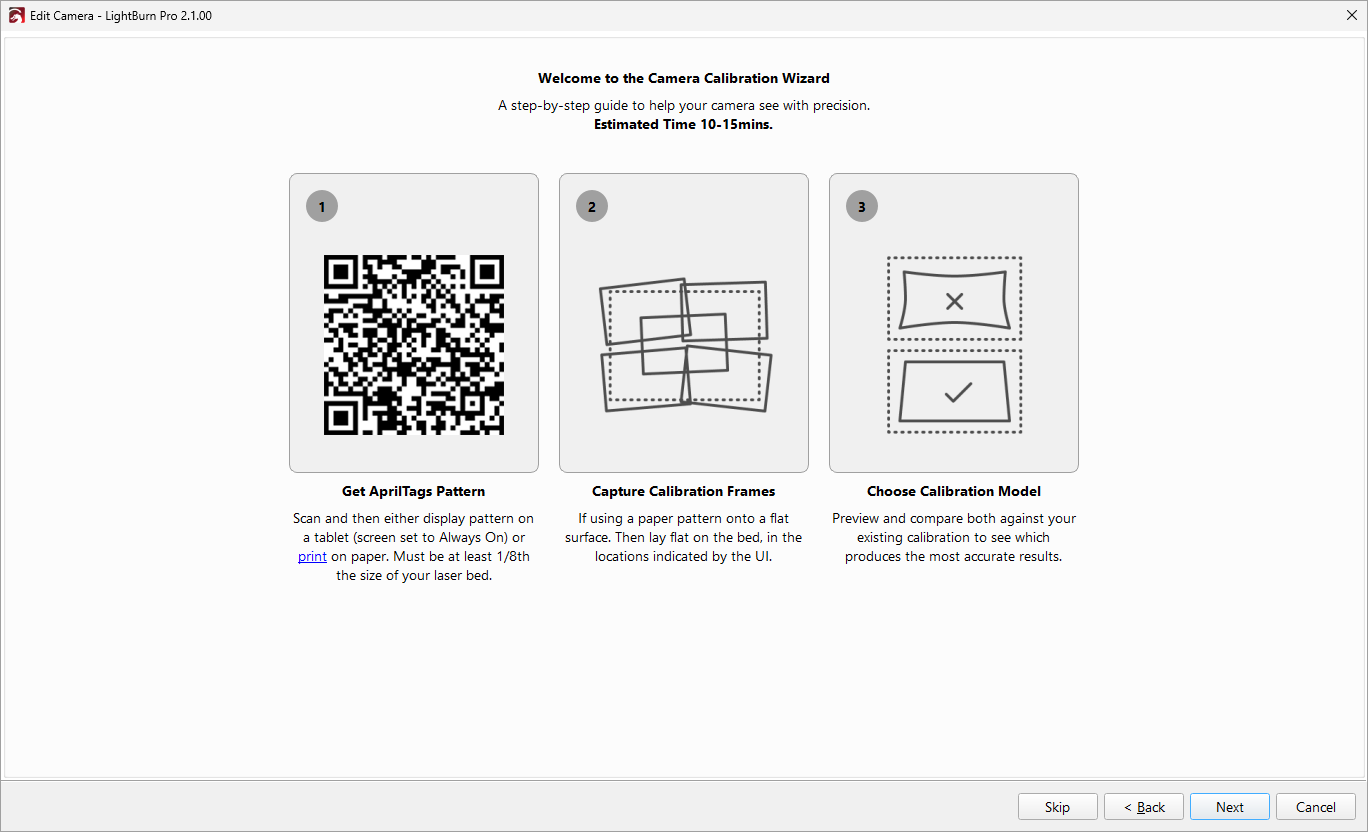
The Camera Calibration Wizard has on-screen directions to walk you through the process. Here's a quick overview if you want to just jump in and get started.
- Prepare the calibration pattern as described above.
- Open the Camera Calibration Wizard for the camera you want to calibrate and click Next to continue.
- Capture images of the calibration pattern following the directions in the wizard. You can use the jogging controls to move your laser out of the way. Click Next to continue.
- Select your Calibration Model. You can preview the results of each model by selecting it. You want straight lines to appear straight, and should pay attention to what the corners of the bed look like.
- If you're happy with the results, you can move on to Camera Workspace Alignment. Otherwise, you can try again.
Walkthrough
If you want more detailed help with Camera Lens Calibration, you're in the right place.
1. Prepare the Calibration Pattern
As described above, make sure you have the AprilTag pattern printed or loaded up on a tablet screen. LightBurn detects the tags and uses their location, size, and distortion to calculate the distortion of the camera lens.
2. Open the Camera Lens Calibration Wizard
There are a few ways to open the Camera Lens Calibration Wizard outside of creating a new camera:
- Click the Calibration button for the camera you want to align in the Cameras / Overlays Window.
- Click the Calibrate Lens button in the Edit Camera window.
3. Capture Calibration Frames
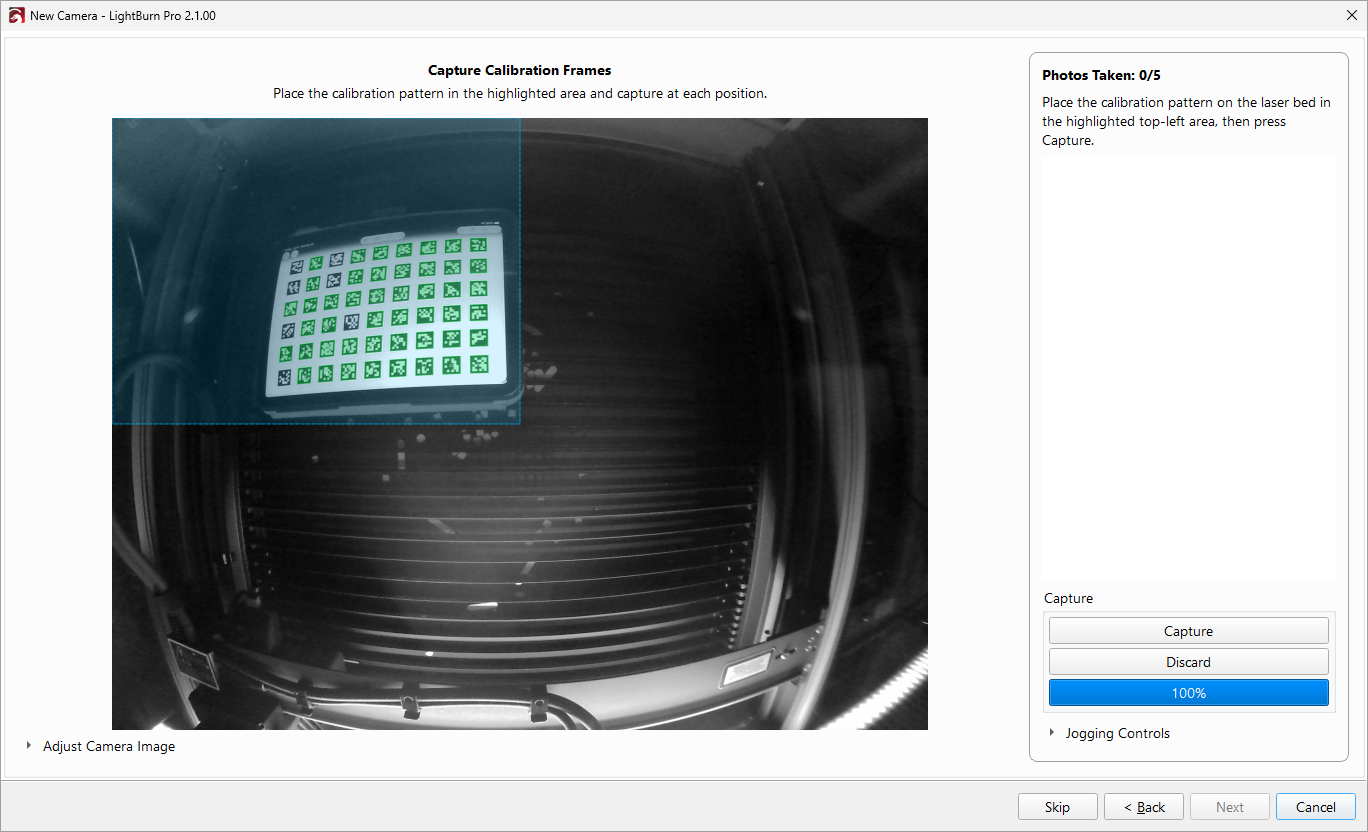
The next screen will walk you through capturing Calibration Frames, which are images showing the calibration pattern in different parts of your camera's view. This is the information LightBurn needs to calculate distortion.
LightBurn's on-screen directions will show you where to hold the calibration pattern, and green highlights will appear on the AprilTags to show you when they are detected. If you're using Auto Capture, LightBurn will automatically capture the frames when the pattern is in a good place and the tags are focused. If you're not using Auto Capture, you'll need to use the Capture button to manually capture specific frames.
Camera Calibration With Auto Capture Disabled
- Place your calibration pattern in the camera's field of vision in the highlighted box (the blue overlay shown in the top left in the screenshot above). Detected tags will be highlighted in green. You can use the Jogging Controls in the bottom right to move the laser head out of your way.
- Click the Capture button to capture a frame. If you're unhappy with the frame you captured, you can discard it with the Discard button.
- Move the calibration pattern to fit in the next box and repeat the process.
Camera Calibration With Auto Capture Enabled
- Enable the Auto Capture option in the bottom right corner of the Calibration Wizard.
- Place your calibration pattern in the camera's vield of vision, following the on-screen directions to guide your placement. For the first few captures, the placement won't be very specific, but after that, LightBurn will start giving you specific ways to hold the calibration pattern.
- If you can't achieve one of the calibration frames LightBurn requests, you can choose Skip and LightBurn will recommend a different placement.
- As LightBurn gets closer to being ready to capture a frame, the highlighting on the tags will shift from red to green.
- When a suitable calibration frame is detected, the highlights will be bright green and LightBurn will automatically capture the frame and move on to the next position.
Capture Complete
After you've captured the required frames, your view of the calibration tags should be more accurate than at the beginning, but don't worry if it's not quite right yet. You can continue to capture additional frames if you want, but in the next step you'll choose a calibration model to complete the process.
Calibration Frame Capture Options
- Enable Auto Capture to use LightBurn 2.2's new capture method and have LightBurn automatically capture images.
- Enable Refine Corners to have LightBurn attempt to make the corners more accurate than a standard calibration.
- Enable Mirror Camera View to have LightBurn flip the camera image, if your camera view is backwards.
- Use the Jogging Controls to move your laser head if it's in your way.
- Use Adjust Camera Image to adjust your camera image, including brightness and contrast.
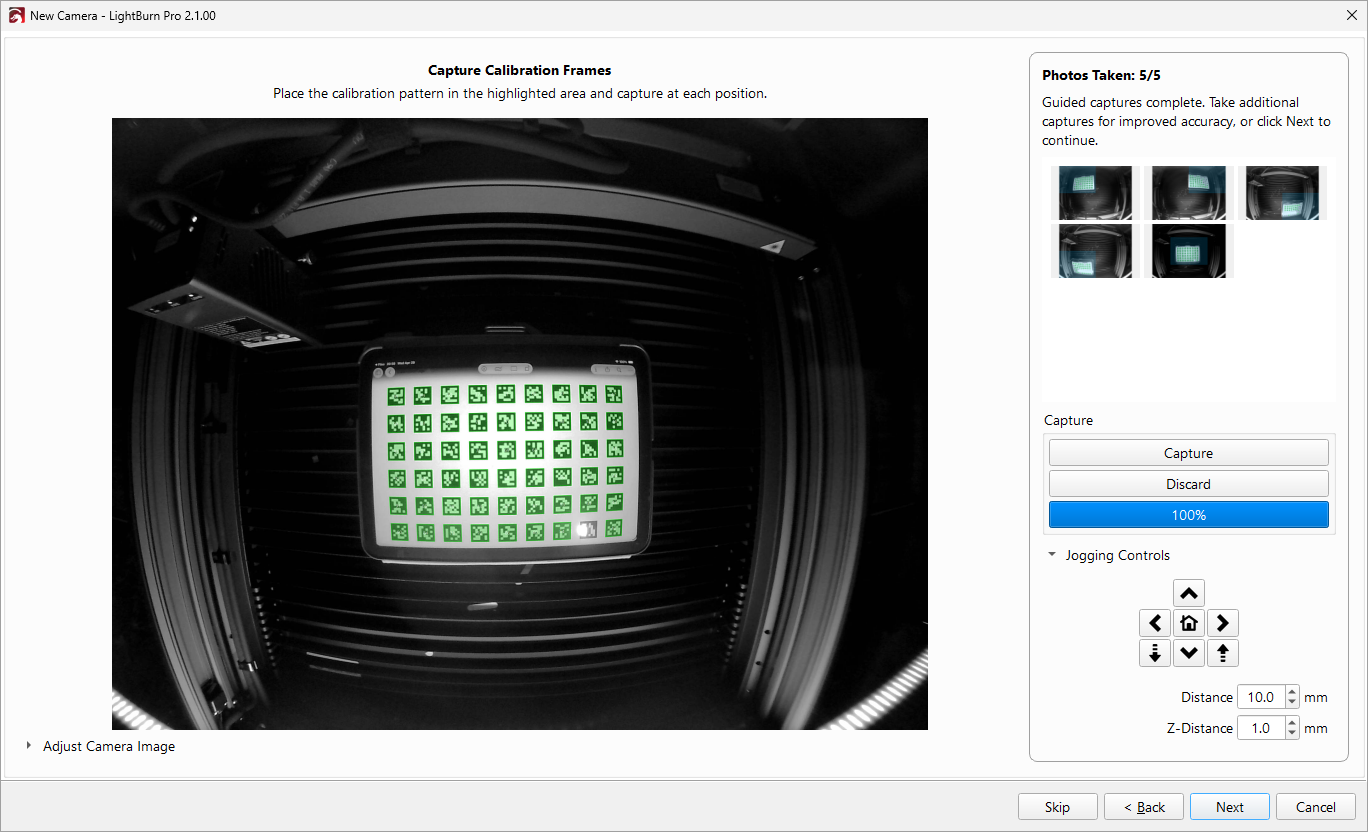
At this point, the view of the calibration tags should be more accurate than at the beginning, but will likely not look entirely correct. You can keep going to take more calibration frames, or click Next to continue to the next step.
4. Choose Calibration Model
There are 4 different mathematical models LightBurn can apply for the corrections.
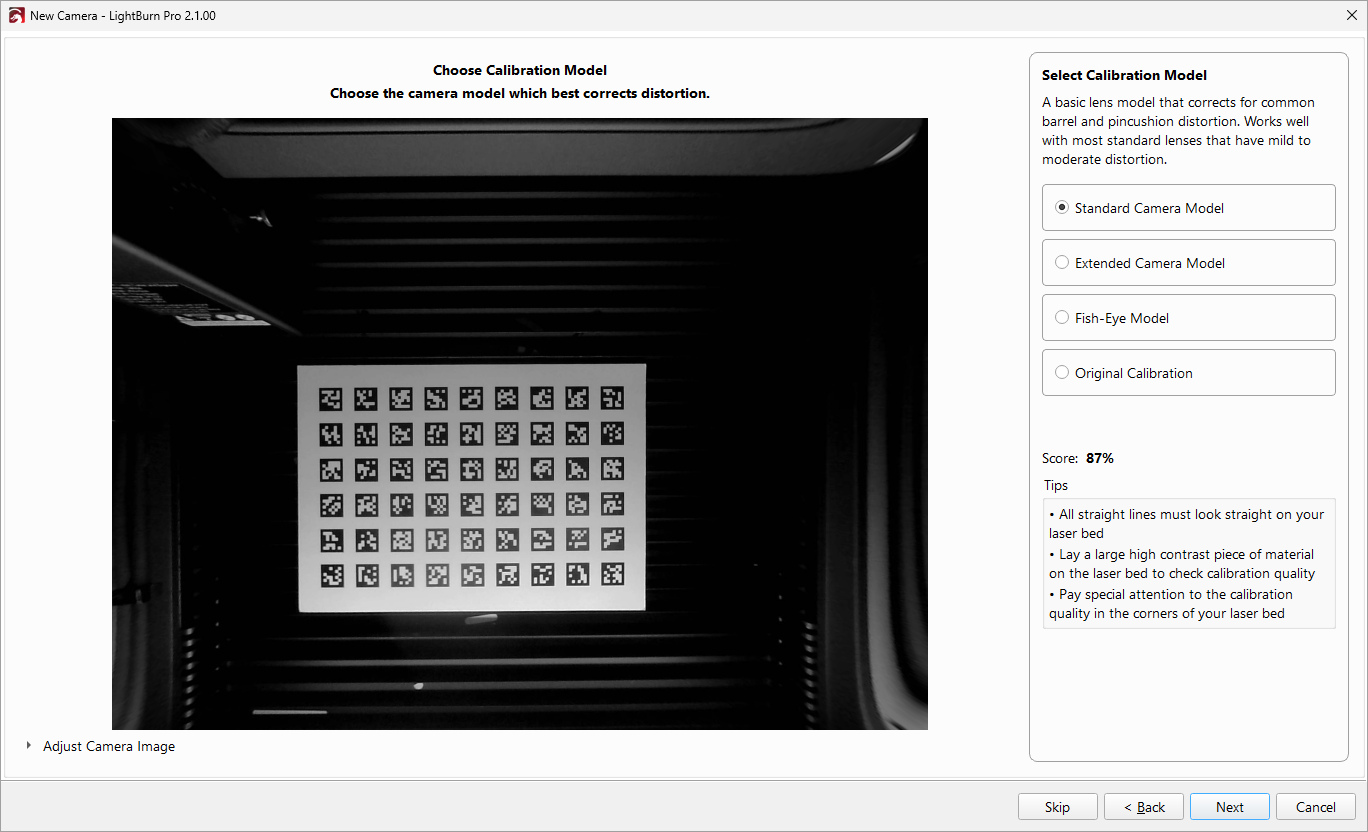
Click the model options on the right to preview what the camera image looks like under each. A large, high contrast pattern (for instance, the calibration pattern) can be helpful for checking the accuracy of the calibration. Select the model that looks the most accurate and click the Next button to continue. The Extended Camera Model works well with most lasers, but it's worth trying all of them.
If none of the models look accurate, click Back to capture additional samples or restart the process.
Tip
Look for lines you know are straight in the real world. If they're wavy or curved in the capture, that means there's distortion in the selected model.
Each model includes a description with more information.
Calibration Scores
The percentage score shown for each calibration model can be a helpful indicator, but a higher score doesn't guarantee a better calibration. Pick the model that looks most correct, even if it doesn't have the highest score. The Extended Model often produces the best results for cameras with very distorted lenses. The Fisheye Model is designed for fisheye lenses, which are a very specific style of lens, not just any camera with a very wide field of view.
Why isn't a high score always better?
The score comes from the average error between where LightBurn expects the calibration tags to be according to the calibration model and where they actually are. A calibration that only covers the center of the image tends to score higher because the center only has a little bit of distortion. Once you include the edges in the calibration, the model has to account for more real-world imperfection, so the score tends to drop, even though the calibration itself can be more accurate.
5. Success!
On the final screen, click Finish to close the process and save your changes. Next, you'll need to do Camera Alignment to align your camera to your workspace.
Import Existing Calibration
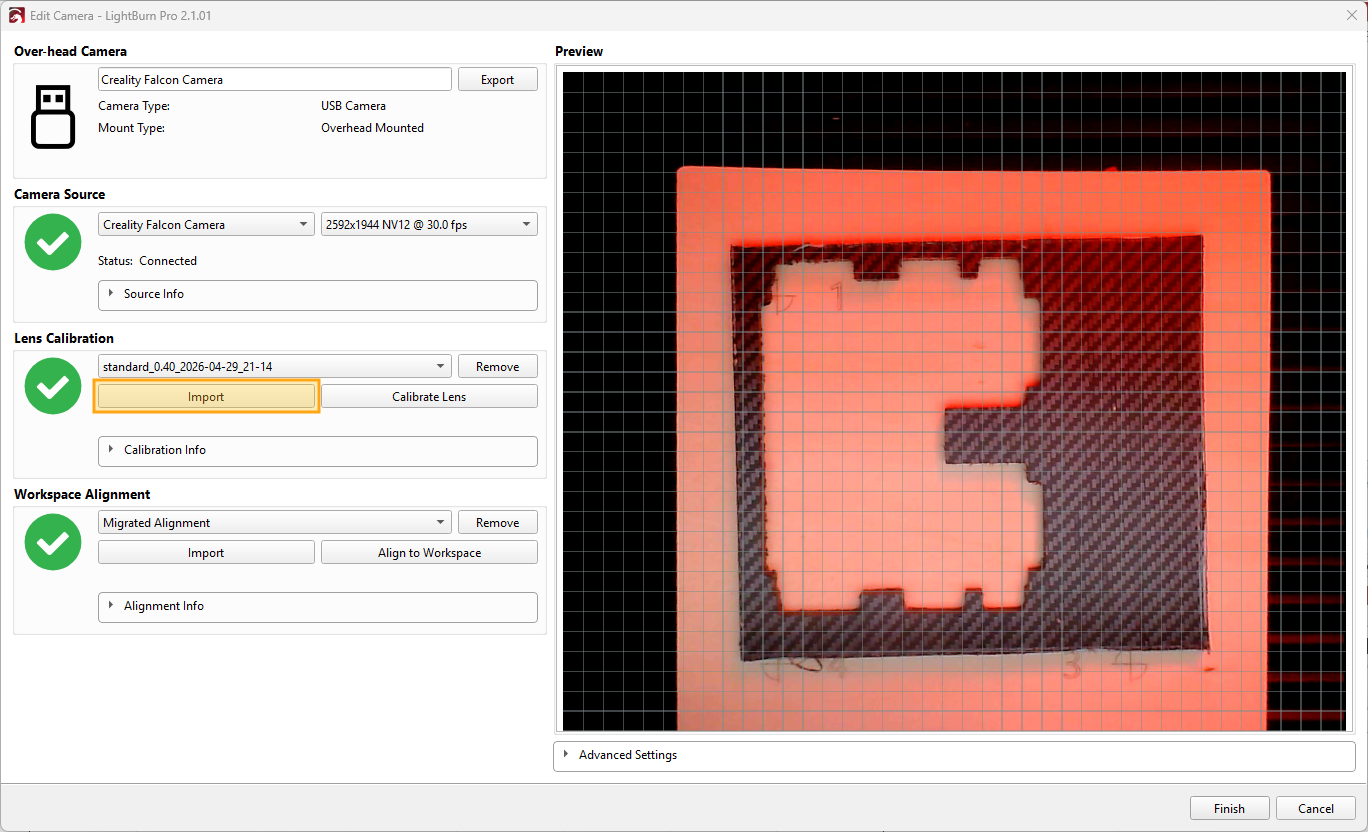
If you've already calibrated your camera and exported a LightBurn Camera File, you can import and reuse that calibration. Camera Lens Calibration only depends on the camera, not the mounting within the device, so even if you've moved the camera, you can still reuse the lens calibration.
- Open the Edit Camera window in one of the following ways:
- In the Laser Tools menu, select Manage Cameras, then select the camera you want to edit and click the Edit button.
- In the Cameras / Overlays Window, right-click on the camera you want to edit to open the context menu and select Edit.
- Select the Import button in the Lens Calibration section. See the screenshot below for the location.
- Select your
.lbcmfile and click OK.
What's Happening
Feel free to skip this section if you're not interested.
All cameras distort the image they capture at least a little, and the larger the area they can capture, the more serious that warping is. Wide-angle or fisheye lenses that can capture large workspaces from relatively close will be particularly badly distorted.
The Camera Lens Calibration process is required so that LightBurn can figure out the distortion pattern of your particular camera and correct for it in the software. The AprilTag calibration pattern you use for this process is important for the improved process, and allows for a simplified calibration process compared to the older dot pattern.