Epilog
Labs Feature
Labs features are new tools in development that we couldn’t wait to get into the hands of our users. Please experiment with caution, and report any unexpected results on our forum .
With the release of LightBurn 2.2, LightBurn now works directly with certain Epilog lasers.
See the list of compatible Epilog lasers
How to add your Epilog laser to LightBurn
Adding an Epilog Device to LightBurn
Info
Epilog's built-in cameras are not yet supported in LightBurn.
All supported Epilog lasers communicate with LightBurn over a network connection. You can either create your device manually or use LightBurn's new network option for Find My Laser. See below for detailed directions.
Before you begin, make sure you:
- Are using LightBurn Pro (all trials are LightBurn Pro)
- Have connected your Epilog laser to the network
If you're creating your laser manually, you'll need your laser's IP address. You can get this from the on-device menus.
Using Find My Laser with an Epilog Laser
-
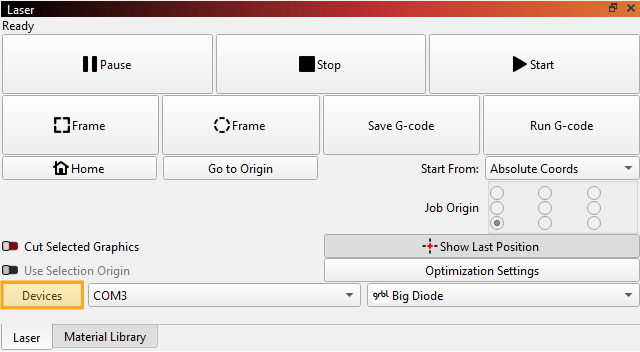
In LightBurn, click the Devices button (highlighted in the screenshow below) in the Laser window to open the Devices window.
-
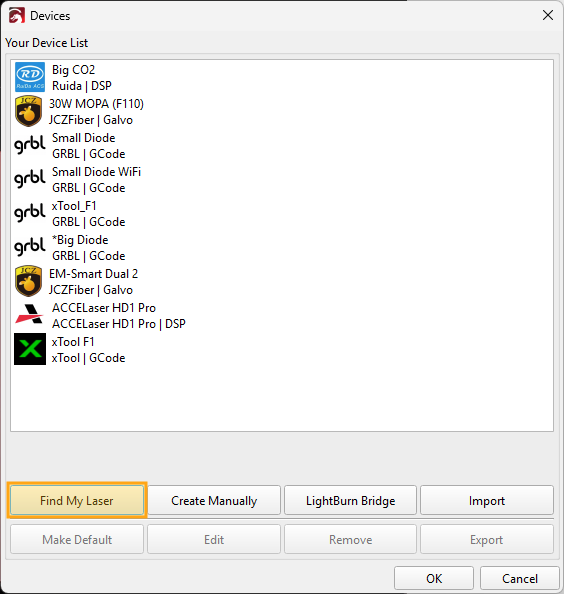
In the Devices window, click the Find My Laser button under the device list to open Find My Laser.
-
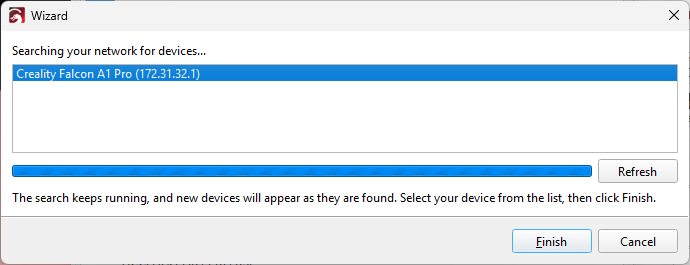
Make sure your device is connected to the network. Click the Search Network button.
-
If LightBurn detects your device, it will show up in the list. Select it and click Finish.
Completing Setup
Find My Laser Worked
Great! You can jump ahead to naming your device and continue with the rest of setup.
Find My Laser Didn't Work
If Find My Laser didn't work for you, you'll need to complete the setup manually. Continue on to Create Your Laser Manually.
Adding Your Epilog Laser Manually
Before you begin, find your laser's IP address using the menus on the laser's controller.
-
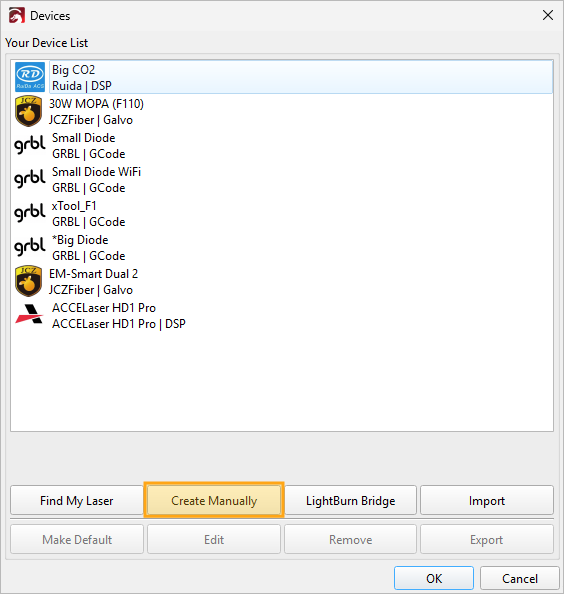
In LightBurn, click the Devices button (highlighted in the screenshot below) in the Laser window to open the Devices window.
-
In the Devices window, click the Create Manually button under the device list to open the New Device Wizard.
-
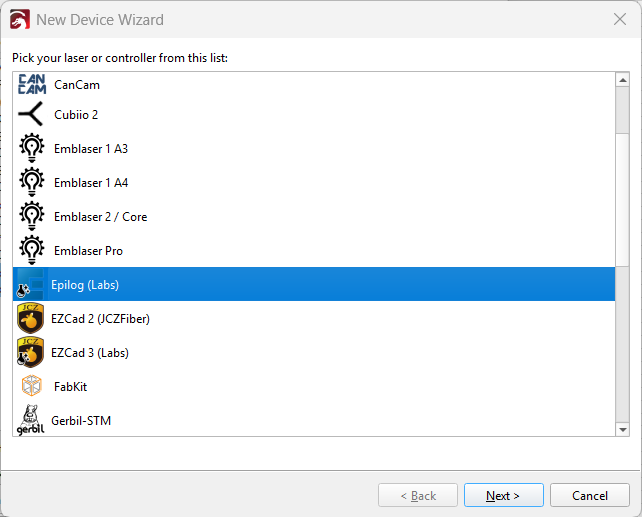
In the New Device Wizard, select Epilog from the list of device types. Click Next to Continue.
-
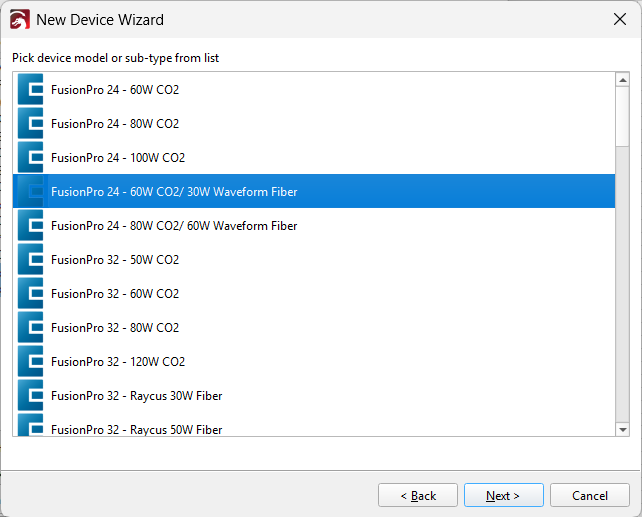
Select your specific Epilog model from the list.
-
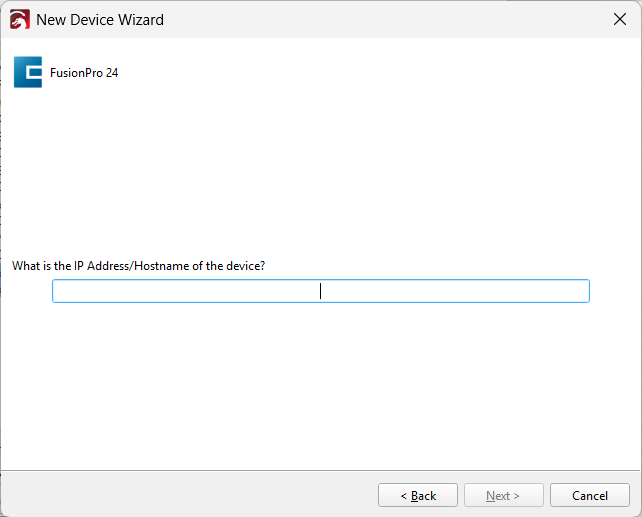
Enter your IP address to tell LightBurn where to find your laser on your network. Click Next to continue.
-
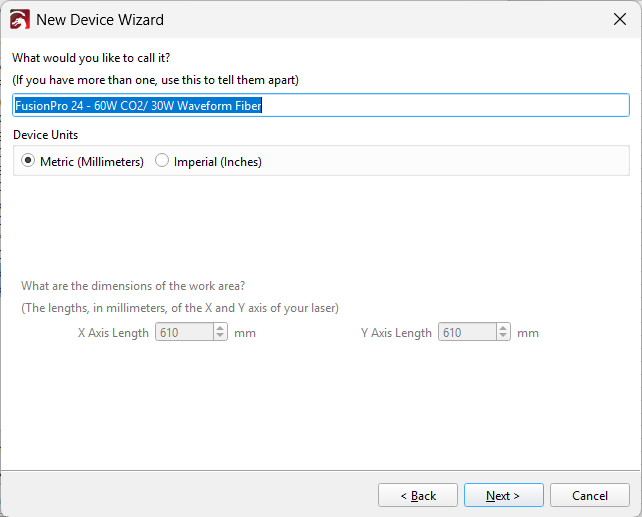
Name your device something recognizable. The dimensions should be set automatically. Leave the Device Units in millimeters - if you prefer to design in inches, you can set that separately later. Click Next to continue.
-
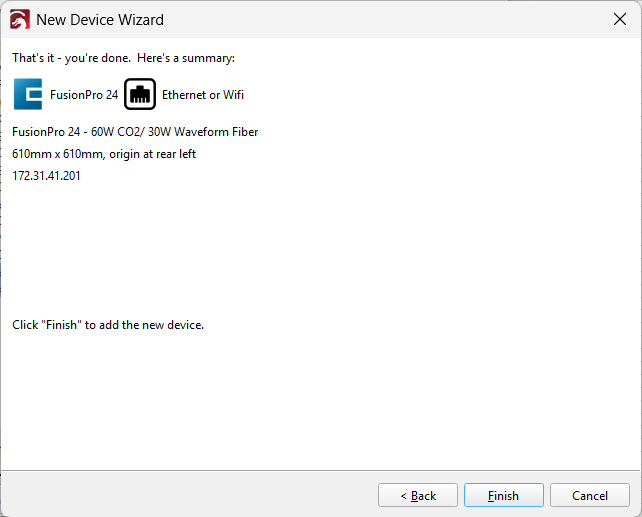
Make sure the summary on the final screen seems correct. Click Back to go back and make changes, or Finish to save your changes.
LightBurn UI/Behavior Changes for Epilog
When using an Epilog device, you'll see the following changes:
- Custom Laser Window for Epilog Devices
- Epilog Settings tab in Device Settings
- Save Epilog Print File option in File Menu
Custom Laser Window for Epilog Devices
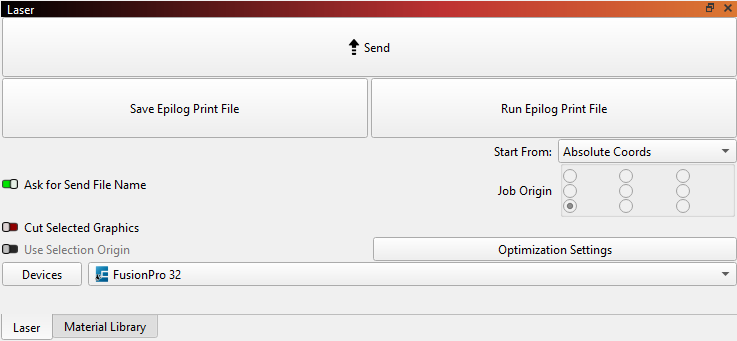
When you use LightBurn with an Epilog laser, you'll see a custom version of the Laser Window.
Send
Click the Send button to send the current design to your laser. If Ask for Send File Name is enabled, LightBurn will ask you for a file name.
Save Epilog Print File
Saves the cut data for the current design to an Epilog Print File (.prn) that you can upload to your laser later.
Run Epilog Print File
Loads an Epilog Print File and runs it on the laser immediately.
Ask for Send File Name
When Ask for Send File Name is enabled, LightBurn will ask you to name the file that is sent to the laser before sending it.
Start From and Job Origin
These two controls determine where the job is placed on the bed of your laser.
See Coordinates and Job Origin for more information.
Cut Selected Graphics
This toggle switch tells LightBurn to only send the portion of your design that is currently selected when you click Start, Send, or Save Machine File.
See Cut Selected Graphics for more information.
Use Selection Origin
Only available in combination with Cut Selected Graphics, the Use Selection Origin button tells LightBurn to calculate origin relative to selected graphics only, and not the whole design.
See Cut Selected Graphics – Use Selection Origin for more information.
Optimization Settings
This button opens the Optimization Settings window, where you can adjust various options that control the order in which your graphics are cut or engraved by the laser.
See Optimization Settings for more information.
Devices
Opens the Devices window, where you can create, remove, or edit device profiles for lasers you want to use with LightBurn.
Right-click to reset the USB connection
Right-clicking the Devices button closes and re-opens the connection to the currently selected device to reset it. This currently does not work with BSL devices.
See Devices for more information.
Device Selection Dropdown
If you've created multiple device profiles for multiple lasers, select the laser you are currently working with the dropdown menu.
Epilog Settings Tab in Device Settings
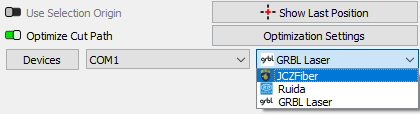
When an Epilog laser is selected, you'll have an extra tab in the Device Settings window for Epilog Settings.
Firmware Version
Use the Firmware Version dropdown to select which firmware version your Epilog laser is using. This information can be found from your laser's on-device control panel menus.
Save Epilog Print File
Go to File → Save Epilog Print File to create a print file with a .prn extension to send to your Epilog laser manually.
Epilog Laser Compatibility
Epilog Laser support in LightBurn as of October 16, 2026
Supported in LightBurn
- FusionPro 24
- FusionPro 32
- FusionPro 36
- FusionPro 48
- Fusion Ascent 12
- Fusion Ascent 24
- Fusion Ascent 36
- Fusion Edge 12
- Fusion Edge 24
- Fusion Edge 36
- Fusion Maker 12
- Fusion Maker 24
- Fusion Maker 36
Not Yet Supported in LightBurn
- Fusion Galvo G100 4″x4″
- Fusion Galvo G100 6″x6″
- G2 Galvo
- Fusion 32
- Fusion 40
- Fusion M2 32
- Fusion M2 40
- FiberMark Fusion 32
- FiberMark 24
- FiberMark 24 S2
- Zing 16
- Zing 24
- Helix 24
- Mini 18
- Mini 24
- Legend EXT 36