Device Specific Troubleshooting
Some machines use non-standard commands or configurations, and need special settings to work properly with LightBurn.
wecreate
WeCreat Vision
The WeCreat Vision needs to be set up as a Custom GCode device, either using Create Manually or by importing a pre-configured bundle.
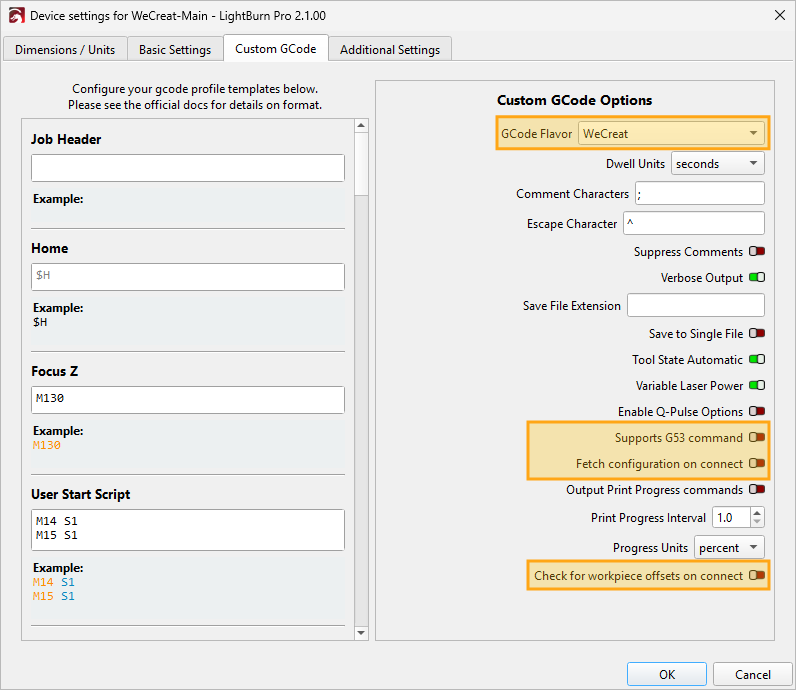
If you choose to add the machine manually, or already added one and aren't sure the machine is set up correctly, please make sure you use the following settings in the Custom GCode tab of Device Settings.
- GCode Flavor must be set to WeCreat.
- Supports G53 command must be disabled.
- Fetch configuration on connect must be disabled.
- Check for workpiece offsets on connect must be disabled.
Darkly Labs Emblaser Devices
Overview
To use a Darkly Labs Emblaser with LightBurn, you will need to use LightBurn license that's associated with Darkly Labs (licenses purchased from Darkly Labs with an Emblaser are already set up this way) and set up your device using the correct Emblaser device type for your machine. Keep reading for additional details.
Additional Information
Emblaser devices have some special features in LightBurn, such as:
- WiFi wizard
- Custom focus calibration wizard
- Custom camera calibration and alinment wizards
When you buy an Emblaser, the LightBurn license key that comes with it has a special tag that allows it to work with Darkly Labs machines. When you start LightBurn using a license with this special tag, you'll see the Darkly Labs logo on the splash screen at startup. If this logo is missing and you think this is an error, please contact support for further help.
When you add your device to LightBurn, you'll need to choose the correct device type - each Emblaser device type is listed separately.
xTool
LightBurn 2.2 brings significant changes to how xTool devices are configured and used in LightBurn. Please see our xTool page for additional information on setup and device support.
Existing xTool Devices
If you've already set up an xTool device in previous versions of LightBurn, you'll need to re-add the device to LightBurn.
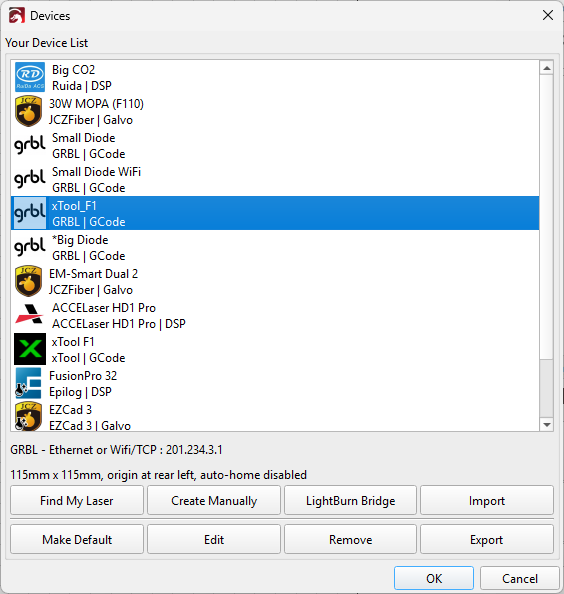
In the screenshot above, you'll see the xTool F1 listed twice. The highlighted one has a grbl icon and was created using a .lbdev file. This older device setup should not be used for xTool devices in LightBurn 2.2. The new xTool device type, represented with an xTool icon, offers more support for xTool features, an easier installation process, and support for a wider range of machines.
What to Do
If your xTool device was set up before LightBurn 2.2 or has a grbl icon:
- Make sure you know where your Material Library is if you're using one.
- Add your xTool device using our updated directions for 2.2.
- Load your Material Library if you have one to load from an old xTool device.
- Delete the older xTool device.
Firmware Issues
Previous versions of this page warned that newer firmware updates on certain xTool machines were incompatible with LightBurn. This has been fixed with the new xTool Device Type, which improves support for xTool machines and works with current software versions.
If you're using an xTool laser created in an older version of LightBurn as a GRBL laser, you will need to use a firmware version below the ones listed at xTool Devices: Firmware. We recommend that you instead recreate your laser with the new xTool Device Type.