xTool
Labs Feature
Labs features are new tools in development that we couldn’t wait to get into the hands of our users. Please experiment with caution, and report any unexpected results on our forum .
LightBurn 2.2 works with more xTool devices than previous LightBurn versions, with better support for features like dual laser sources. This page provides additional information about which machines and features are supported, and how to set up your laser in LightBurn.
Info
Epilog's built-in cameras are not yet supported in LightBurn.
See the list of compatible xTool lasers
How to add your xTool laser to LightBurn
Adding an xTool Device to LightBurn
Setting up an xTool device in LightBurn has some slight differences from other devices.
- Aside from the xTool S1 and xTool D1/D1 Pro, all xTool devices use network connections even if you're connecting with a USB cable. In LightBurn 2.2 RC 6 and newer, Find My Laser has the ability to detect lasers over the network, and we also have directions below to find your IP address. If you're adding your machine manually, LightBurn needs this IP address to know where to find your laser on your network.
- After setting up your xTool device, you'll need to check that it's configured correctly in Device Settings.
Using Find My Laser with xTool Devices
-
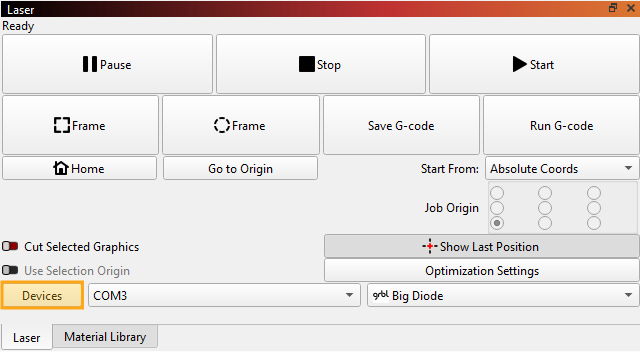
In LightBurn, click the Devices button (highlighted in the screenshow below) in the Laser window to open the Devices window.
-
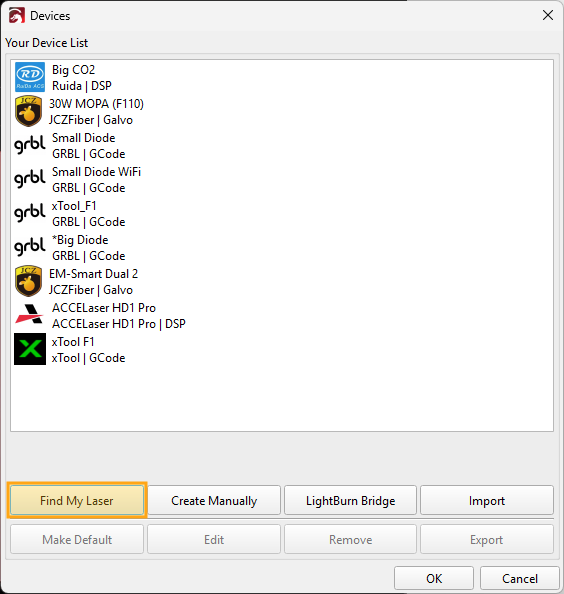
In the Devices window, click the Find My Laser button under the device list to open Find My Laser.
-
Make sure your device is connected to the network or directly to the computer with a USB cable. For the xTool S1 or xTool D1/D1 Pro, click the Find My Laser button. For all other xTool devices, click the Search Network button.
-
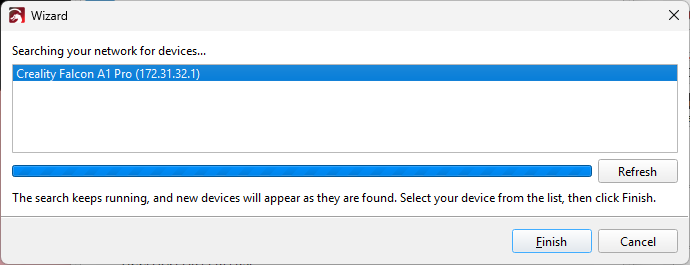
If LightBurn detects your device, it will show up in the list. Select it and click Finish.
Find My Laser Worked
Great! You can jump ahead to naming your device and continue with the rest of setup.
Find My Laser Didn't Work
If Find My Laser didn't work for you, you'll need to complete the setup manually. Continue on to Finding Your IP Address
Adding a Laser Manually
Part 1: Use xTool Studio to Find Your IP Address
- Connect to your laser in xTool Studio. If this is your first time, you'll need to connect over USB. If you've connected before, you'll be able to connect however you usually do.
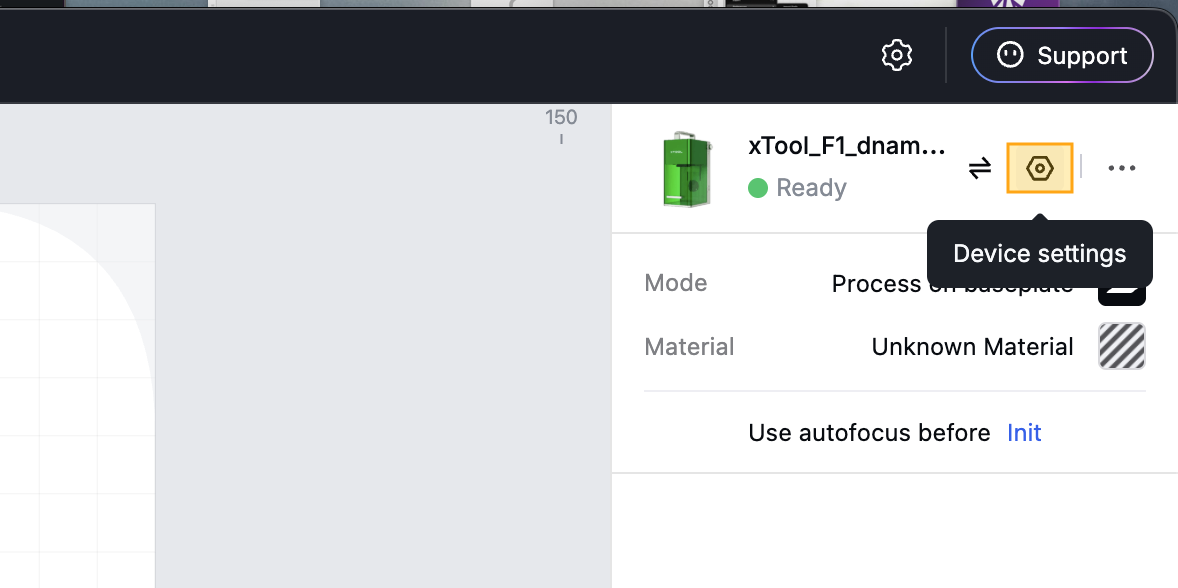
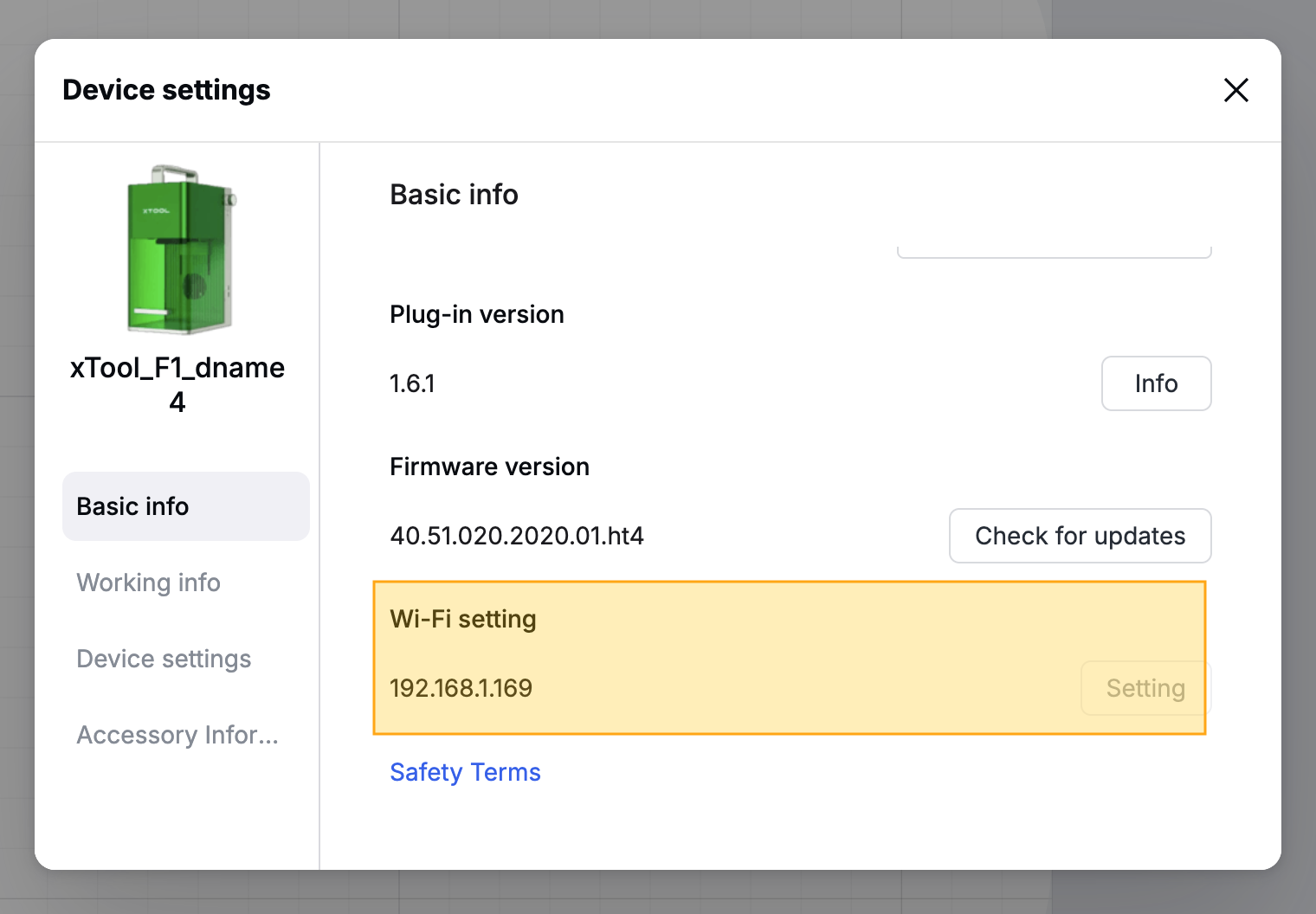
- Open the Device Settings panel in xTool Studio by clicking on the nut icon highlighted in the screenshot below.
- In the Basic Info section, scroll down to find the Wi-Fi Setting section. You should see an IP address there. In the screenshot below, you can see the IP address of 192.168.1.169 highlighted. Copy the IP address or write it down.
- Head over to LightBurn to add your device.
Part 2: Add your xTool Device in LightBurn.
-
In LightBurn, click the Devices button (highlighted in the screenshot below) in the Laser window to open the Devices window.
-
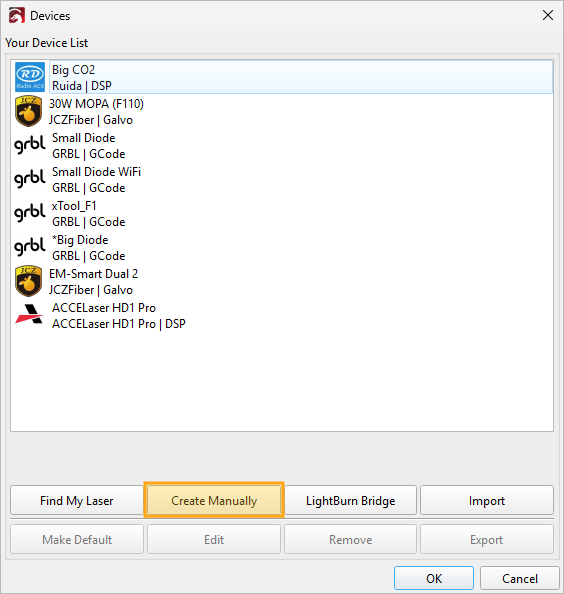
In the Devices window, click the Create Manually button under the device list to open the New Device Wizard.
-
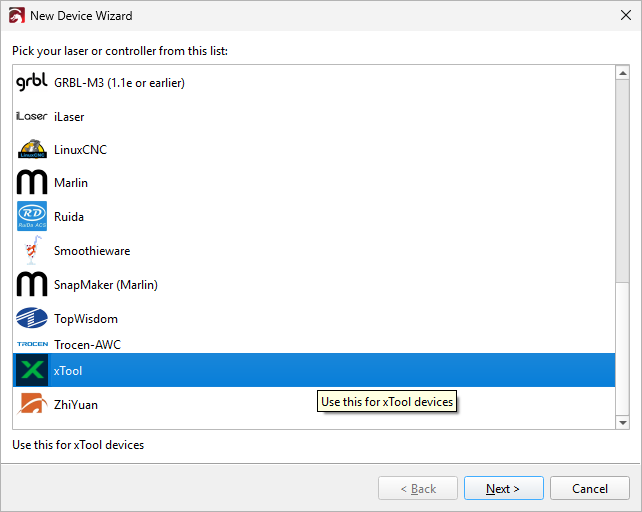
In the New Device Wizard, scroll down and select xTool from the list of device types. Click Next to continue.
-
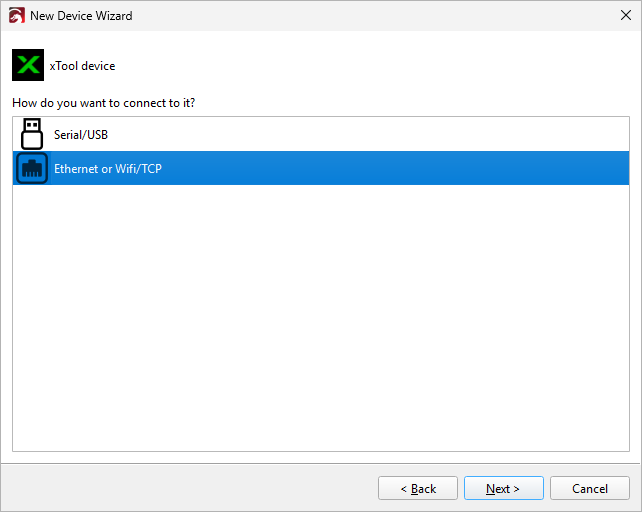
Select Serial/USB if you're connecting an xTool S1, D1, or D1 Pro with a USB cable. Select Ethernet or WiFi/TCP for all other devices or connection types. Click Next to continue.
-
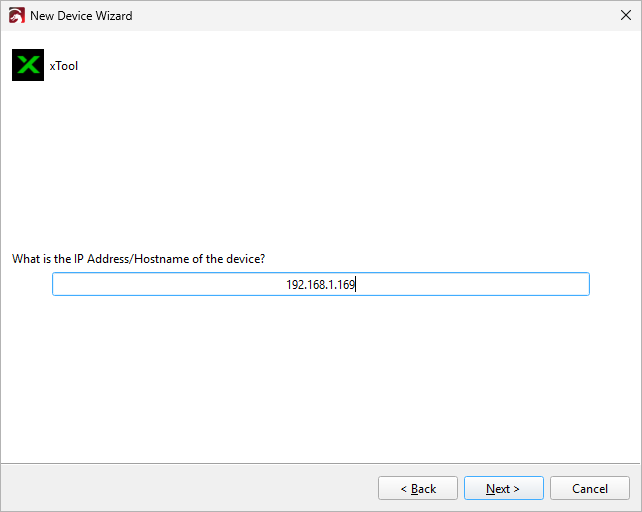
Enter the IP address you found in Part 1 to tell LightBurn where to find your laser. If you're connecting an xTool S1, D1, or D1 Pro over USB, LightBurn will skip this step. Click Next to continue.
-
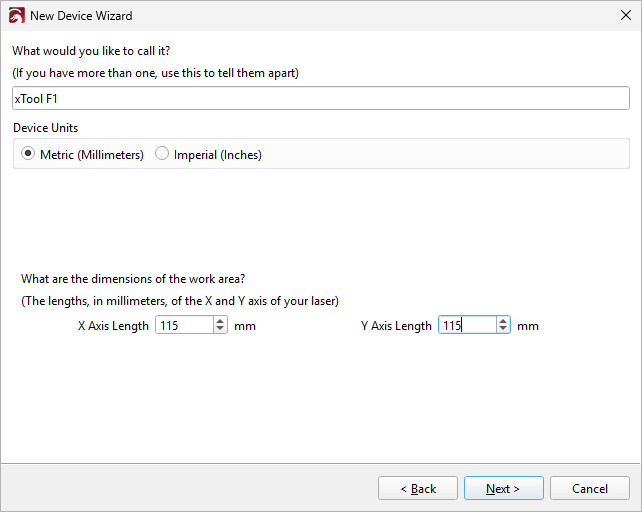
Name your device something recognizable and set the dimensions of the work area to match your laser. Leave the Device Units in millimeters - if you prefer to design in inches, you can set that separately later. Click Next to continue.
-
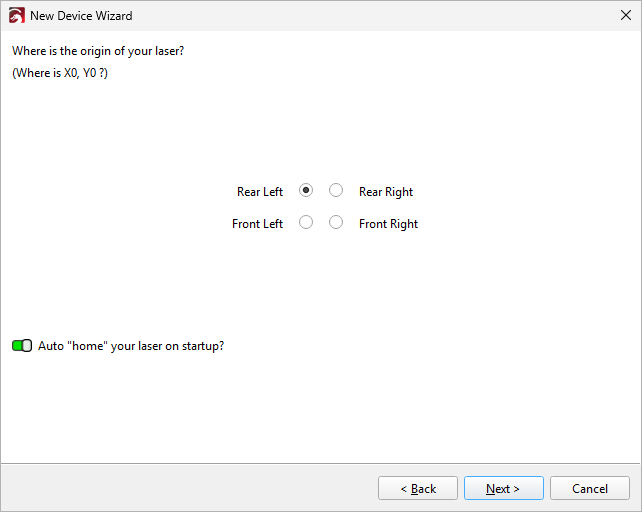
Set the origin of your laser to the appropriate corner. Click Next to continue.
-
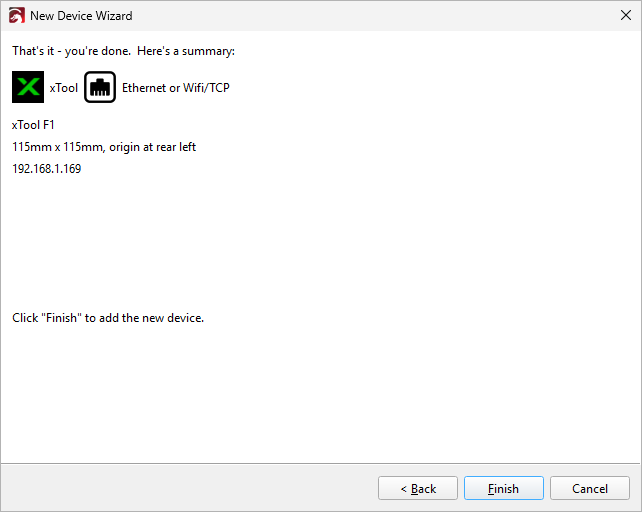
Make sure the summary on the final screen seems correct. Click Back to go back and make changes, or Finish to save your changes.
Check Your Device Settings
Whether you used Find My Laser or added your laser manually, you'll need to check your device configuration.
-
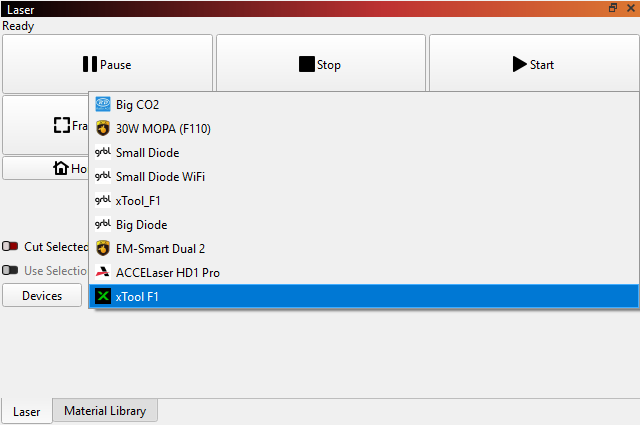
If you have multiple lasers configured in LightBurn, make sure your xTool Device is selected in the dropdown in the Laser window.
-
Open Device Settings by going to Laser Tools → Device Settings or clicking the wrench icon in the toolbar.

-
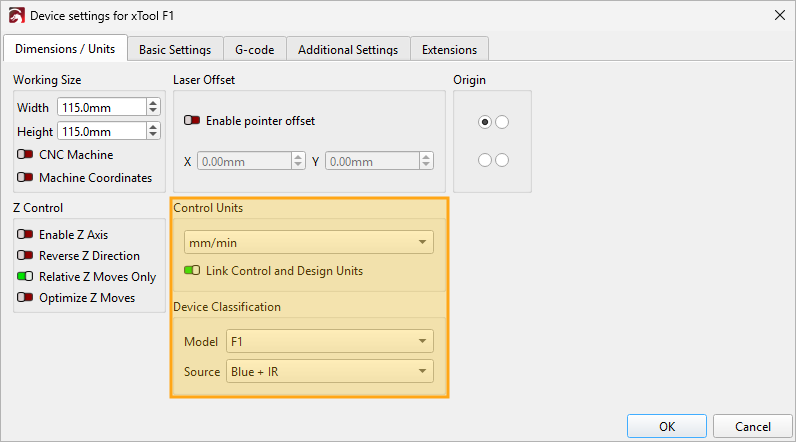
In the Dimensions / Units tab, find the Device Classification section. When you add your laser, LightBurn will attempt to automatically identify it and select the correct device type. If you see unknown or the wrong device, select your xTool model from the Model dropdown.
-
Adjust your Control Units if needed. These are the units that control how you set your speed.
- xTool's material settings are given in millimeters/second, so if you want to use those recommendations more easily, choose mm/sec.
- In general, the default of millimeters/minute has been the more common way to describe diode laser cut settings. If you want to convert a speed from mm/sec to mm/min, divide the value by 60, so 120 millimeters/minute becomes 2 millimeters/second.
- If you usually design in inches, turn off the Link Control and Design Units toggle under Control Units. In the Settings Window you can set your Design Units to inches. Alternatively, you can set your Control Units to in / mm/sec or in / mm/min to design in inches and control your laser in millimeters.
Why is xTool F1 in your device list twice?
In one of the screenshots on this page, there are two entries for the xTool F1. One has an xTool icon, and the other has a grbl icon. The one with the grbl icon was set up in an earlier version of LightBurn, before the improved xTool support, and will not benefit from the improves in 2.2. If you've already created an xTool device in an older version of LightBurn, you should recreate it using the new setup method.
Selecting the Laser Source for xTool Lasers in LightBurn
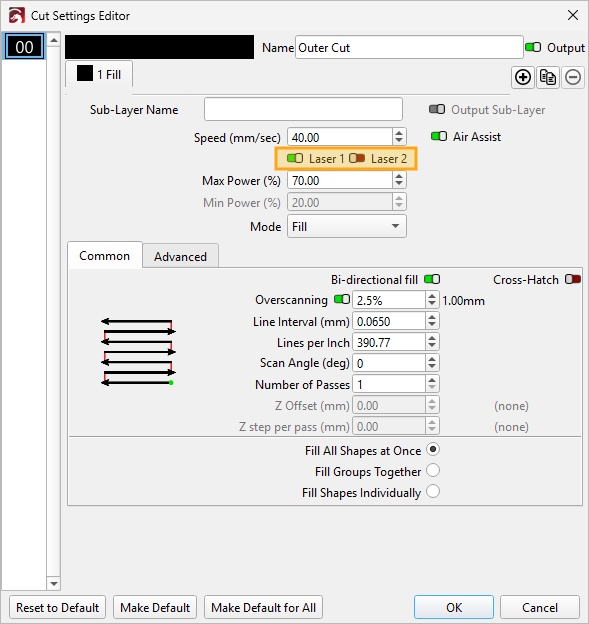
Some xTool lasers, like the F1 and F2, are dual-source lasers and can output two different wavelengths of light to work with different materials. LightBurn 2.2's new xTool device type adds native support for switching between the laser sources, making it much easier to use both sources than in previous version of LightBurn.
To switch between laser sources on a dual source laser, double click an entry in the Cuts / Layers Window to open the Cut Settings Editor. In this window, you can choose between Laser 1 and Laser 2 to switch which laser source will be used for that layer. This also allows you to switch between the two sources in a single job. See the screenshot below for the location of the laser source toggle.
xTool and Galvo features
LightBurn's 3D Sliced Engraving and Split Marking features are not currently available for xTool lasers. We are working on making these features available for xTool galvo lasers such as the xTool F1 and F2 as well.
Detailed xTool Device Support List
We've been working with xTool to expand and improve support for xTool devices. The table below summarizes xTool device support as of October 6, 2026.
| Device | Supported | Notes |
|---|---|---|
| D1 | Yes | If connecting with a USB cable, does not require an IP address. |
| D1 Pro | Yes | If connecting with a USB cable, does not require an IP address. |
| D1 Pro 2.0 | Yes | If connecting with a USB cable, does not require an IP address. |
| S1 | Yes | If connecting with a USB cable, does not require an IP address. |
| F1 | Yes | |
| F1 Lite | Yes1 | |
| F1 Ultra | Yes | Manually editing GCode is no longer required to use the xTool F1 Ultra with LightBurn. |
| F1 Ultra 2 | Yes1 | Manually editing GCode is no longer required to use the xTool F1 Ultra 2 with LightBurn. |
| F2 | Yes1 | |
| F2 Ultra | Yes1 | |
| F2 Ultra Single | Yes1 | |
| F2 Ultra UV | Yes1 | |
| P1 | No | Unsupported |
| P2 | Yes1 | Some more recent firmware for the xTool P2 does not currently support camera use in LightBurn. |
| P2S | Yes | Some more recent firmware for the xTool P2S does not currently support camera use in LightBurn. |
| P3 | No | Unsupported |
| M1 | No | Unsupported |
| M1 Ultra | No | Unsupported |
| M2 | No | Unsupported |
| Retail Marker | No | Unsupported |
| MetalFab | No | Unsupported |