Camera Selection
New Camera Options
LightBurn 2.1 and newer allow for a wider range of cameras to be used, including some web-based IP cameras and a wider range of manufacturers' built-in cameras.
IP/Network cameras need to be able to support sending MJPEG or individual frames. RTSP cameras will not work. See Camera Troubleshooting for more information.
Can I Use a Camera I Already Have?
Possibly. Interactions between cameras and computers are complex, and although a wide range of cameras are compatible with LightBurn, we can't guarantee your specific camera will work. If you want to try using your own camera, your best option is a fixed-zoom USB camera that can be detected as a webcam by your computer. If you're using a network camera, look for a non-RTSP IP camera that can send MJPEG or individual frames.
Selecting a Camera
You can add an Overhead camera or a Head camera to LightBurn. Neither type is inherently better or worse, and combining the two can be particularly effective, especially on larger lasers, where it may be helpful to use an overhead camera to capture the entire bed, then capture specific areas of interest with a head camera.
| Overhead Cameras | Head Cameras |
|---|---|
| Mount to a fixed point, such as the top or lid of your machine, and don't move around. | Mount to the head of your laser, and move around inside your laser. |
| Captures a view of the entire laser bed. | Captures a view of a small section of the laser bed around the head of your laser. |
| Uses a lens with a wide field of view to capture a large area relatively close to the camera. The wide field of view requires a lot of correction for distortion, especially around the edges of large machines. | Uses a lens with a narrower field of view. Requires less correction for distortion and gives more accurate results around the edges of the laser bed. |
| To get good detail on larger machines, requires a relatively high camera resolution for a webcam. | Low resolution cameras are fine, because each pixel only represents a small area. |
| Within reason, the size and weight of the camera isn't important since it isn't moving around. Something around the size of a typical webcam is completely fine. | Head cameras need to be small and light. USB endoscope cameras are a popular choice for this. |
| Many lasers come with overhead cameras pre-installed. | Head cameras are rarely pre-installed, although some lasers do include them. |
| Get help selecting an Overhead Camera | Get help selecting a Head Camera |
Selecting a Head Camera
With growing interest in Head Cameras for compatibility with our new Camera Print & Cut feature, we've had more people asking for guidance on what to purchase.
If your laser didn't come with a head-mounted camera pre-installed, we recommend an inexpensive USB Endoscope Camera with a long, flexible USB cable. These cameras are also sometimes listed as a "USB Inspection Camera". Avoid cameras with built-in screens or rigid or semi-rigid cables that will interfere with your laser's motion. As of October 2026, these cameras are typicallly available for about $15-30 or €20-30 from common online retailers.
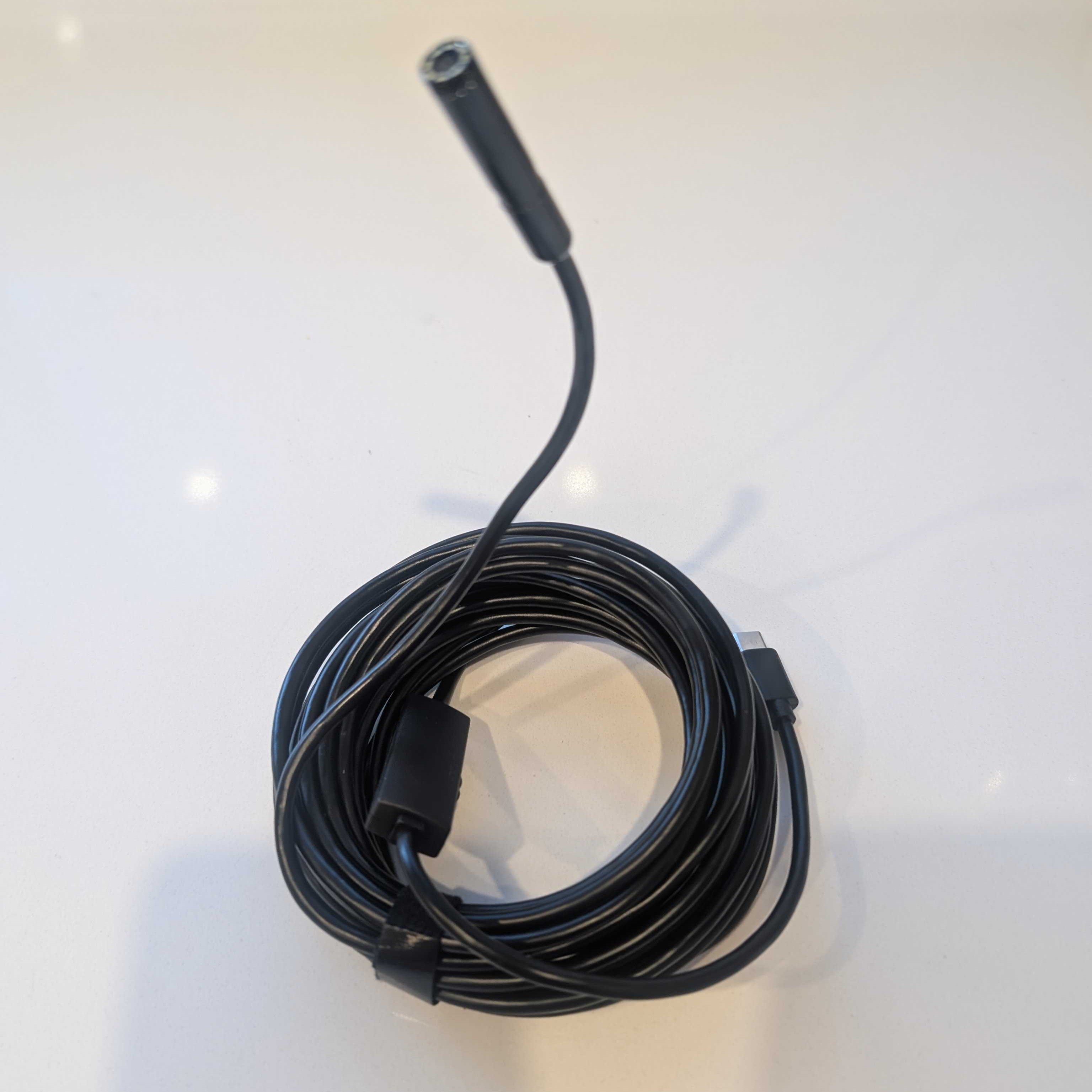
Example image of the type of endoscope camera to look for. This one has a semi-rigid cable, but you should look for one with a flexible cable.
If you want to explore other options, any small, light camera you can mount securely to your laser head and connect to over USB or WiFi should work. Keep in mind that WiFi cameras that use RTSP will not work - IP cameras need to output individual frames or an MJPEG feed.
For more information on mounting your new camera, see Camera Installation - Head Cameras.
Selecting an Overhead Camera
To select a camera, you'll need to know two things:
- The size of your laser's work area, in millimeters.
- The distance between the height from which you want to mount the camera and the surface of your laser's work area.
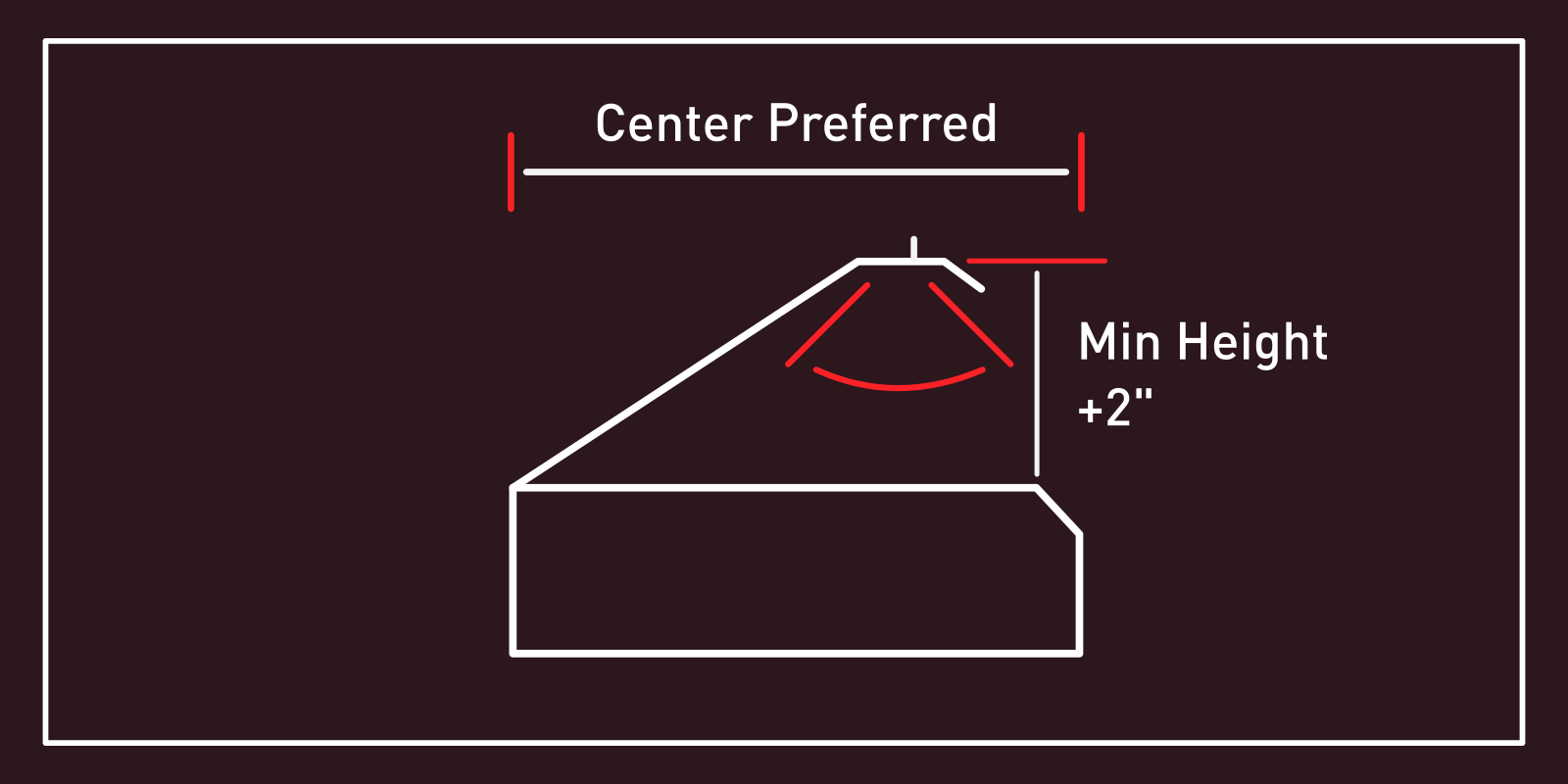
If that seems like a lot, don't worry - we've got tools to make it easy!
Camera Selection Help Window
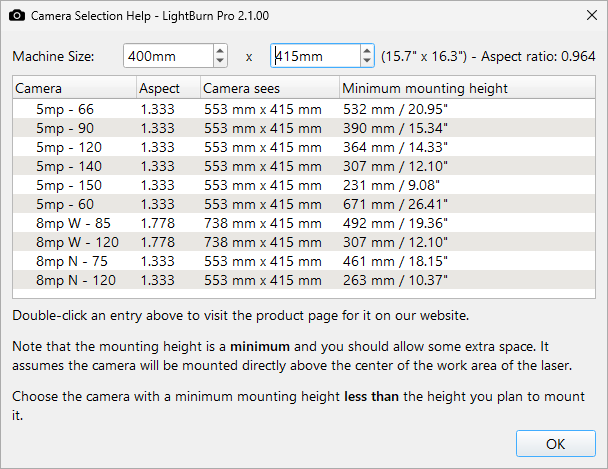
The Camera Selection Help window helps you select an appropriate camera for your laser. The information provided is specifically for the USB cameras sold on LightBurn's Website, which are known to work well with LightBurn and have calibration presets built into the software for easier Lens Calibration.
Go to Help → Camera Selection Help to open the window.
To select a camera:
- Enter the machine size into the Camera Selection Help window.
- Look through the list to find a camera with a minimum mounting height about 2 inches less than the height you intend to mount at. This leaves room for adjustment.
- Double-click an entry in the list to visit the product page to purchase it.
Info
We are phasing out sales of official LightBurn cameras. If the camera suggested by our built-in helper is no longer available, try searching for a third party camera with the same lens angle, or as close as possible. See the calculator below for help verifying that a given camera will work for your laser.
Sourcing a Third Party Camera
With sales of official LightBurn cameras winding down, we have resources here to help you find a suitable third-party camera for your laser, including a camera lens selection calculator.
Camera Specs
LightBurn is compatible with a broad range of third party cameras. Here are some guidelines on technical requirements:
- Fixed focus
- 12 FPS or higher is sufficient
- 8MP to 12MP resolution is ideal
- >16MP hits USB 2.0 bandwith limits
- >20MP hits defraction limits
- Global shutter camera recommended
Lens Selection Calculator
Use the Browse Lens Options tab below to enter your laser's work area dimensions and intended camera mounting height, then see recommended camera options listed by lens angle and aspect ratio.
If you cannot source a camera with the exact specifications listed in row labeled "Best fit", try sourcing a similar camera, then using the Verify Camera tab to make sure it will work with your laser. Enter a camera's known resolution and lens angle, along with your laser's work area dimensions and intended mounting height, then check if the camera will be capable of capturing your laser's entire bed.
Identifying Lens Angle and Resolution in Product Listings
- Lens angles are typically listed in degrees representing diagonal field of view. You may see the terms "Optical Lens" or "FOV".
- Resolution is typically expressed in
*####x####format, for example1920x1080. You may also see an aspect ratio written in#:#format, for example16:9.
Laser work area
Mounting height
The ideal lens has a minimum mounting height about 50 mm (2 in) below your intended height.
Camera sensor
Camera FOV spec
FOV measurement axis
Most specs list diagonal FOV. Only switch if your spec sheet explicitly says HFOV or VFOV.
Mounting height
Troubleshooting
Some computers may have difficulty connecting with older or less expensive USB cameras because of incompatibilities between newer USB 3.0 ports and older USB 2.0 cameras. This is more common with USB C ports and newer computers such as M1 or newer Macs. If you have this problem, try using a USB 2.0 hub or adapter between the camera and the computer.
See Camera Troubleshooting for more information.