Web Tools Menu
Use the Web Tools Menu to access LightBurn's built-in web tools and to add and manage your own custom web tools. These are all completely optional third-party services, and our built-in tools all have useful, relevant free options available, although they may have paid services as well.
About third-party Web Tools:
- Any memberships or accounts required by Web Tools are entirely separate from LightBurn.
- LightBurn does not have access to user accounts or memberships.
- LightBurn does not receive fees or compensation from third-party services.
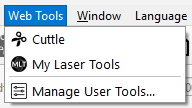
Before you can use web tools, you'll need to acknowledge the third party service notice. The text of the notice is below for your convenience, bu the official and most up-to-date version is the one in the software itself.
Third Party Service Notice
This feature may provide access to or display third-party websites or services operated independently from LightBurn. LightBurn does not control and is not responsible for the availability, content, functionality, security, privacy practices, transactions or any operations of such third-party websites.
Your interaction with such services may be subject to separate third-party terms and privacy policies, and you are responsible for reviewing and complying with such terms.
By continuing, you acknowledge that (a) this feature is governed by the third party's applicable terms and privacy policy; and (b) LightBurn is not responsible for any loss, damage, data breach, interruption, or other issue arising from your use of the third-party website or services.
Built-In Web Tools
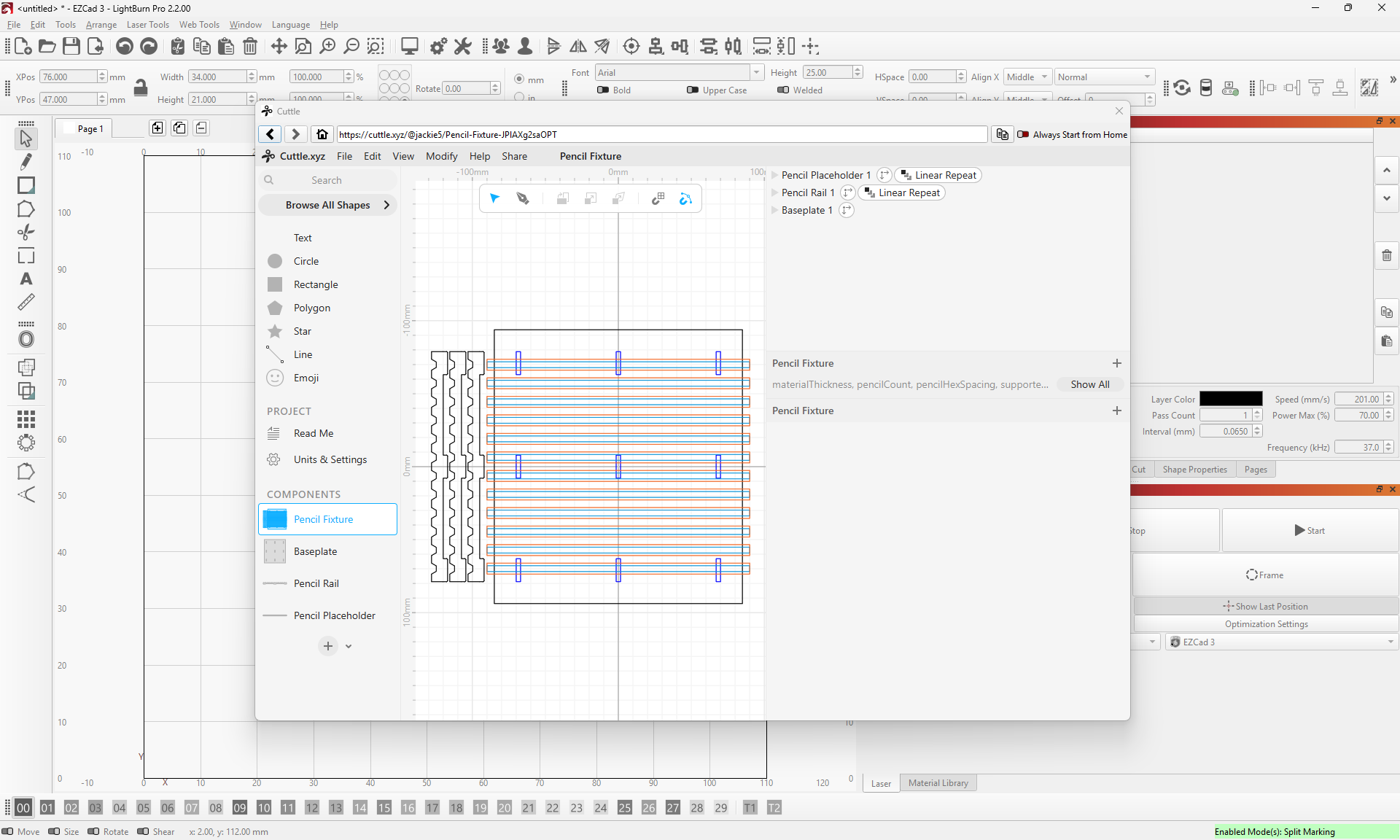
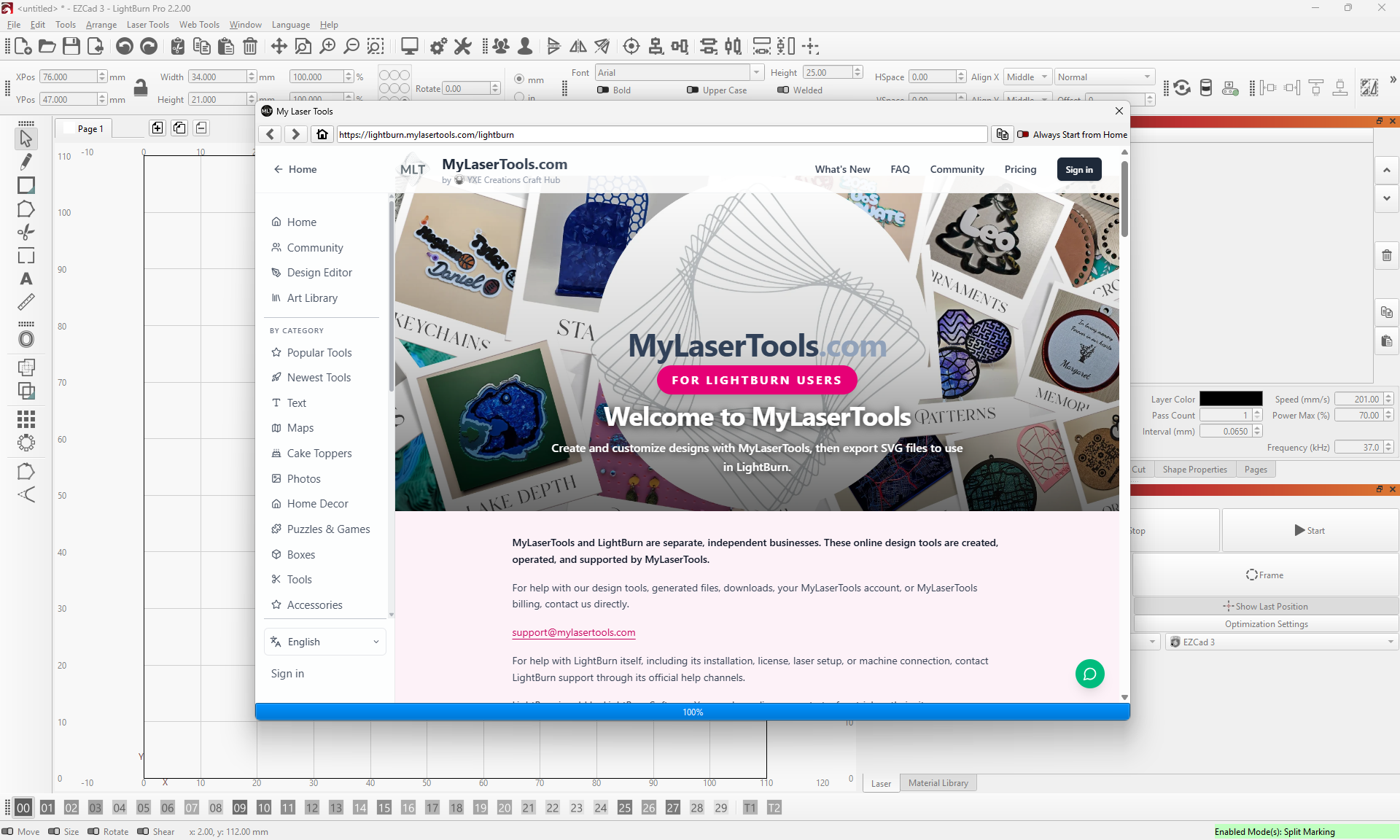
Currently, LightBurn has two built-in web tools: Cuttle and My Laser Tools. Both are sites offering a wide range of project generators to help you create your own projects.
Cuttle
You can use our built-in Cuttle integration to access Cuttle without leaving LightBurn, and to import your designs directly into the workspace in LightBurn.
My Laser Tools
You can use our built-in My Laser Tools integration to access My Laser Tools without leaving LightBurn, and to import your designs directly into the workspace in LightBurn.
User Tools
You can also add your own tools to the Web Tools and use them in much the same way as the built-in Web Tools. User Tools are only installed for your computer.
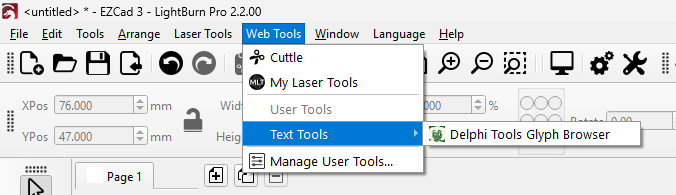
Once you've added at least one User Tool, you'll be able to find and access your User Tools from the Web Tools menu. User Tools will always be in the User tool section.
Adding User Tools
To add User Tools:
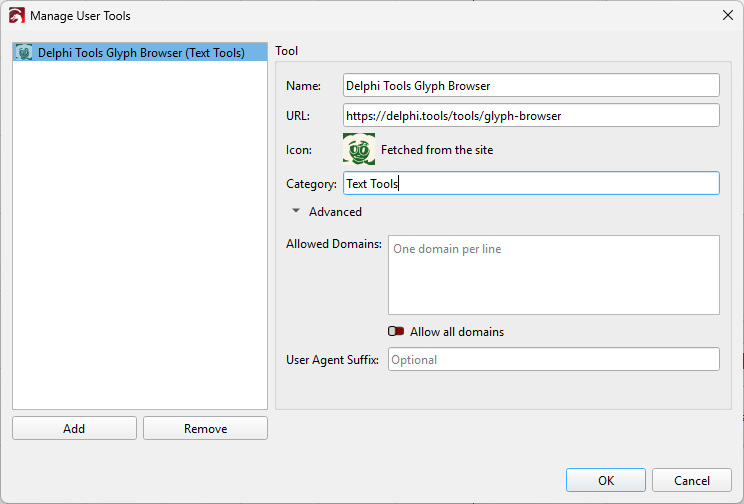
- Open the Manage User Tools Window from the Web Tools menu.
- Click the Add button.
- Enter the required information. Click Advanced if you need to access advanced settings.
- Click OK to confirm.
User Tool Settings
| Setting | Required? | Description |
|---|---|---|
| Name | Required | The name to show in the menu. |
| URL | Required | The URL of the site to use for the web tool. |
| Icon | - | Automatically fetched from the site. Can't be changed by the user. |
| Category | Optional | If you enter a category, it will be used to group tools into submenus. |
| Allowed Domains (Advanced) | Optional | Additional domains the tool is allowed to open. Enabling Allow All Domains will allow the tool to open any website. Use with caution - if you don't understand this setting, don't use it. |
| User Agent Suffix (Advanced) | Optional | Text added to the end of the browser's user agent. Only needed if the site requires for it. Most tools will not need this. |
Editing User Tools
To edit User Tools:
- Open the Manage User Tools Window from the Web Tools menu.
- Select the tool you want to edit.
- Edit the information.
- Click OK to confirm.
Removing User Tools
To remove User Tools:
- Open the Manage User Tools window from the Web Tools menu.
- Select the tool you want to remove
- Click the Remove button.