SVGNest (External)
Nesting helps you arrange objects to use material more efficiently. LightBurn offers three options for nesting. This page is about LightBurn's integration with an external tool called SVGNest. LightBurn also has two built-in nesting tools: True Nest and Quick Nest. The SVGNest tool will automatically create and export an SVG of selected graphics, upload it to SVGnest.com, and re-import it after it nests the graphics contained in the file.
| True Nest | Quick Nest | SVGNest (External Tool) | |
|---|---|---|---|
| LightBurn release | LightBurn 2.2 Pro | LightBurn 2.1 | LightBurn 1.1 |
| Nests based on true shape of objects | ✅ | ❌ | ✅ |
| Fully integrated in LightBurn | ✅ | ✅ | ❌ |
| Works locally, internet not required | ✅ | ✅ | ❌ |
| Read more | True Nest | Quick Nest | SVGNest (External) |
Using SVGNest
-
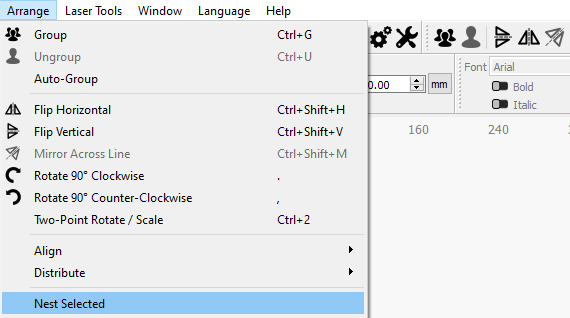
Select any graphics you'd like to nest along with a container shape — usually a shape that has the same dimensions as the material you are going to cut the nested graphics out of — then go to the Arrange Menu and click SVGNest (External Tool).
Important Note on Inner Shapes
LightBurn does not export graphics that are contained inside another graphic — this means all of the graphics you'd like to nest must be outside the container shape you choose.
Once your graphics have been nested within the container shape and re-imported, LightBurn will automatically move any shapes that were contained within them so they maintain their relative position.
-
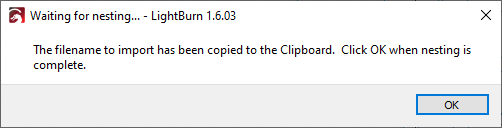
Your default web browser will automatically open to SVGnest.com, and a dialog window will open in LightBurn, informing you that an SVG has been created and its file name (LightBurnNest.svg, along with a file path), has been copied to your clipboard.
-
On SVGnest.com, click Upload SVG. Paste the automatically copied name into the file browser, or navigate to the location the SVG saved to and select it.
-
Select the container shape, then click Start Nest.
-
When you are satisfied with the resulting nest, or the process is complete, click Stop Nest, then Download SVG. Save the nested SVG.
-
Back in LightBurn, click OK in the dialog box. Your file browser will open — navigate to the location of the SVG you downloaded from SVGnest, and import it into LightBurn.
Note
LightBurn will automatically delete the LightBurnNest.svg file it created and exported after you import the new file from SVGnest.