Cameras / Overlays Window
About The Cameras / Overlays Window
Info
The Cameras window is now the Cameras / Overlays window.
Use the Cameras / Overlays window to view and manage connected cameras. To enable the Cameras / Overlays window, go to Window → Cameras. If you don't have any cameras available, you'll need to Add a Camera.
If you have multiple lasers, cameras are specific to each device, so changing devices will change which cameras you havee available.
Click any option in the image below to jump directly to more information about it, or scroll down for a list of options and descriptions.
Using the Cameras / Overlays Window
Each camera you've added for your currently selected laser will show up in the Cameras / Overlays window, with the following sections:
- Camera Overlay Toggle & Resolution
- Overlay Tools & Opacity Slider
- Camera Preview
- Camera Settings
- Adjust Overlay
- Advanced
At the bottom of the window, you'll find:
- Home button to home your laser.
- Add Camera button.
- Manage Cameras button.
- Import Camera button.
Keep reading for more on each of these.
Camera Overlay Toggle & Resolution
Each camera section starts with a toggle switch to enable or disable the camera in the overlay on the workspace. If the toggle is disabled, the camera will not appear in the overlay.
This section also tells you whether the camera is an Overhead or Head camera, and shows you the resolution in terms of pixels/mm. The higher this value is, the more detail your camera can show.
Overlay
Each camera you add will have a section with buttons to control and manage the Camera Overlay, as well as a slider to control the opacity.
Update Overlay
Depending on what type of camera you have, your Update Overlay options will change.
Overhead Camera: Update Overlay
For Overhead cameras, the Update Overlay button will capture an image from your connected overhead camera(s) and update the overlay in the workspace. If you have multiple overhead cameras, all of them will be included (unless they're disabled). Use this to quickly update the Workspace with an overview of the bed of your laser.
Head Camera: Single, Selected, and Workspace Capture
Head Cameras have three different ways to update the Overlay: Single, Selected and Workspace.
Single
The Single capture option focuses the Z axis and captures a single image at the laser head's current location.
Selected
The Selected capture option requires you to have at least one shape selected. It will move the laser head over the selected shape(s) and stitch captures together for the area around your selected shapes.
Workspace
The Workspace capture option moves the laser head over the entire Workspace and stitches captures together to create an overview of the entire laser bed, similar to what you would get from an Overhead Camera.
Trace
Click Trace Overlay to open LightBurn's Trace Image tool and trace directly from the camera.
Clear
Click Clear to clear the overlay for that particular camera.
Opacity
Use the Opacity slider to change the transparency of the overlay for that particular camera. Reducing the opacity can sometimes make it easier to see what you're drawing.
Info
In LightBurn 2.2, the opacity slider for each camera only goes down to 10% opacity. To hide the overlay entirely, turn off the Camera Overlay Toggle
Camera Preview
Each connected camera has a preview with a status bar. The status bar shows you the current state of the camera and gives you quick access to tools like Calibration and Alignment. You can find more info about each item in the status area in the table below.
Camera Status Area
| Name | Description |
|---|---|
| Arrow | Use this to expand or collapse individual cameras. |
| Streaming Indicator (Green Dot) | If a camera is connected and streaming video to LightBurn, a green circle appears in the status area. |
| Update Overlay | Click this button to update the Camera Overlay. |
| Included in Global Overlay | Use this button to toggle whether or not the camera should be included in the global Camera Overlay. If a camera is disabled, the eye will be crossed out with a red background. |
| Camera Connection Indicator | Has a red background if the camera is disconnected. Click to open the Edit Camera window. |
| Camera Calibration Indicator | Has a red background if the camera is uncalibrated. Click to open Camera Calibration. |
| Camera Alignment Indicator | Has a red background if the camera is not aligned to the workspace. Click to open Camera Workspace Alignment. |
Context Menu
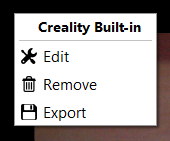
Right-click in the Camera section to open the context menu. The first line on the menu tells you which camera you're working with. In addition:
- Edit opens the Edit Camera Window for the selected camera.
- Remove will remove the selected camera.
- Export will export a LightBurn Camera File so you can back up your camera settings or copy them to a different LightBurn installation.
Camera Settings
The Camera Settings section contains settings for adjusting your camera image.
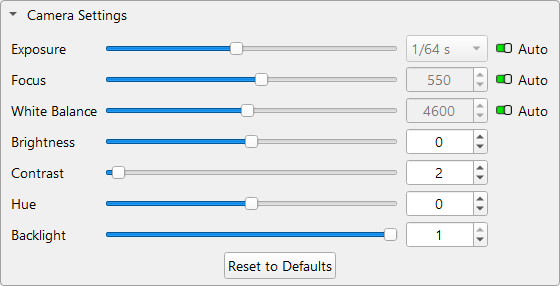
The default settings here are chosen to work for most setups, but you can adjust your settings using the sliders or numeric entry boxes. For Exposure, Focus, and White Balance, you can also enable or disable automatic adjustment here.
Adjust Overlay
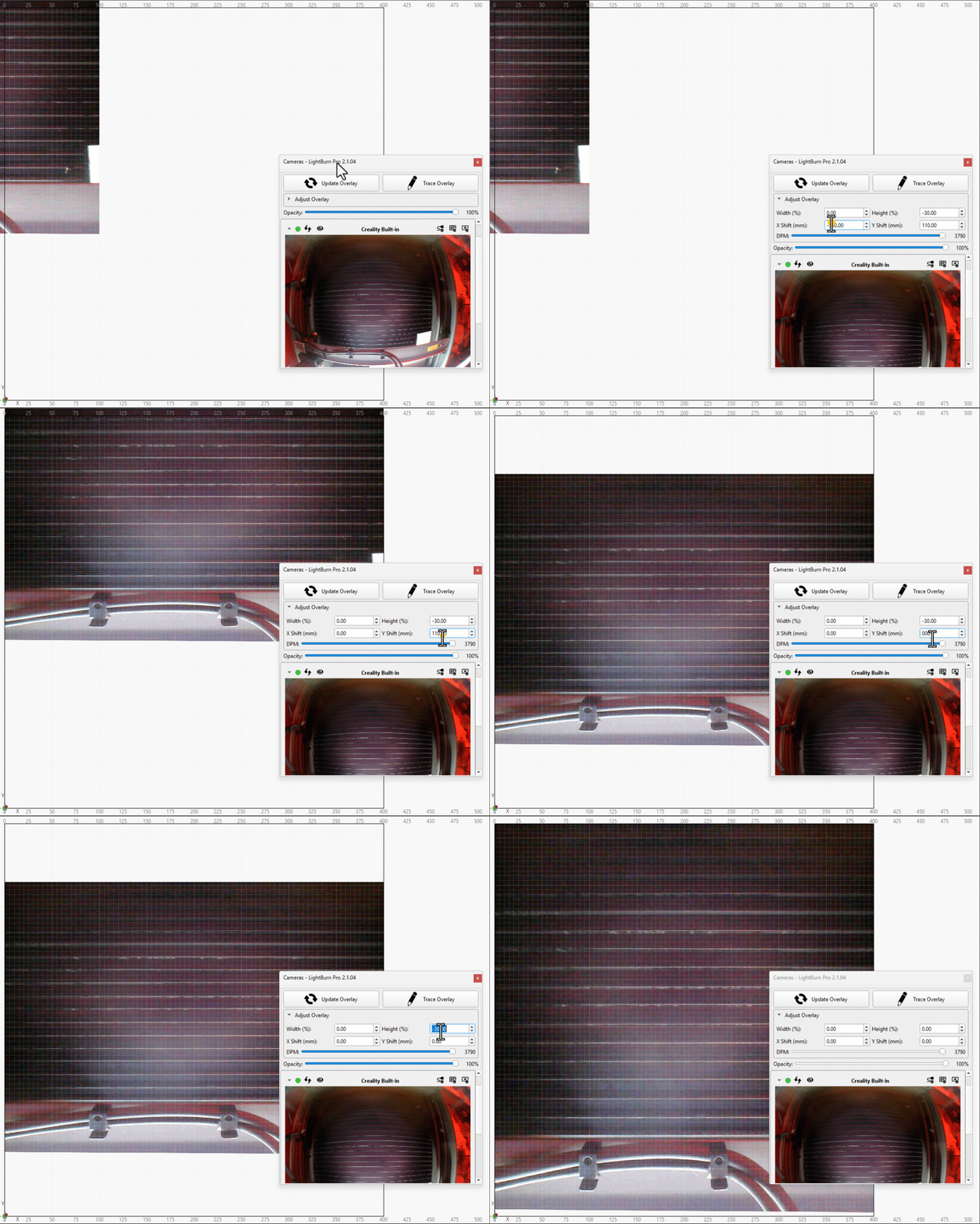
Overlay Width / Height
Adjust the size of the camera overlay.
X Shift / Y Shift
Shift the camera image in the X and/or Y directions, if the entire image is shifted over from where it should be.
Advanced
The Advanced section contains less commonly used camera settings.

Preview FPS
Use the dropdown to set the framerate of your camera. Higher numbers capture more images per second, giving you a more responsive preview, but also increasing the demand on your computer.
If your camera seems to be slowing down your computer, try lowering the framerate. On the other hand, if you've got a powerful computer and want a more responsive preview, you can try increasing the framerate.
Capture Image
Use either of these buttons to capture the image from your camera and insert it into your LightBurn Workspace. The Calibrated button will insert the image after applying your lens calibration, and Uncalibrated will ignore your lens calibration.
Add Camera
Click the Add Camera button to open the New Camera Wizard and set up a new camera in LightBurn.
Manage Cameras
Click the Manage Cameras button to open the Device Cameras window.
Import Camera
Click the Import Camera button to import a pre-configured camera with a LightBurn Camera File (.lbcm).
Context Menu
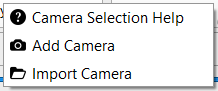
Clicking anywhere in the Cameras / Overlays Window other than inside a camera preview will open a context/right-click menu.
- Camera Selection Help will open the Camera Selection Help window to help you find an appropriate camera.
- Add Camera will open the wizard for Adding a Camera.
- Import Camera will open a dialog box to Import a Camera