Generate Path From Cut
Generate Path From Cut creates new paths based on your currently selected objects. The new paths include properties you've added through the Cut Settings Editor, such as Tabs, Kerf Offsets, and Perforations. The new paths generated are the cutting moves that are sent to the preview and the laser.
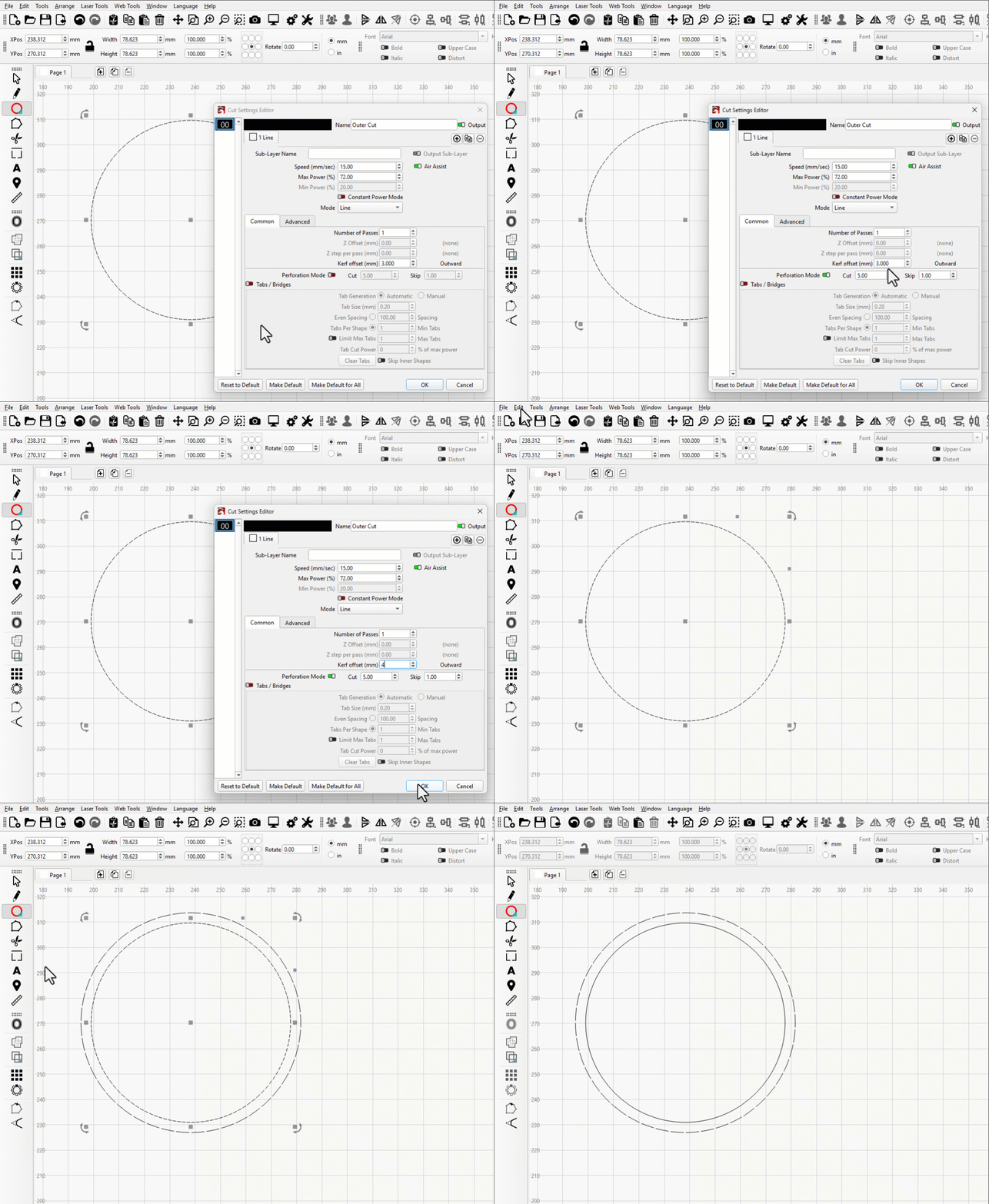
In this GIF, the circle has Perforation Mode and a large Kerf Offset (for visibility) applied, and a new path is created from it using Generate Path From Cut.
How to Use Generate Path From Cut
- Prepare your shapes as you see fit.
- Select the objects you want to generate paths from.
- Go to Edit → Generate Path From Cut.
- Your new paths are created without deleting the original objects.
Additional Information
Generate Path From Cut can be used to export designs for use with other programs while keeping the properties you set up in LightBurn, or anywhere you want to directly use or edit those properties. For instance:
- If you have a vinyl cutter or other similar CNC cutting tool, you could create an SVG that already includes tabs or perforated lines to import into that machine's control software.
- If you want to make alterations to a cut property, such as perforating part of a line, or altering part of a fill, you could use Generate Path From Cut and then use node editor or other design tools to edit the resulting shape.
Generate Path From Cut works on Fills and Images, but be cautious with particularly large images — the large number of paths produced may cause some lag for older computers with weaker hardware.
Convert to Cut
If you're looking for the Convert to Cut tool that was in LightBurn 2.1 or older, you're in the right place — it's been renamed to Generate Path From Cut in LightBurn 2.2.