Vendor Bundles
Starting in LightBurn 1.6, vendors can create and export Vendor Bundles to provide users with a simplified setup process for their laser cutters.
What Is a Vendor Bundle?
Vendor Bundles produce a .lbvendor file that any user running LightBurn 1.6 or higher can import to load pre-configured Devices and Material Libraries.
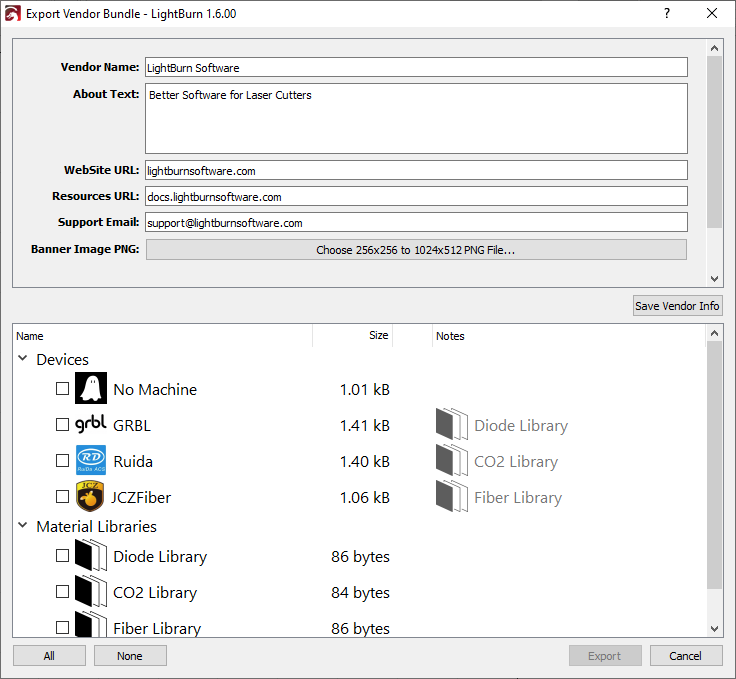
In addition to Devices and Material Libraries, Vendor Bundles include a Banner Image, custom Device Icon, and a header block for vendor information, to be shown to users on import. The header block includes the following sections:
- Vendor Name
- About Text
- Website URL (must start with https://)
- Resources URL
- Support Email
Creating a Vendor Bundle
The Vendor Bundle command is only available on LightBurn 1.6 or higher, and requires a LightBurn license with a special Vendor flag. If you do not have this option and think you should, please contact support for assistance.
To create a bundle:
- Add and configure a device in LightBurn.
- Go to File → Bundles → Export Vendor Bundle.
- Click Edit Vendor Info and update the header block with your vendor information.
- Upload a Banner Image and custom Device Icon, if desired.
- Click Save Vendor Info.
- Select the Device(s) and any Material Libraries you wish to include in the bundle.
- Click the Export button.
This process can be repeated with different devices to create a separate bundle for each device you sell. This includes variants of the same device, such as producing bundles with different Material Libraries for 5W, 10W, and 20W variants of the same device.
Please test your bundle by importing it into a fresh installation of LightBurn to make sure it's configured correctly before providing the bundle to users.